

Mirror new Jira Software issues as cards in Monday.com
Each new Jira Software issue that Jira posts to this workflow’s webhook becomes an item on a Monday.com board, so a team planning in Monday sees engineering work without copying it across.
 Webhook
 Monday.com
2 steps Setup ~5 min Used on 2.9k sites Productivity Free to import
What this workflow does
When engineering works in Jira Software and the rest of the company plans in Monday.com, new issues have to be copied over by hand before other teams know about them. This workflow does the copying for each new issue.
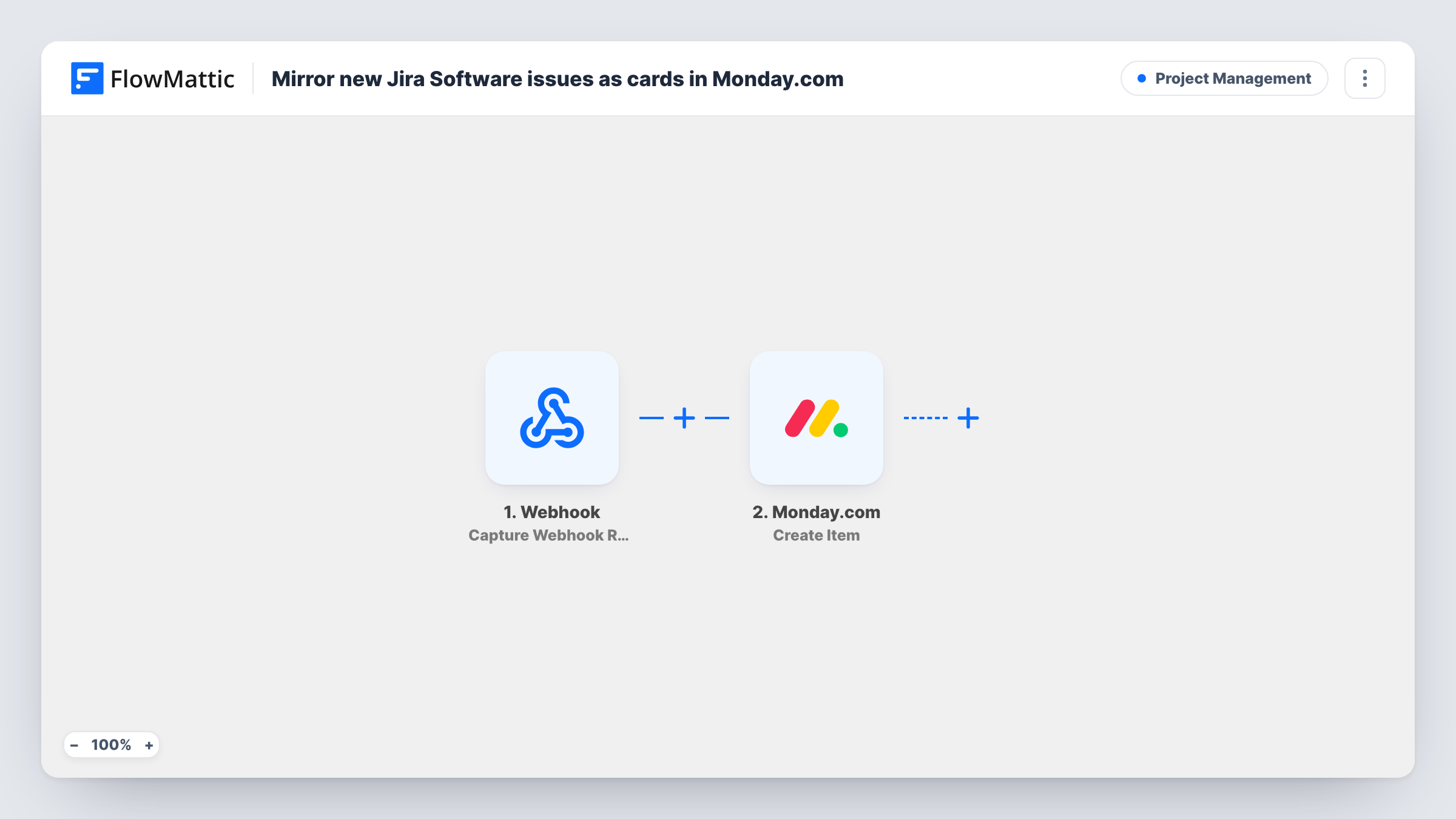
The workflow opens with a Webhook trigger, which gives you a URL that you add as a webhook in Jira's settings, set to the issue created event, so Jira posts each new issue to FlowMattic. FlowMattic's own Jira Software trigger, Configure Webhooks, is also a webhook receiver, so the generic one does the same job here.
The Monday.com step is Create Item, which adds a new item to a board. You choose the board and map values from the Jira issue, such as its key and summary, into the item. Send a test issue after setup so the Jira fields appear for mapping.
The workflow acts on whatever Jira sends to the URL. If the Jira webhook also sends issue updates, each edit creates another Monday item, so limit it to the created event. Changes made in Monday don't go back to Jira.
Product managers planning in Monday
New bugs and feature requests filed in Jira appear on the product team's Monday board, where they sit alongside the roadmap and launch plans.
Support tracking engineering fixes
Support staff follow a Monday board that receives each new Jira issue from the support project, so they can tell customers a fix is logged.
Agency client boards
An agency's developers work in Jira while account managers use Monday, and each new client issue shows up on that client's board.
How this workflow runs
What happens at each step once the workflow is on, and what you need before you import it.
 Webhook Capture Webhook Response
Gives you a URL to add as a webhook in Jira Software. Set Jira to send the issue created event, and each new issue's data arrives here for mapping.
- Monday.com Create Item
Adds a new item to the Monday.com board you pick. Map the Jira issue key and summary into the item so the team can find the matching Jira issue.
What you need
- FlowMatticCore
- Monday.com AccountAccount
After importing, map your own data. To keep the template universal, not every step is pre-filled. Open each step in the builder and connect your accounts and fields (channels, lists, sheets, recipients) before you switch the workflow on.
Make it yours
Changes worth making after you import it.
- In Jira's webhook settings, send only the issue created event. If issue updates go to the same URL, every edit adds another item to your Monday board.
- Use a JQL filter in the Jira webhook to send issues from one project only, so each Monday board gets the work that belongs to it.
- Include the Jira issue key in the Monday item name, so anyone on the board can search for the issue in Jira.
Questions about this workflow
Does Jira send new issues to FlowMattic on its own?
No. A Jira admin adds the workflow's webhook URL in Jira's webhook settings and picks the issue created event. Until then, nothing reaches this workflow.
Do Monday.com changes sync back to Jira Software?
No. Data only goes from Jira to Monday. Status changes or comments made on the Monday item stay in Monday.
What happens if Jira sends an issue update to the webhook?
The workflow treats it like any other payload and creates another Monday item. Keep the Jira webhook limited to the issue created event.
Can I use FlowMattic's own Jira Software trigger instead?
Yes. Its Configure Webhooks trigger also receives events from Jira. Swap it in for step one and remap the fields in the Monday step.
More Project Management workflows
Other ready-to-import templates from the same category.





Import this workflow into your WordPress site
Download the JSON, import it from the Workflows screen and connect your accounts. Every run stays on your server, with no per-task fees.
30-day money-back guarantee Unlimited workflows and runs Self-hosted