

When a new vPlan card is created, add it to Airtable and notify the team in Discord
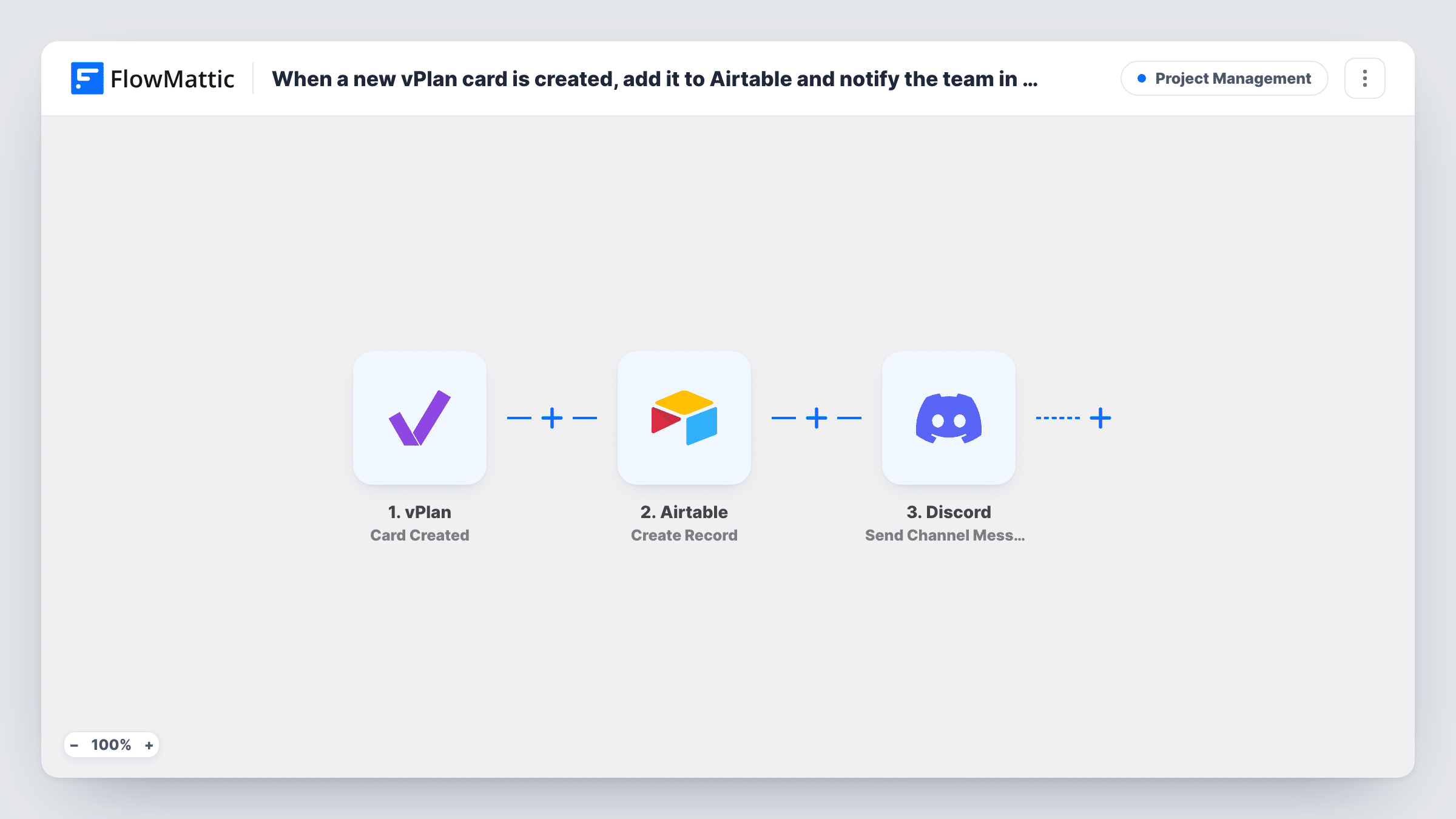
Each time a card is created in vPlan, this workflow saves it as a new Airtable record and posts a message about it in a Discord channel, so new work is both logged and announced.
 vPlan
vPlan
 Airtable
 Discord
3 steps Setup ~5 min Used on 2.8k sites Productivity Free to import
What this workflow does
New planning work needs two things: a record you can report on, and a heads-up for the people who will do it. vPlan holds the plan itself, but reporting may live in Airtable and team chat in Discord. This workflow handles both each time a card is added.
The vPlan trigger is Card Created, which fires when a card is created. FlowMattic first sends the card's data to Airtable, where Create Record adds a row to the base and table you choose, with fields like name, dates and status mapped to columns. Then Discord's Send Channel Message posts your text, with card details, to the channel you pick.
Both steps run for every new card. Edits to a card afterwards don't fire this trigger, so the Airtable record keeps the details from creation. Task History shows each run and the result of both steps.
Studio job tracking
A design studio plans jobs in vPlan. Each new job card becomes an Airtable record for invoicing, and the team channel in Discord sees it arrive.
Community project board
Volunteers coordinate on Discord. When an organiser adds a task card in vPlan, the server channel announces it and Airtable keeps the full list.
Monthly reporting on planned work
Managers build Airtable views of how many cards were created each month, without exporting from vPlan.
How this workflow runs
What happens at each step once the workflow is on, and what you need before you import it.
 vPlan Card Created
Starts the workflow each time someone adds a card in vPlan. The card's details become available to map into Airtable and Discord.
- Airtable Create Record
Creates a new record in your Airtable table from the vPlan card. Map each field to an Airtable column, then connect your Airtable account and pick the base and table.
- Discord Send Channel Message
Posts a message about the new card to the Discord channel you choose. Write the text, map the card name and other details, and connect Discord.
What you need
- FlowMatticCore
- vPlan AccountAccount
- Airtable AccountAccount
- Discord AccountAccount
After importing, map your own data. To keep the template universal, not every step is pre-filled. Open each step in the builder and connect your accounts and fields (channels, lists, sheets, recipients) before you switch the workflow on.
Make it yours
Changes worth making after you import it.
- Map the record ID returned by the Airtable step into the Discord message, so people can find the record quickly. Check a test run to see which fields Airtable returns.
- If only cards on certain boards matter, add a Filter after the trigger that checks that field before either step runs.
- vPlan's Card Updated trigger can feed a second workflow, but changing the Airtable record then needs a step that finds it first.
Questions about this workflow
Does the Airtable record change when the vPlan card is edited?
No. The workflow runs once, when the card is created. Later edits stay in vPlan unless you build a separate update flow.
What if the Airtable step fails for a vPlan card?
FlowMattic still moves on to the Discord step, since an error in one step doesn't end the run. Task History shows the Airtable error for that card.
Can new vPlan cards go to different Discord channels?
Not as imported. Add a Router before the Discord step with one route per board or card type, using conditions that can't both match, and give each route its own channel.
More Project Management workflows
Other ready-to-import templates from the same category.





Import this workflow into your WordPress site
Download the JSON, import it from the Workflows screen and connect your accounts. Every run stays on your server, with no per-task fees.
30-day money-back guarantee Unlimited workflows and runs Self-hosted