

Create a task in ClickUp when subscription is cancelled
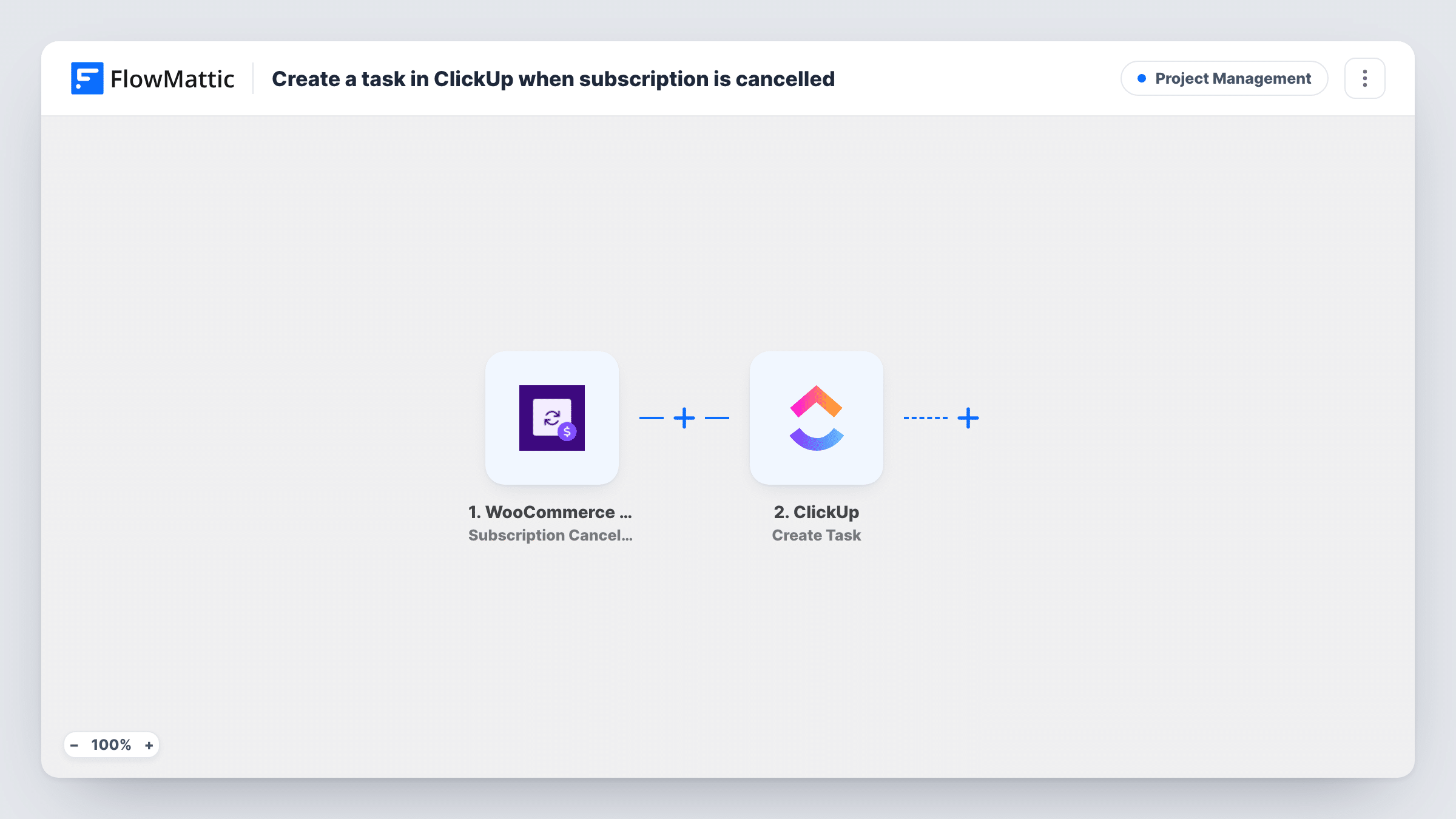
When a WooCommerce subscription is cancelled on your store, this workflow creates a ClickUp task with the subscription details, so someone on your team owns the follow-up for each cancellation.
 WooCommerce Subscriptions
 ClickUp
2 steps Setup ~5 min Used on 1.5k sites Productivity Free to import
What this workflow does
A cancelled subscription can leave loose ends: an exit survey to send, access to remove, a reason to note for later. If those jobs depend on someone spotting the cancellation in WooCommerce, they get done late or not at all. This workflow puts each one in ClickUp as a task.
The WooCommerce Subscriptions trigger fires when a subscription is cancelled on the WordPress store where FlowMattic runs. FlowMattic passes the subscription data on, and ClickUp creates a task in the location you choose. Map the customer's name and the subscription number into the task name, and anything else your team needs into the description.
The workflow does not change the subscription, issue refunds or contact the customer. It only creates the task. Each cancellation makes one new task, so a customer who cancels two subscriptions produces two. Run a test cancellation on a staging order to see which values arrive, and use Task History to review past runs.
Exit survey follow-up
Your customer success lead works from ClickUp. Each cancellation becomes a task to email the customer a short survey and record the answer in the task.
Removing access to a members area
If access to a private group or tool is handled by hand, the task reminds an admin to remove the cancelled customer from it.
Monthly cancellation review
Tasks collect in one ClickUp list, so at month end the team can read through every cancellation together and spot common reasons in the notes.
How this workflow runs
What happens at each step once the workflow is on, and what you need before you import it.
 WooCommerce Subscriptions Subscription Cancelled
Runs when a subscription is cancelled in WooCommerce Subscriptions on your store. The subscription and customer data is passed to ClickUp for mapping.
- ClickUp Create Task
Creates a ClickUp task for the cancellation. After import, pick where the task goes and map the customer name, subscription number and products into the task.
What you need
- FlowMatticCore
- WooCommerce Subscriptions PluginPlugin
- ClickUp AccountAccount
After importing, map your own data. To keep the template universal, not every step is pre-filled. Open each step in the builder and connect your accounts and fields (channels, lists, sheets, recipients) before you switch the workflow on.
Make it yours
Changes worth making after you import it.
- Add a Filter after the trigger that continues only when the subscription total is greater than a set amount, if your team follows up on larger accounts only. A blank total counts as 0.
- Add a Slack step after ClickUp to post the new task in a channel, so the team sees the cancellation even before they open ClickUp.
- Cancel a test subscription on a staging site after import so FlowMattic captures real data, then map the fields into the ClickUp task.
Questions about this workflow
Do I need the WooCommerce Subscriptions plugin for this ClickUp workflow?
Yes. The trigger comes from WooCommerce Subscriptions, which must be active on the same WordPress site as FlowMattic. Plain WooCommerce orders do not fire it.
Will subscriptions that expire create a ClickUp task?
This trigger is Subscription Cancelled, so it reacts to cancellations only. FlowMattic also has a Subscription Expired trigger; use it in a second workflow if you want tasks for subscriptions that run out.
Does the workflow refund or contact the cancelled customer?
No. It only creates a ClickUp task. Any refund, email or access change is up to the person handling the task, or to extra steps you add.
What if a customer cancels and then resubscribes?
The task from the cancellation stays in ClickUp. Nothing in this template watches for reactivations, so close the task by hand if the customer returns.
More Project Management workflows
Other ready-to-import templates from the same category.





Import this workflow into your WordPress site
Download the JSON, import it from the Workflows screen and connect your accounts. Every run stays on your server, with no per-task fees.
30-day money-back guarantee Unlimited workflows and runs Self-hosted