

Send a Slack notice when a Plumsail Documents process finishes
When a Plumsail Documents process finishes, this workflow posts a message in the Slack channel you choose, so the people waiting on a contract, quote or report know it has been generated without checking Plumsail themselves.
 Plumsail Documents
 Slack
2 steps Setup ~5 min Used on 3.3k sites Free to import
What this workflow does
Document generation often sits in the middle of a longer job. Sales waits for a quote, operations waits for a delivery note, and nobody knows the file is ready until someone goes and looks. This workflow tells your team in Slack the moment Plumsail Documents completes a process.
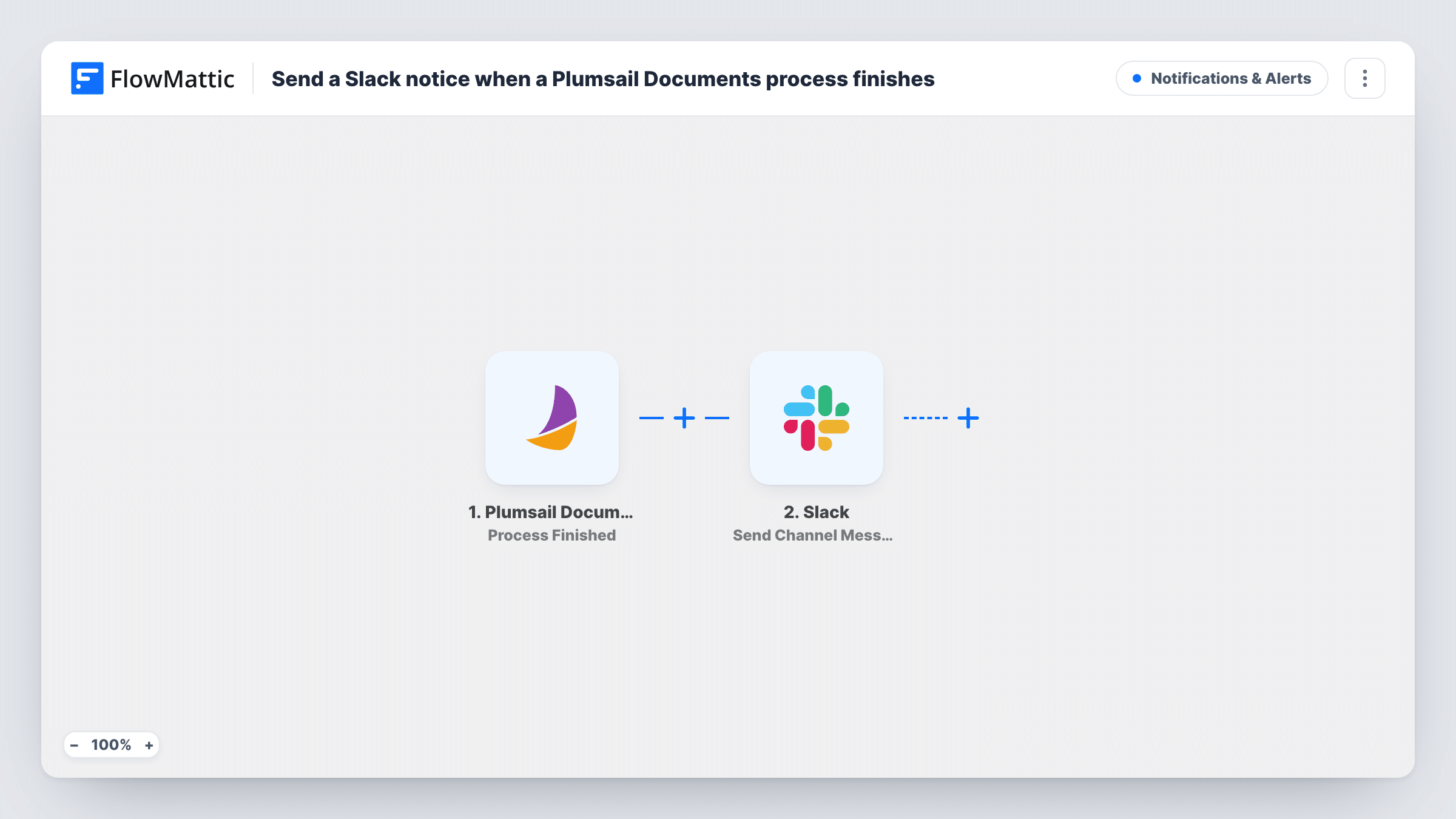
The Plumsail Documents trigger starts this workflow at the end of each completed process. FlowMattic receives the data Plumsail sends about that run and hands it to Slack, where the Send Channel Message action posts to a channel you pick. You write the message text and can drop in values from the finished process, such as a document name or link if Plumsail includes one.
Every finished process produces one message, and the template has no conditions. If you connect several Plumsail processes, each of them posts to the same channel. The document stays where Plumsail put it, since this flow neither moves nor stores it. Run a test process after import to see which values are available for your message.
Quotes ready for a sales rep
When Plumsail finishes building a quote, a message in the #sales channel tells the rep it is ready to review and send.
HR offer letters
The HR channel gets a notice each time an offer letter process completes, so the recruiter can check it before it goes to the candidate.
Proof that a batch job ran
Operations sees a Slack message for each finished Plumsail process, which makes a missing run easy to notice.
How this workflow runs
What happens at each step once the workflow is on, and what you need before you import it.
 Plumsail Documents Process Finished
Runs at the end of each completed Plumsail Documents process. Whatever data Plumsail sends about that finished run can be placed in the Slack message.
- Slack Send Channel Message
Sends your notice to one Slack channel. Connect your Slack workspace, select the channel and write the text, adding values from the Plumsail process where they help the reader.
What you need
- FlowMatticCore
- Plumsail Documents AccountAccount
- Slack AccountAccount
After importing, map your own data. To keep the template universal, not every step is pre-filled. Open each step in the builder and connect your accounts and fields (channels, lists, sheets, recipients) before you switch the workflow on.
Make it yours
Changes worth making after you import it.
- Put the generated document's link in the message, if your test run shows Plumsail sends one, so readers can open the file straight from Slack.
- Add a Router when different processes belong to different teams, with route conditions that tell your processes apart and a Slack step for each team's channel.
- Add a Google Drive Upload a File step after Slack if you also want each finished document saved in a shared folder.
Questions about this workflow
Does the Slack message include the Plumsail document itself?
Not as a file. The step posts text. You can add a link or the document name to that text if the finished process data includes them, which a test run will show.
Which Slack channel gets the Plumsail notice?
The channel you select in the Send Channel Message step. Make sure your connected Slack account can post there.
Will I get a Slack message for each Plumsail process I run?
Yes. Every finished process triggers the workflow, and nothing in the template filters by process. Add a Filter or Router if only some should post.
Does this change how Plumsail Documents delivers the file?
No. The workflow listens for the finished process and posts to Slack. Your Plumsail delivery settings work as they did before.
More Notifications & Alerts workflows
Other ready-to-import templates from the same category.



Import this workflow into your WordPress site
Download the JSON, import it from the Workflows screen and connect your accounts. Every run stays on your server, with no per-task fees.
30-day money-back guarantee Unlimited workflows and runs Self-hosted