

Save each new Northpass learner enrolled to course to a Notion database
Each time a learner is enrolled in a Northpass course, this workflow creates an item in a Notion database with the enrollment details, so your team tracks course sign-ups next to the rest of its notes.
 Northpass
 Notion
2 steps Setup ~5 min Used on 1.7k sites Free to import
What this workflow does
Your training runs in Northpass, but planning and follow-up often happen in Notion. Customer success might want to see which accounts have started onboarding courses, or an HR lead might track who joined a compliance course. Copying enrollments across by hand is slow, and the Notion list soon falls behind. This workflow adds each enrollment to a Notion database as it happens.
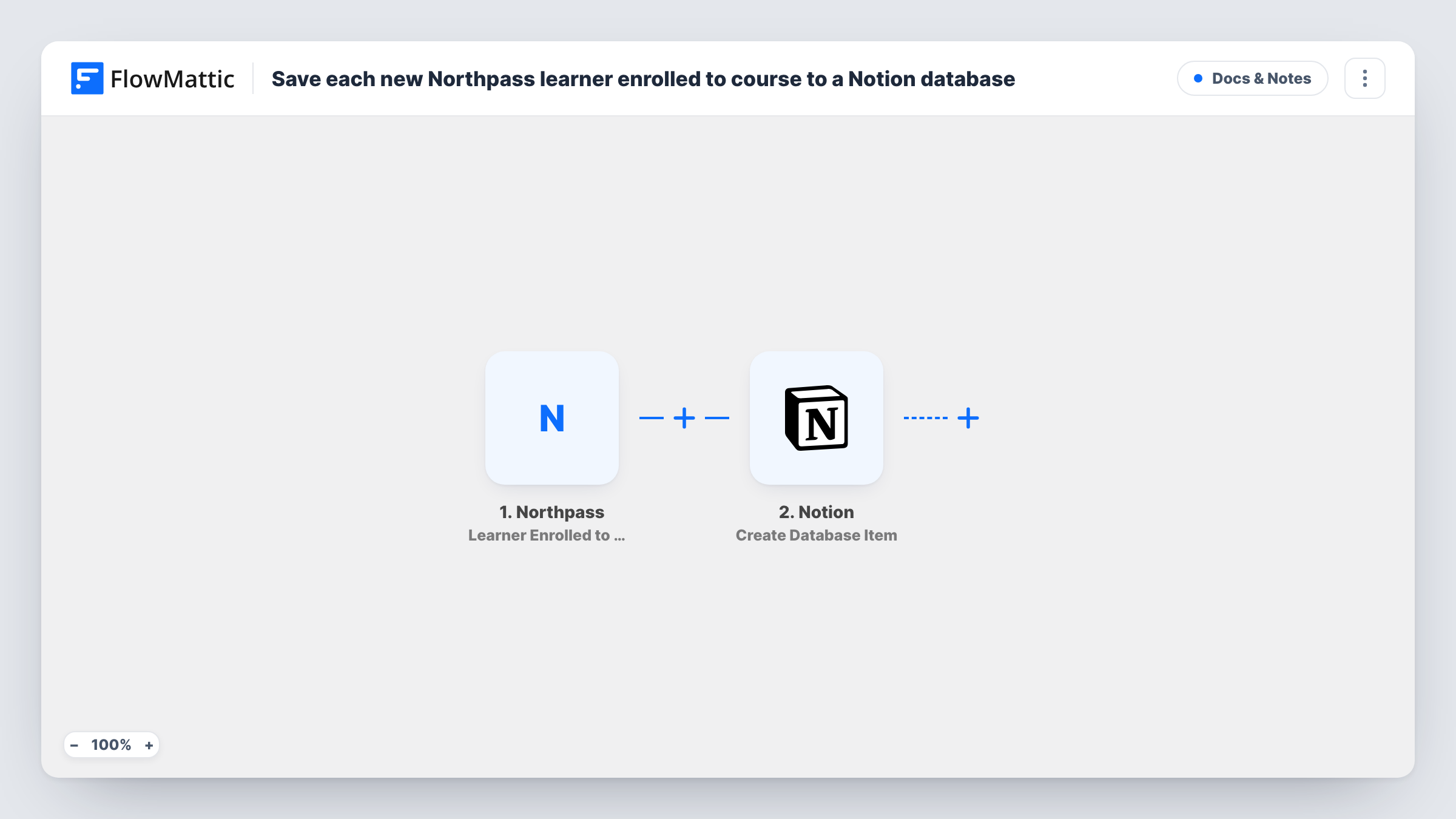
The Northpass trigger fires when a learner is enrolled in a course. The learner and course data from that event is passed to the Notion step, which runs Create Database Item in the database you pick. You map the Northpass values into your database properties, for example the learner's name and email and the course title.
Each enrollment becomes its own item, so a learner who joins three courses appears three times, once per course. That makes the database a log of enrollments rather than a list of people. Progress and completions are not tracked here, because the trigger only covers enrollment. Northpass has separate triggers such as Learner Completed Course if you want those too.
Customer onboarding tracker
Customer success keeps a Notion board of which client users have been enrolled in the onboarding course, with each enrollment added as a card.
Compliance course roster
An HR team enrolls staff in a yearly compliance course in Northpass and reviews the Notion database to see who has been signed up so far.
Partner academy sign-ups
A partner manager sees new course enrollments from reseller staff in Notion, next to the notes and contacts for each partner.
How this workflow runs
What happens at each step once the workflow is on, and what you need before you import it.
 Northpass Learner Enrolled to Course
Runs when a learner is enrolled in a course in your Northpass academy. The learner and course details from that enrollment become available for mapping into Notion.
- Notion Create Database Item
Adds one entry per Northpass enrollment to your chosen Notion database. Map the Northpass learner and course values into the database properties, and share the database with your Notion connection so FlowMattic can write to it.
What you need
- FlowMatticCore
- Northpass AccountAccount
- Notion AccountAccount
After importing, map your own data. To keep the template universal, not every step is pre-filled. Open each step in the builder and connect your accounts and fields (channels, lists, sheets, recipients) before you switch the workflow on.
Make it yours
Changes worth making after you import it.
- Add a Filter after the Northpass trigger that continues only for one course, if the Notion database should follow just that course.
- Build a second workflow on Northpass's Learner Completed Course trigger that uses Notion's Find Database Item and Update Database Item, so the same entry can be marked complete later.
- Enroll a test learner after import so FlowMattic captures Northpass's real enrollment data before you map the Notion properties.
Questions about this workflow
Does the Notion database show Northpass course progress?
No. The workflow only runs when a learner is enrolled. Progress and completions in Northpass do not change the Notion item unless you build another workflow for them.
What happens when one learner enrolls in several Northpass courses?
Each enrollment runs the workflow, so the learner gets one Notion item per course. Group the database by learner email if you want to see them together.
Why is my Notion database missing from the Northpass workflow's step?
Notion only lets a connection reach pages and databases that are shared with it. Share the database with the Notion connection you use in FlowMattic, then pick it in the step.
More Docs & Notes workflows
Other ready-to-import templates from the same category.




Import this workflow into your WordPress site
Download the JSON, import it from the Workflows screen and connect your accounts. Every run stays on your server, with no per-task fees.
30-day money-back guarantee Unlimited workflows and runs Self-hosted