

Save a copy of a published Helpjuice article in a Google Doc
Whenever an article is published in your Helpjuice knowledge base, this workflow creates a new Google Doc holding the article details you map, so you keep a copy of your help content in Google Drive.
 Helpjuice
 Google Docs
2 steps Setup ~5 min Used on 1.5k sites Free to import
What this workflow does
A knowledge base lives inside one tool. When writers, reviewers or translators want to work on an article elsewhere, or you just want a record outside Helpjuice, someone ends up pasting it into a document by hand. This workflow makes that document for you each time an article goes live.
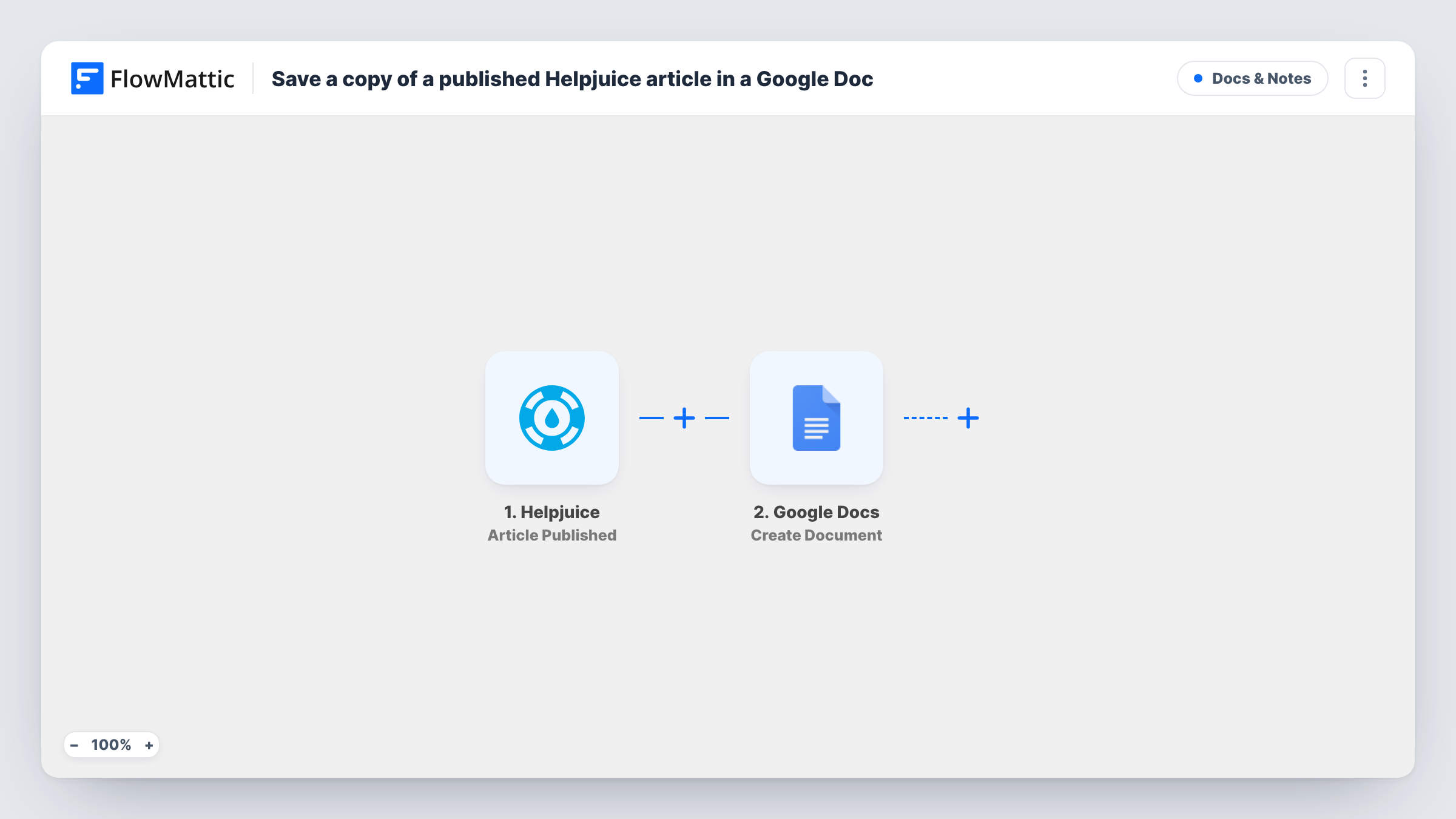
The Helpjuice trigger fires when an article is published. FlowMattic receives the article data Helpjuice sends and runs Create Document in Google Docs, which makes a new doc with optional content. You map the article title to the document name and the article text into the content, as far as the trigger includes it.
Every published article gets its own new doc in Drive. The flow doesn't update an earlier copy, and article edits are a different Helpjuice event. Run a test publish first to see what text arrives and how it looks in the new doc. You can review what Google returned for each article in Task History.
Translation hand-off
A support team publishes help articles in English. Each new one appears as a Google Doc that translators can copy and work from without a Helpjuice login.
Compliance record of published guidance
A regulated business keeps a dated Google Doc of each help article on the day it went live, alongside its other policy records in Drive.
Reusing help content in training
A customer success lead builds onboarding material from published articles, starting from the Google Docs this flow creates.
How this workflow runs
What happens at each step once the workflow is on, and what you need before you import it.
 Helpjuice Article Published
Fires when an article is published in your Helpjuice knowledge base. The article data in the event becomes available to map into the document.
- Google Docs Create Document
Creates a new Google Doc and fills it with the content you map, such as the article's title and text. Connect your Google account on import and confirm the result with a test article.
What you need
- FlowMatticCore
- Helpjuice AccountAccount
- Google Docs AccountAccount
After importing, map your own data. To keep the template universal, not every step is pre-filled. Open each step in the builder and connect your accounts and fields (channels, lists, sheets, recipients) before you switch the workflow on.
Make it yours
Changes worth making after you import it.
- Publish a test article after import and open Task History to see which Helpjuice fields arrive, then map the title and body into the Create Document step.
- If you want the copies laid out the same way every time, switch to Google Docs' Create Document From Template action and put placeholders for the title and body in your template.
- Put the article's publish date or ID in the document name so the copies sort clearly in Drive and two articles with the same title don't look alike.
Questions about this workflow
Does the Google Doc change when I edit the Helpjuice article later?
No. The doc is a copy made when the article was published. Edits fire Helpjuice's separate Article Updated event, which this template doesn't use.
Will articles published before import get a Google Doc?
No. Only articles published while the workflow is on start a run. Older articles need to be copied another way.
Does the copy include the full article text from Helpjuice?
It includes whatever you map from the trigger into the document content. Check a test run to see whether the article body comes through and how it reads in the doc.
Can the Helpjuice copies go into one Google Doc instead of many?
Swap Create Document for Google Docs' Append Text to Document action and point it at a single doc. Each published article is then added to the end of that file.
More Docs & Notes workflows
Other ready-to-import templates from the same category.







Import this workflow into your WordPress site
Download the JSON, import it from the Workflows screen and connect your accounts. Every run stays on your server, with no per-task fees.
30-day money-back guarantee Unlimited workflows and runs Self-hosted