

Log each new Qualtrics mention or case in a Google Sheets spreadsheet
Every new mention or case that comes in through Qualtrics is added as its own row in a Google Sheets spreadsheet, giving your CX and support teams one running log they can sort, share and report on.
 Qualtrics
 Google Sheets
2 steps Setup ~5 min Used on 2.4k sites Free to import
What this workflow does
Feedback teams often need Qualtrics data somewhere more people can reach it: a weekly review, a shared tracker, or a source for charts. This workflow writes each new mention or case to Google Sheets as it arrives, so the log stays current without exports.
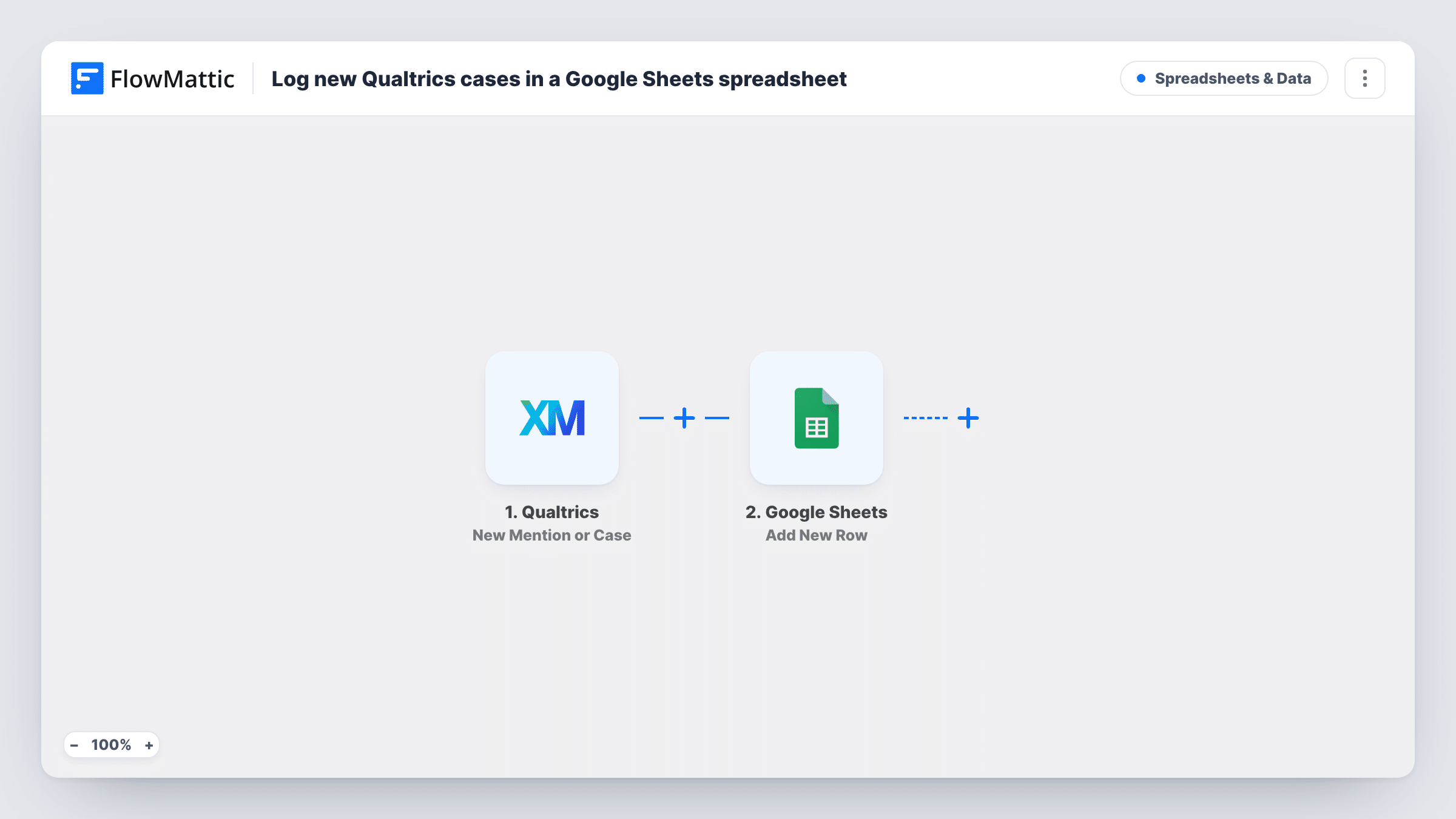
A run starts each time Qualtrics receives a new mention or opens a new case. Both kinds start a run, so the sheet collects mentions and cases together. The data Qualtrics sends for each item is passed on; a test run shows which fields you get, and whether one of them tells mentions and cases apart.
The Google Sheets step adds a new row with mapped data. Nothing is mapped in the template, so after import you connect your Google account, choose the spreadsheet and tab, and match Qualtrics fields to your column headers.
Each mention or case becomes one new row; the step never edits earlier rows, so later changes to a case in Qualtrics don't show up in the sheet. If you only want cases, add a Filter as described in the tips.
Weekly CX review from one sheet
A customer experience lead sorts the sheet by date each Monday to go through last week's Qualtrics mentions and cases with the team.
Charts for leadership updates
An analyst builds a pivot table on the logged rows to show how many cases came in per week, without pulling a Qualtrics export.
Shared tracker for support agents
Support agents who don't use Qualtrics open the spreadsheet to see new cases and add their own notes in extra columns.
How this workflow runs
What happens at each step once the workflow is on, and what you need before you import it.
 Qualtrics New Mention or Case
Fires when a new mention or case comes in through Qualtrics. Mentions and cases both start a run, and their Qualtrics data is passed to the sheet.
- Google Sheets Add New Row
Adds one row per mention or case to the spreadsheet you choose. The step ships unmapped, so pick the sheet after import and map the Qualtrics fields into your columns.
What you need
- FlowMatticCore
- Qualtrics AccountAccount
- Google Sheets AccountAccount
After importing, map your own data. To keep the template universal, not every step is pre-filled. Open each step in the builder and connect your accounts and fields (channels, lists, sheets, recipients) before you switch the workflow on.
Make it yours
Changes worth making after you import it.
- To log cases only, put a Filter between the Qualtrics trigger and the Google Sheets step on a field that tells cases from mentions. Check a test run to find that field and its exact value before you set the condition.
- Map the Qualtrics item ID into its own column, so you can look the record up in Qualtrics when a row needs follow-up.
- Leave a few unmapped columns at the right of the sheet for owner, status and notes, so your team can track handling next to each logged item.
Questions about this workflow
Are Qualtrics mentions and cases logged in the same sheet?
Yes. The trigger fires for both, and the template adds every one as a row in the sheet you pick. Add a column for the item type, if Qualtrics sends one, to tell them apart.
Does the sheet update when a Qualtrics case changes later?
No. The workflow only adds a row when a new mention or case comes in. Later edits to that case in Qualtrics aren't sent to Google Sheets.
Which Qualtrics fields end up in Google Sheets?
Only the ones you map in the Add New Row step. Run a test after import to see the fields Qualtrics sends, then match them to your column headers.
More Spreadsheets & Data workflows
Other ready-to-import templates from the same category.





Import this workflow into your WordPress site
Download the JSON, import it from the Workflows screen and connect your accounts. Every run stays on your server, with no per-task fees.
30-day money-back guarantee Unlimited workflows and runs Self-hosted