

When a Braze webhook event arrives, log it in Google Sheets, notify the team in Slack, then mark the row processed
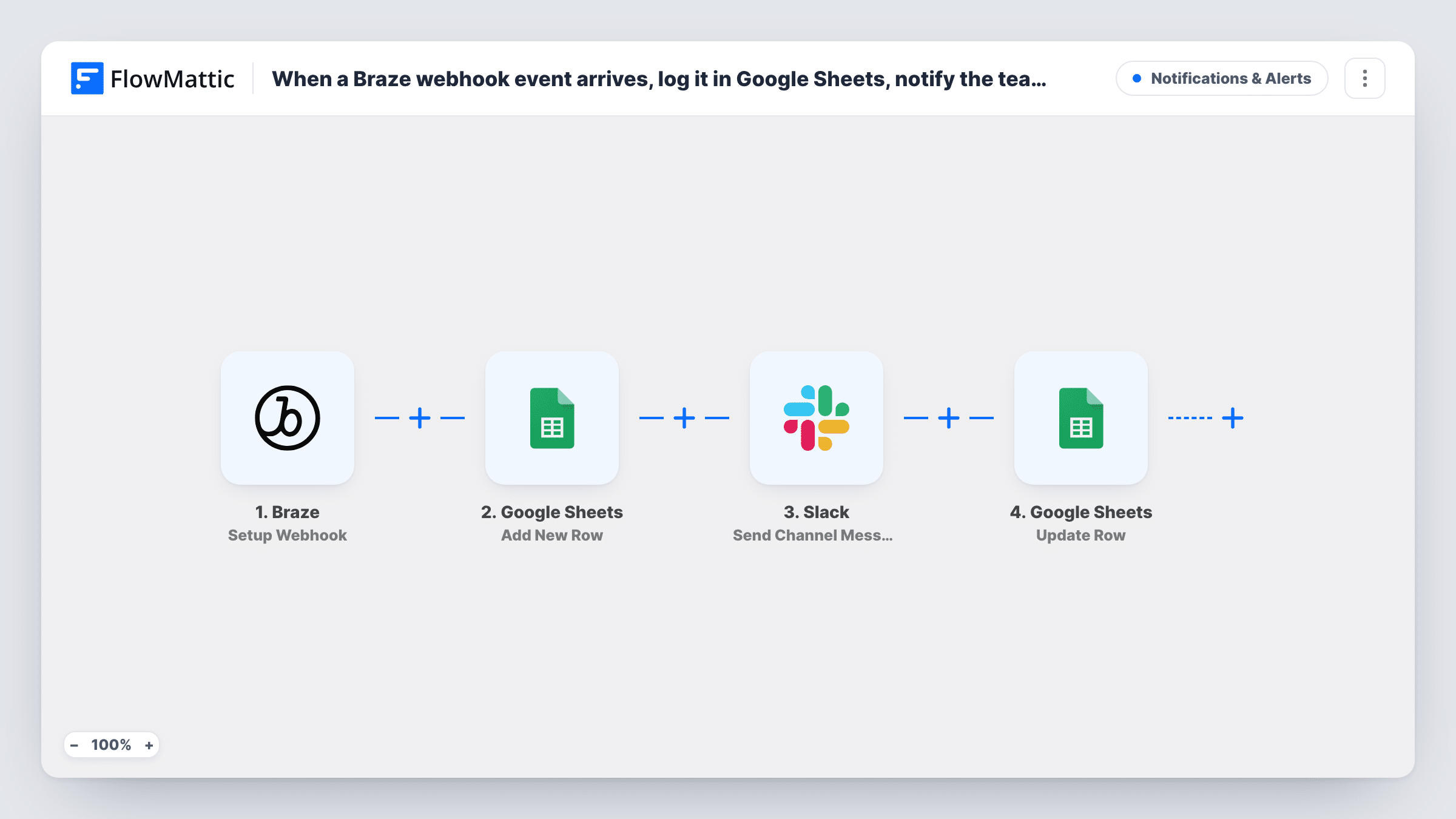
Each request a Braze webhook campaign sends to FlowMattic is logged as a Google Sheets row, posted to a Slack channel, and then the same row is updated so you can mark it as processed.
 Braze
 Google Sheets
 Slack
4 steps Setup ~8 min Used on 1.3k sites Free to import
What this workflow does
Braze webhook campaigns can push engagement data out of Braze, but somebody still has to catch it. This workflow gives each incoming Braze request a home in a spreadsheet, tells your team about it in Slack, and then marks the sheet entry so you can tell handled rows from the rest.
The Braze trigger gives you a FlowMattic URL to use as the destination of a webhook campaign in Braze. Each request Braze sends to it starts one run. FlowMattic first adds a new row in Google Sheets with the payload fields you map. Next, an alert goes to the Slack channel you choose. Last, an Update Row step goes back to the row created at the start and writes your processed marker, for example a status column set to Processed.
Nothing in the template checks the Slack result before the last step, so the marker shows that the run reached Update Row, not what Slack replied. Task History shows the response from each step for every run.
Audit log for a Braze campaign
Point a Braze webhook campaign at this workflow and keep a sheet with one row per request Braze sends, plus a Slack note so the campaign owner sees activity without logging in to Braze.
Hand-off from Braze to a support queue
When a Braze webhook fires for users who need a human touch, the team reads the alert in Slack and works through the sheet, where the processed column shows which rows the workflow finished.
Checking a new webhook campaign before launch
Send test webhooks from Braze and read the payload in the sheet and in Slack, so you can confirm the fields Braze sends before you use them in other workflows.
How this workflow runs
What happens at each step once the workflow is on, and what you need before you import it.
 Braze Setup Webhook
Starts the workflow when a Braze webhook campaign sends a request to this workflow's URL. Run a test send from Braze after import so FlowMattic captures the payload fields.
- Google Sheets Add New Row
Adds a row to the Google Sheets spreadsheet you pick and fills it with fields from the Braze payload. Include a column for the processed marker that the last step fills in.
- Slack Send Channel Message
Sends an alert into a Slack channel of your choosing. Map Braze payload fields into the text so the team sees which user or event the alert is about.
- Google Sheets Update Row
Updates the row added in step 2, using the row reference that step returns, and writes your processed value. Check a test run to see which value from step 2 identifies the row.
What you need
- FlowMatticCore
- Braze AccountAccount
- Google Sheets AccountAccount
- Slack AccountAccount
After importing, map your own data. To keep the template universal, not every step is pre-filled. Open each step in the builder and connect your accounts and fields (channels, lists, sheets, recipients) before you switch the workflow on.
Make it yours
Changes worth making after you import it.
- If only some Braze requests deserve an alert, add a Filter between Add New Row and the Slack step. Every request is still logged, but those that don't pass get no alert and no processed mark.
- To mark the row only when Slack accepted the message, add a Filter between the Slack step and Update Row that checks the Slack step's response for a successful result.
- Write the run time into the processed column next to the marker, so the sheet shows when each row was handled as well as whether it was.
- For a private Slack channel, swap the Slack step for the Send Private Channel Message action. To alert a single teammate, Send Direct Message is the action to use.
Questions about this workflow
Where do I paste the FlowMattic URL in Braze?
Use it as the webhook URL of a webhook campaign or Canvas webhook step in Braze. Each request Braze sends to that URL starts one run of this workflow.
Does Processed in the sheet mean Slack got the message?
Not as imported. No step checks Slack's reply before Update Row writes the marker. If you want Processed to mean the alert went out, add a Filter on the Slack response between the Slack step and Update Row.
Why add a row and then update it, instead of one step?
The row is written before the Slack step, so each Braze request is in the sheet before any alert is sent. The update afterwards records that the run reached the end.
Which Braze fields can I put in the sheet and the Slack message?
Whatever your Braze webhook campaign sends in its request body. Send a test from Braze after import, then map the captured fields in the Google Sheets and Slack steps.
More Notifications & Alerts workflows
Other ready-to-import templates from the same category.





Import this workflow into your WordPress site
Download the JSON, import it from the Workflows screen and connect your accounts. Every run stays on your server, with no per-task fees.
30-day money-back guarantee Unlimited workflows and runs Self-hosted