

Create a ClickUp task from each new Quickbase activity record
Each activity record added in Quickbase becomes a new ClickUp task, so follow-ups logged in Quickbase land in the place your team plans and tracks its work.
 Quickbase
 ClickUp
2 steps Setup ~5 min Used on 1.6k sites Productivity Free to import
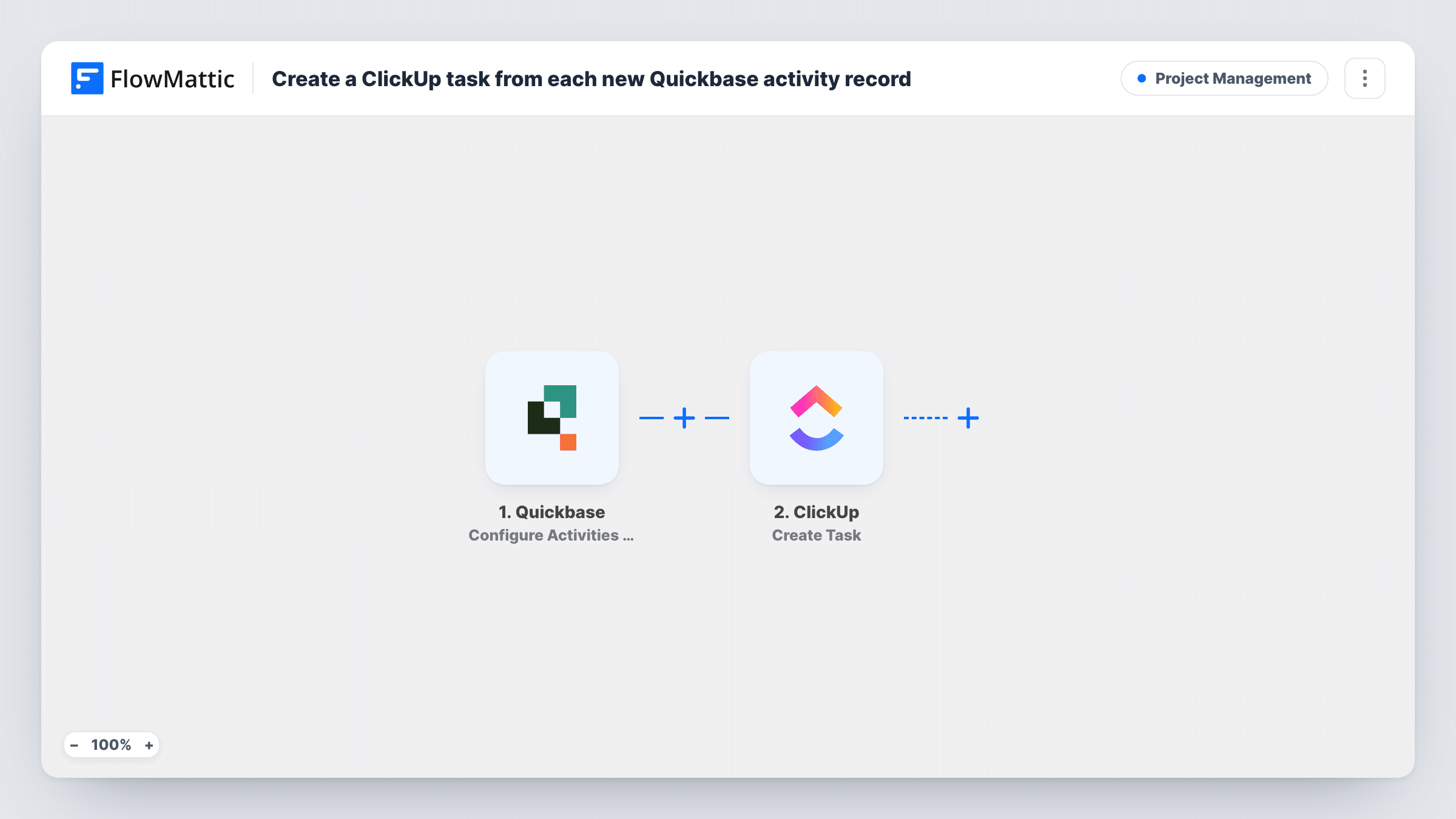
What this workflow does
Activities in Quickbase, such as calls to return, site visits or follow-ups, are often things someone has to go and do. If your team plans its day in ClickUp, those activities are easy to miss. This workflow turns each activity added in Quickbase into a ClickUp task.
The Quickbase trigger is Configure Activities Webhooks. As FlowMattic describes it, it fires when an activity is added, deleted or modified, and you control which of those events are sent when you create the webhook in Quickbase. Choose the added event only. Choosing modified or deleted too would run the workflow on edits and deletions, and each of those runs would create one more task.
Next comes Create Task in ClickUp, which adds a fresh task per run. It ships unmapped, so after import you connect ClickUp, set where the task should go, and map activity values such as the subject and notes into it. Add a test activity in Quickbase and read the run in Task History to see the values the webhook carries.
The task is created once and then lives on its own. Marking the activity done in Quickbase doesn't close the ClickUp task, and closing the task doesn't change the activity.
Call-backs logged in Quickbase, worked in ClickUp
Your support desk logs call-back activities in Quickbase. Each one appears as a ClickUp task, so the person on call-backs works from one task list.
Site visits for the field team
Coordinators schedule visits as Quickbase activities. The field team, who plan their week in ClickUp, get a task for every visit with the details you mapped from the activity.
Follow-ups from account reviews
After a review meeting, an account manager adds follow-up activities in Quickbase. Each one turns into a ClickUp task the delivery team can assign and schedule.
How this workflow runs
What happens at each step once the workflow is on, and what you need before you import it.
 Quickbase Configure Activities Webhooks
Starts a run when Quickbase sends the activities webhook to FlowMattic. FlowMattic lists added, deleted or modified activities for this trigger, so when you create the webhook in Quickbase, choose only the added event.
- ClickUp Create Task
Creates one ClickUp task for each activity that arrives. No values are mapped in the template, so after import you connect ClickUp, choose where the task is created, and map the activity's values into it.
What you need
- FlowMatticCore
- Quickbase AccountAccount
- ClickUp AccountAccount
After importing, map your own data. To keep the template universal, not every step is pre-filled. Open each step in the builder and connect your accounts and fields (channels, lists, sheets, recipients) before you switch the workflow on.
Make it yours
Changes worth making after you import it.
- Build the task name from two Quickbase values, such as the activity type and the contact's name, so tasks are easy to tell apart in a ClickUp list. Check a test run to see which values you have.
- Add a Filter between the Quickbase trigger and the ClickUp step if only some activities need a task, for example where an activity type field equals Visit. That field and value are examples; use the ones in your Quickbase table.
- Put the Quickbase record ID, or a link to the activity, into the task if the webhook sends it, so whoever does the task can find the activity in Quickbase.
Questions about this workflow
Does editing a Quickbase activity update the ClickUp task?
No. There's no step here that changes a task after it's made. With just the added event chosen in the Quickbase webhook, edits don't start a run. If you add the modified event, each edit creates another ClickUp task instead of changing the first one.
Which Quickbase activity details can go into the ClickUp task?
Any value the webhook sends for the activity. Make a test activity in Quickbase, open its run in Task History, and map the values you want into the task.
Will deleting an activity in Quickbase remove the ClickUp task?
No. Nothing in this workflow deletes tasks, and with only the added event chosen, deleting an activity doesn't run it. Remove the task in ClickUp by hand if it's no longer needed.
Can each Quickbase activity go to a different ClickUp list?
As imported, every task goes to the place you set in the ClickUp step. To split them, add a Router between the Quickbase trigger and the ClickUp step, give each route its own ClickUp step, and use route conditions that can't both match.
More Project Management workflows
Other ready-to-import templates from the same category.



Import this workflow into your WordPress site
Download the JSON, import it from the Workflows screen and connect your accounts. Every run stays on your server, with no per-task fees.
30-day money-back guarantee Unlimited workflows and runs Self-hosted