

Send a Pushover push notification when an Opsgenie alert fires
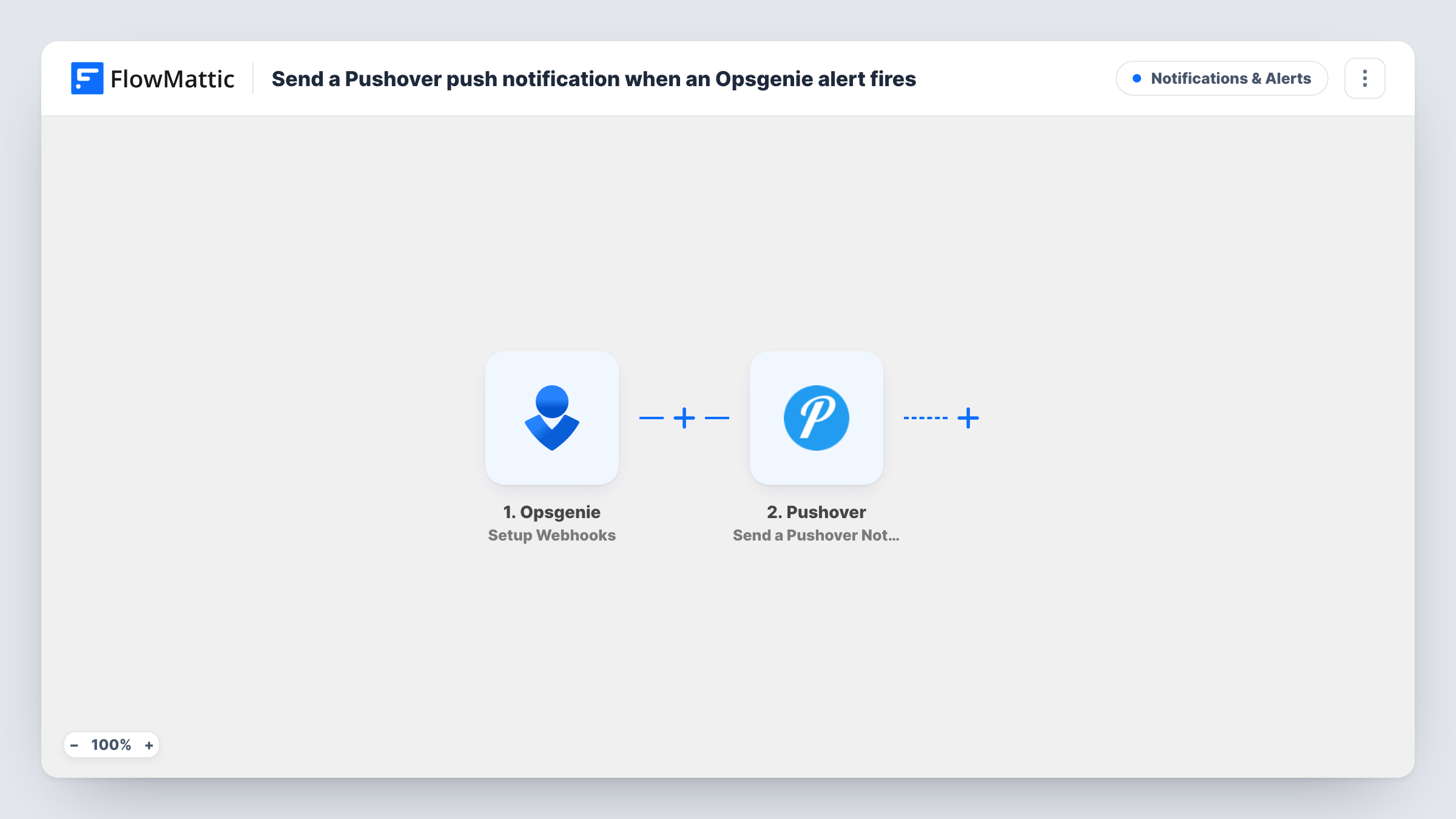
When Opsgenie sends an alert event to FlowMattic, a Pushover notification goes to your subscribed devices with the alert details you map, giving on-call staff a second alert channel on their phones.
 Opsgenie
 Pushover
2 steps Setup ~5 min Used on 3.1k sites Free to import
What this workflow does
Some teams want Opsgenie alerts to reach people through more than one channel, or want people outside the on-call rota to see them too. Pushover delivers a push notification to the phones and desktops registered to a Pushover account. This workflow forwards Opsgenie alert events there.
The Opsgenie trigger gives you a FlowMattic URL to add to Opsgenie as a webhook, and it fires for the events you set Opsgenie to send. FlowMattic passes the alert data to Pushover, whose Send a Pushover Notification step generates a notification to your subscribed devices. You write the title and message and map in alert values such as the message and priority.
The template has no Filter, so every event Opsgenie sends becomes a notification. If the webhook in Opsgenie also forwards acknowledgements or closes, those produce pushes as well, so limit it to new alerts in Opsgenie or add a Filter. Task History lists each run and Pushover's reply.
Extra channel for the on-call engineer
Forward new Opsgenie alerts to the engineer's Pushover app as well, so a missed call or SMS still leaves a notification on the phone.
Keeping a manager informed
Send alerts to a team lead's Pushover devices so they see production problems without being on the Opsgenie rota.
Colleagues outside Opsgenie
Share alert visibility through Pushover with a colleague who has no Opsgenie user of their own, such as a support lead who wants to know when production is down.
How this workflow runs
What happens at each step once the workflow is on, and what you need before you import it.
 Opsgenie Setup Webhooks
Fires for the Opsgenie events your webhook sends to FlowMattic. Add the FlowMattic URL in Opsgenie, choose which alert actions it forwards, then trigger a test alert.
- Pushover Send a Pushover Notification
Sends a Pushover notification to the devices subscribed to your Pushover account. Write the title and message, and map the alert details from Opsgenie into them.
What you need
- FlowMatticCore
- Opsgenie AccountAccount
- Pushover AccountAccount
After importing, map your own data. To keep the template universal, not every step is pre-filled. Open each step in the builder and connect your accounts and fields (channels, lists, sheets, recipients) before you switch the workflow on.
Make it yours
Changes worth making after you import it.
- Add a Filter after the trigger that continues only when the action Opsgenie sends is Create, so acknowledgements and closes don't push a second notification.
- Put the alert's priority in the notification title, so people can tell a P1 from a P5 without opening the message.
- Add a Router if different priorities should go to different Pushover recipients, with one Pushover step per route and conditions that can't overlap.
Questions about this workflow
Which Opsgenie events send a Pushover notification?
Whichever events your Opsgenie webhook is set to forward. Every event that reaches FlowMattic produces a notification, because the template has no Filter.
Does Pushover replace Opsgenie's own on-call notifications?
No. Opsgenie keeps notifying people as it does now. This workflow adds a Pushover notification on top of that.
Will a closed Opsgenie alert send another push?
Only if your Opsgenie webhook forwards close events. Limit the webhook to new alerts, or add a Filter on the action, if you want one push per alert.
More Notifications & Alerts workflows
Other ready-to-import templates from the same category.




Import this workflow into your WordPress site
Download the JSON, import it from the Workflows screen and connect your accounts. Every run stays on your server, with no per-task fees.
30-day money-back guarantee Unlimited workflows and runs Self-hosted