

Flag bounced contacts in ActiveCampaign from new Optimizely bounces
When Optimizely records a new bounce, this workflow tags the matching contact in ActiveCampaign, so you can see bounced addresses there and leave them out of your next sends.
 Optimizely
 ActiveCampaign
2 steps Setup ~5 min Used on 2.3k sites Free to import
What this workflow does
A bounce in one email tool says nothing to the next one. If you send from Optimizely and also email people from ActiveCampaign, an address that bounced in Optimizely keeps receiving ActiveCampaign campaigns until someone notices. A tag on the contact makes the bounce visible where you build your segments.
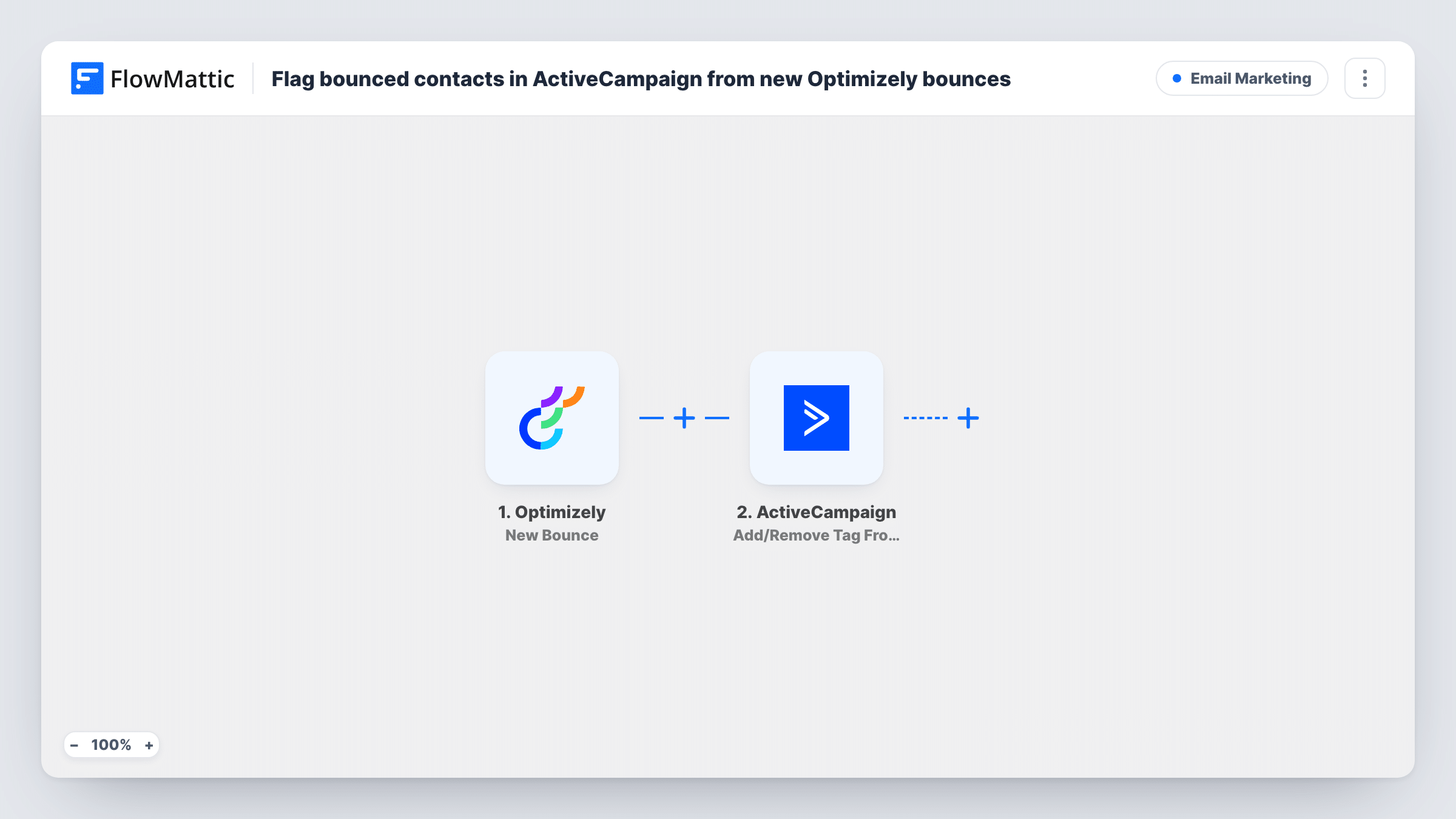
The Optimizely trigger is New Bounce, which fires when a new bounce event has been created. FlowMattic passes the bounce data to ActiveCampaign. The Add/Remove Tag From Contact step adds the tag you choose to the contact matching the address you map from the bounce.
The step works on contacts that are already in ActiveCampaign, which bounced addresses usually are if you mail them from both tools. For an address that isn't there, run a test and read Task History to see what ActiveCampaign returns. The tag itself doesn't stop sending; exclude it in your segments or automations.
Suppressing bounced addresses in campaigns
Your ActiveCampaign newsletter segment excludes the bounce tag, so addresses that bounced in Optimizely drop out of the next send.
List cleanup reviews
Once a month, filter ActiveCampaign contacts by the tag and decide which ones to unsubscribe or correct.
Sales follow-up on bad addresses
A sales automation in ActiveCampaign starts when the tag is added and creates a task to find a working address for that contact.
How this workflow runs
What happens at each step once the workflow is on, and what you need before you import it.
 Optimizely New Bounce
Starts each time Optimizely logs a fresh bounce. The bounce data, which should include the recipient's address, is passed on to ActiveCampaign.
- ActiveCampaign Add/Remove Tag From Contact
Adds the tag you choose to the matching ActiveCampaign contact. Connect ActiveCampaign, map the bounced address to identify the contact and set the tag name.
What you need
- FlowMatticCore
- Optimizely AccountAccount
- ActiveCampaign AccountAccount
After importing, map your own data. To keep the template universal, not every step is pre-filled. Open each step in the builder and connect your accounts and fields (channels, lists, sheets, recipients) before you switch the workflow on.
Make it yours
Changes worth making after you import it.
- Use a clear tag name, such as bounced-optimizely, so anyone building a segment knows where the tag came from.
- Run a test with an address you know is in ActiveCampaign, then check the contact for the new tag before relying on the workflow.
- If you only want hard bounces tagged, add a Filter after the trigger on the bounce type field, if Optimizely's data includes one.
Questions about this workflow
Does the tag stop ActiveCampaign from emailing the bounced contact?
No. It only marks the contact. Exclude the tag in your segments, or build an ActiveCampaign automation that acts on it.
What if the bounced Optimizely address isn't in ActiveCampaign?
The step tags a contact it finds by the address you map. Test with an address that isn't in ActiveCampaign and check Task History to see the result for that case.
Which Optimizely bounce details can I use?
Whatever Optimizely sends with the New Bounce event. Look at the trigger data from a real bounce to see what is available to map.
More Email Marketing workflows
Other ready-to-import templates from the same category.





Import this workflow into your WordPress site
Download the JSON, import it from the Workflows screen and connect your accounts. Every run stays on your server, with no per-task fees.
30-day money-back guarantee Unlimited workflows and runs Self-hosted