

Email your system administrator when a Better Uptime incident is created, acknowledged or resolved
Whenever Better Uptime reports an incident being created, acknowledged or resolved, FlowMattic emails your system administrator with the incident details you map into the message.
 Better Uptime
 Email
2 steps Setup ~5 min Used on 2.9k sites Free to import
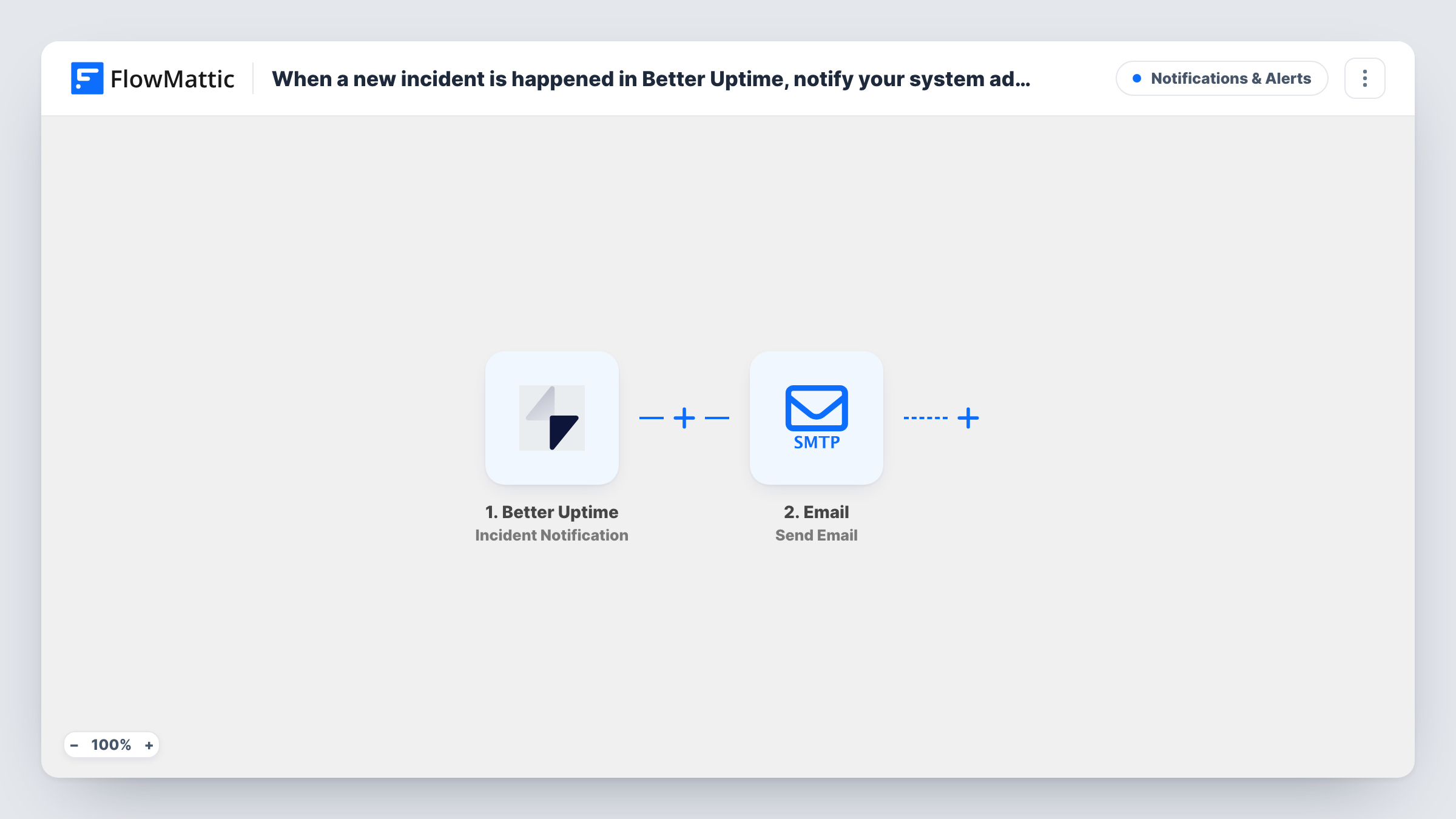
What this workflow does
Monitoring only helps if the right person hears about a problem. If your system administrator isn't on Better Uptime's own alert list, or you want incidents to land in a shared ops inbox, this workflow sends each incident update there by email.
The Better Uptime Incident Notification trigger fires at three points in an incident's life: when it is created, when someone acknowledges it, and when it is resolved. So a single outage normally produces up to three emails, which lets the administrator follow it from start to finish. The incident's details travel with each run.
The email goes out through FlowMattic's Email step, which uses WordPress mail or the SMTP server you configure. Nothing is filled in yet. After import you add the administrator's address, write a subject and message, and map in the incident values, including the one that says whether it was created, acknowledged or resolved, so each email is clear on its own.
If WordPress itself is on the server that goes down, it can't receive the notification or send mail, so host the workflow somewhere separate from what you monitor. Trigger a test incident and check Task History before you rely on it.
Outage emails for a sysadmin outside the rota
A company's infrastructure lead isn't on the Better Uptime on-call schedule but still gets an email for every incident, acknowledgement and resolution.
Incident trail in a shared ops inbox
An agency sends all Better Uptime incident updates to an ops mailbox, so anyone on the team can read how long each outage took to resolve.
Client hosting alerts for a freelancer
A freelance developer who monitors client sites in Better Uptime gets emailed when an incident opens and again when it is resolved.
How this workflow runs
What happens at each step once the workflow is on, and what you need before you import it.
 Better Uptime Incident Notification
Fires when a Better Uptime incident is created, acknowledged or resolved, so one incident can start up to three runs. The incident's details are passed to the email step.
 Email Send Email
Emails the administrator using the site's WordPress mail or an SMTP server you set up. The step ships empty: set the administrator's address, a subject and the message, and map the incident details into them.
What you need
- FlowMatticCore
- Better Uptime AccountAccount
After importing, map your own data. To keep the template universal, not every step is pre-filled. Open each step in the builder and connect your accounts and fields (channels, lists, sheets, recipients) before you switch the workflow on.
Make it yours
Changes worth making after you import it.
- Map the incident's status or event value into the subject line, so the administrator can tell a new incident from a resolution without opening the email.
- Put a Filter between the Better Uptime trigger and the Email step on that status value if you only want emails for new incidents, not acknowledgements or resolutions.
- Run FlowMattic on a different server from the services you monitor, so the email can still go out when the monitored site is down.
Questions about this workflow
How many emails does one Better Uptime incident send?
Up to three: one when the incident is created, one when it is acknowledged and one when it is resolved. A Filter on the status value lets you keep only some of them.
Can this email go to several administrators?
Send it to a group mailbox your administrators share, or add a second Email step after the first with another address. A test incident shows whether each address receives it.
What happens if my WordPress site is the one that's down?
FlowMattic runs on your WordPress site, so it can't receive Better Uptime's notification while that site is offline. Monitor sites hosted elsewhere, or keep Better Uptime's own alerts on for this one.
More Notifications & Alerts workflows
Other ready-to-import templates from the same category.





Import this workflow into your WordPress site
Download the JSON, import it from the Workflows screen and connect your accounts. Every run stays on your server, with no per-task fees.
30-day money-back guarantee Unlimited workflows and runs Self-hosted