

Send a Slack alert to the sales team when an ArcSite proposal is approved
When a proposal is approved in ArcSite, this workflow posts a message to your sales team’s Slack channel, so everyone knows the job is won and can plan the next step.
 ArcSite
 Slack
2 steps Setup ~5 min Used on 3.2k sites Free to import
What this workflow does
An approved proposal is the moment the sales job turns into a real project. If the news sits in ArcSite until someone checks, scheduling, ordering and the follow-up call all start later than they could. This workflow tells the sales channel in Slack as soon as the approval comes through.
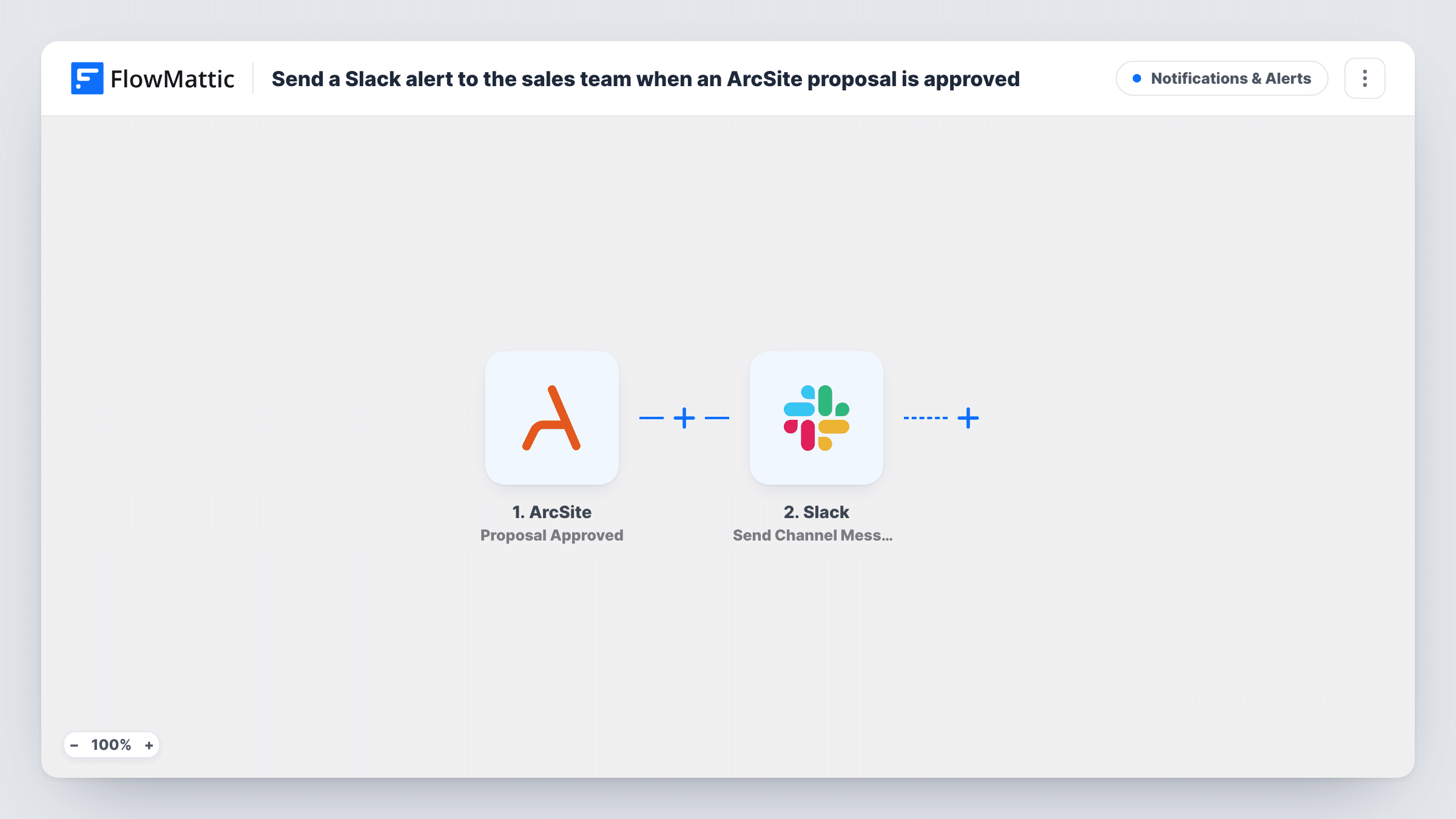
The ArcSite trigger fires when a proposal is approved. FlowMattic collects the details ArcSite sends with that event and hands them to Slack, where Send Channel Message posts to the channel you choose. You write the message and place proposal details in it, such as the project or customer name.
Only approvals start a run. A proposal being sent or signed has its own ArcSite trigger and doesn't post to Slack here. Each run, with Slack's response, is listed in Task History.
Roofing or remodelling crews
When a homeowner approves the proposal a salesperson drew in ArcSite, the #sales channel hears about it and the office can book the crew.
Sales leaderboards
Approved proposals post to a wins channel, with the salesperson's name when ArcSite sends it, so the team sees who closed what during the week.
Handing over to operations
Operations staff watch the same channel and start ordering materials as soon as a proposal is approved.
How this workflow runs
What happens at each step once the workflow is on, and what you need before you import it.
 ArcSite Proposal Approved
Runs when a proposal is approved in ArcSite. The proposal details that ArcSite sends are available to place in the Slack message.
- Slack Send Channel Message
Posts the approval message to the Slack channel you choose for the sales team. Write the text, map ArcSite details into it and connect your Slack workspace.
What you need
- FlowMatticCore
- ArcSite AccountAccount
- Slack AccountAccount
After importing, map your own data. To keep the template universal, not every step is pre-filled. Open each step in the builder and connect your accounts and fields (channels, lists, sheets, recipients) before you switch the workflow on.
Make it yours
Changes worth making after you import it.
- For a private sales channel, change the action to Slack's Send Private Channel Message; Send Channel Message is for public channels.
- Add a Google Sheets step after Slack to keep a running list of approved ArcSite proposals for monthly reporting.
- Approve a test proposal after import so FlowMattic captures ArcSite's fields, then map the ones you want into the Slack text.
Questions about this workflow
Does the Slack alert fire when an ArcSite proposal is only sent or signed?
No. This workflow uses the Proposal Approved trigger. ArcSite's Proposal Sent and Proposal PDF Signed are separate triggers you could use in another workflow.
Can the alert go to one salesperson instead of a channel?
Yes. Swap the action for Slack's Send Direct Message and choose the person who should get it.
What details from the ArcSite proposal can I show?
Whatever ArcSite includes with the approval event. Run a test approval and look at the trigger's output to see which fields you can map.
More Notifications & Alerts workflows
Other ready-to-import templates from the same category.





Import this workflow into your WordPress site
Download the JSON, import it from the Workflows screen and connect your accounts. Every run stays on your server, with no per-task fees.
30-day money-back guarantee Unlimited workflows and runs Self-hosted