

Create Google Sheets rows for new MailerLite group subscribers
Whenever a subscriber is added to a group in MailerLite, FlowMattic writes their details to a new Google Sheets row, so you have a running list of who joined which group and when.
 MailerLite
 Google Sheets
2 steps Setup ~5 min Used on 2.2k sites Free to import
What this workflow does
MailerLite groups often stand for something specific: a lead magnet, a course waitlist, a customer tier. When a colleague or a client needs that list, a spreadsheet is easier to hand over than an account login. This workflow builds that spreadsheet as people join.
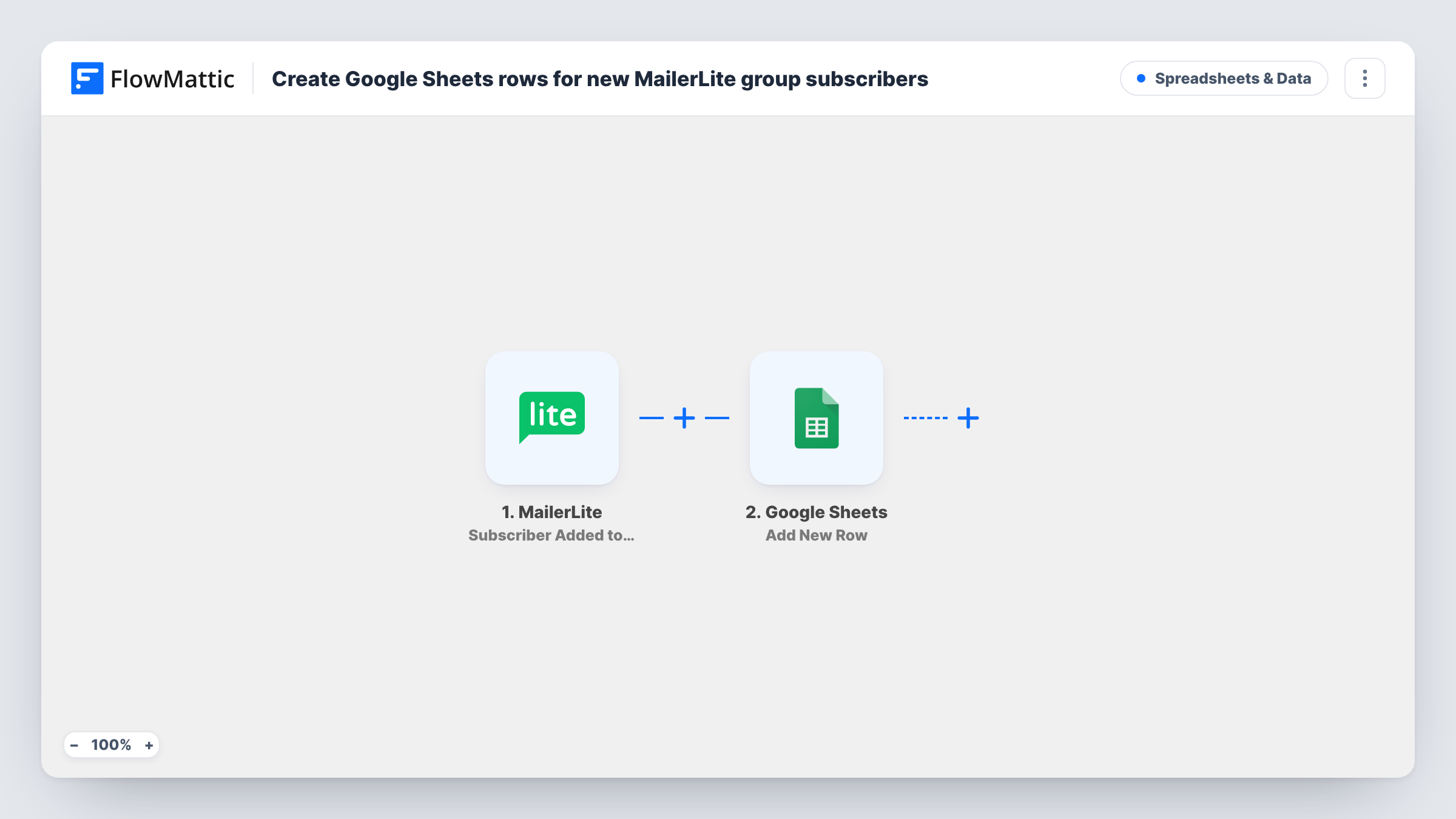
The MailerLite trigger fires when a subscriber is added to a group. That includes existing subscribers moved into a group, not only brand-new sign-ups. FlowMattic sends the subscriber's details to Google Sheets, and the Add New Row action writes them to the sheet you choose.
Someone added to two groups produces two rows, one per group. If you only care about one group, check a test run for the group value and add a Filter on it. Task History lists every subscriber who was written to the sheet.
Lead magnet tracking
People who join the group tied to your free guide appear in a sheet with the date, so you can count downloads by week.
Course waitlist for a partner
A co-host who has no MailerLite access sees the waitlist group grow in a shared Google Sheet.
VIP customer list
When you move buyers into a VIP group in MailerLite, the sheet gives the fulfilment team the names to add a gift to.
How this workflow runs
What happens at each step once the workflow is on, and what you need before you import it.
 MailerLite Subscriber Added to Group
Starts a run when a subscriber is added to a group in MailerLite, whether they are new or already on your list. Their details and the group are passed on.
- Google Sheets Add New Row
Writes the subscriber to a new row in the spreadsheet you pick. Map the email, name and group to columns, and add the date if you want to see when they joined.
What you need
- FlowMatticCore
- MailerLite AccountAccount
- Google Sheets AccountAccount
After importing, map your own data. To keep the template universal, not every step is pre-filled. Open each step in the builder and connect your accounts and fields (channels, lists, sheets, recipients) before you switch the workflow on.
Make it yours
Changes worth making after you import it.
- Add a Filter after the trigger on the group name, so only the group you report on is written to the sheet.
- Use a Router with a route per group, each writing to a different tab, if you want one tab per MailerLite group. Use group names that cannot both match.
- Add a subscriber to a group by hand after import so FlowMattic captures the fields, then map them to your columns.
Questions about this workflow
Does moving an existing MailerLite subscriber into a group add a row?
Yes. The trigger fires whenever a subscriber is added to a group, so existing subscribers placed in a group create a row too.
What if a MailerLite subscriber joins two groups?
Each group addition is its own run, so the sheet gets two rows for that person, one per group.
Does removing someone from a MailerLite group remove their row?
No. Nothing in this template deletes from the sheet. Removals in MailerLite do not change the sheet.
Are subscribers already in MailerLite groups copied to Google Sheets?
No. Only group additions that happen after you turn the workflow on create rows.
More Spreadsheets & Data workflows
Other ready-to-import templates from the same category.





Import this workflow into your WordPress site
Download the JSON, import it from the Workflows screen and connect your accounts. Every run stays on your server, with no per-task fees.
30-day money-back guarantee Unlimited workflows and runs Self-hosted