

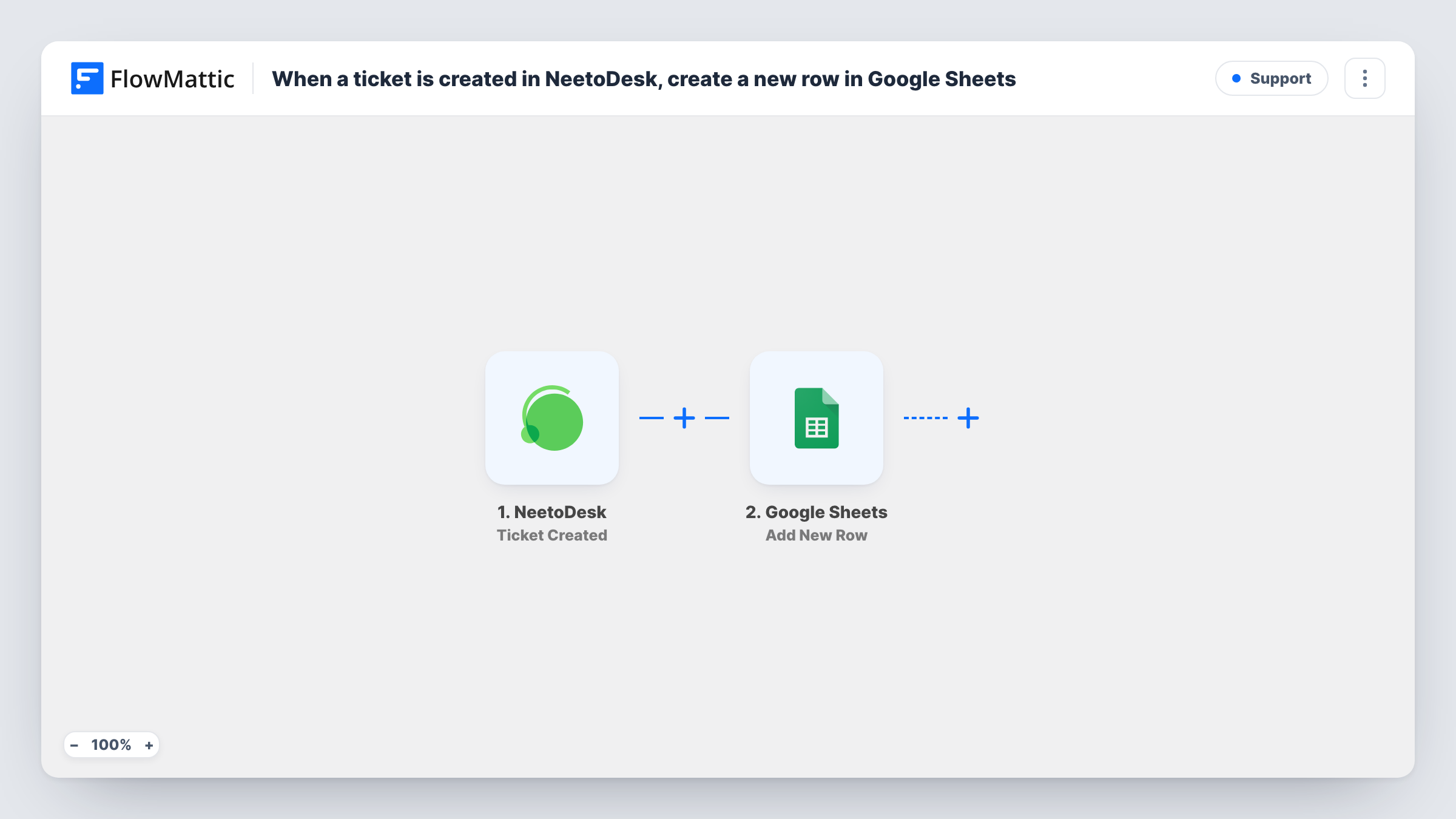
When a ticket is created in NeetoDesk, create a new row in Google Sheets
Every new NeetoDesk ticket is added as a row in Google Sheets, giving you a shareable log of incoming support requests that anyone with access to the sheet can sort and review.
 NeetoDesk
 Google Sheets
2 steps Setup ~5 min Used on 3.3k sites Free to import
What this workflow does
Support volume is easier to understand when you can see every request in one list. NeetoDesk holds the tickets, but not everyone who wants to look at them has a login or knows the tool. A spreadsheet is something your whole team can open.
The NeetoDesk trigger fires whenever a new ticket is created. FlowMattic receives the ticket details and hands them to Google Sheets, where the Add New Row step writes them into the worksheet you select. You decide which ticket value fills which column.
The sheet records tickets as they arrive. It does not track what happens to them afterwards: replies, status changes and closures stay in NeetoDesk unless you build more workflows for those. Task History lists each run, so you can confirm that a ticket was written to the sheet.
Daily intake count
A support manager opens the sheet each morning and counts yesterday's new NeetoDesk tickets with a simple formula, without exporting from the helpdesk.
Sharing requests with developers
Engineers who don't use NeetoDesk read new ticket subjects in a shared Google Sheet and flag the ones that look like bugs.
Monthly support reports
At month end you build a pivot table from the sheet to show ticket counts by category or channel for your report.
How this workflow runs
What happens at each step once the workflow is on, and what you need before you import it.
 NeetoDesk Ticket Created
Runs whenever a new ticket is created in NeetoDesk. The ticket's details are passed on for mapping in the Google Sheets step.
- Google Sheets Add New Row
Places the ticket details in a new row of the spreadsheet and worksheet you pick. Connect your Google account and map ticket values to the sheet's columns.
What you need
- FlowMatticCore
- NeetoDesk AccountAccount
- Google Sheets AccountAccount
After importing, map your own data. To keep the template universal, not every step is pre-filled. Open each step in the builder and connect your accounts and fields (channels, lists, sheets, recipients) before you switch the workflow on.
Make it yours
Changes worth making after you import it.
- Set up the sheet's header row before import, then raise a test ticket so FlowMattic captures the fields you'll map to each column.
- Add a Filter after the trigger to log only certain tickets, such as those with a particular priority or category value from the event.
- Pair this with a second workflow on NeetoDesk's ticket-closed trigger that logs closures to another tab, so you can compare opened and closed counts.
Questions about this workflow
Will the Google Sheets row change when the NeetoDesk ticket is closed?
No. The row is written once when the ticket is created. Later changes to the ticket are not copied to the sheet.
Can I choose which NeetoDesk ticket fields appear in the sheet?
Yes. You map each column yourself in the Add New Row step, using the values the Ticket Created event provides.
Are tickets from before the import added?
No. Only tickets created while the workflow is on start a run, so older tickets need a one-time export from NeetoDesk if you want them in the sheet.
More Support workflows
Other ready-to-import templates from the same category.





Import this workflow into your WordPress site
Download the JSON, import it from the Workflows screen and connect your accounts. Every run stays on your server, with no per-task fees.
30-day money-back guarantee Unlimited workflows and runs Self-hosted