

Get weekly reminders in Slack
Once a week, FlowMattic posts a reminder you write to a Slack channel, so recurring jobs such as timesheets, reports or a weekly meeting are flagged for the whole team at a time you choose.
 Schedule
 Slack
2 steps Setup ~5 min Used on 2.2k sites Free to import
What this workflow does
Some reminders come round every week: submit timesheets, update the pipeline, prepare for Monday's meeting. Relying on one person to post them means they lapse when that person is busy or away. This workflow posts the reminder on a weekly schedule, run by FlowMattic on your WordPress site rather than by a teammate.
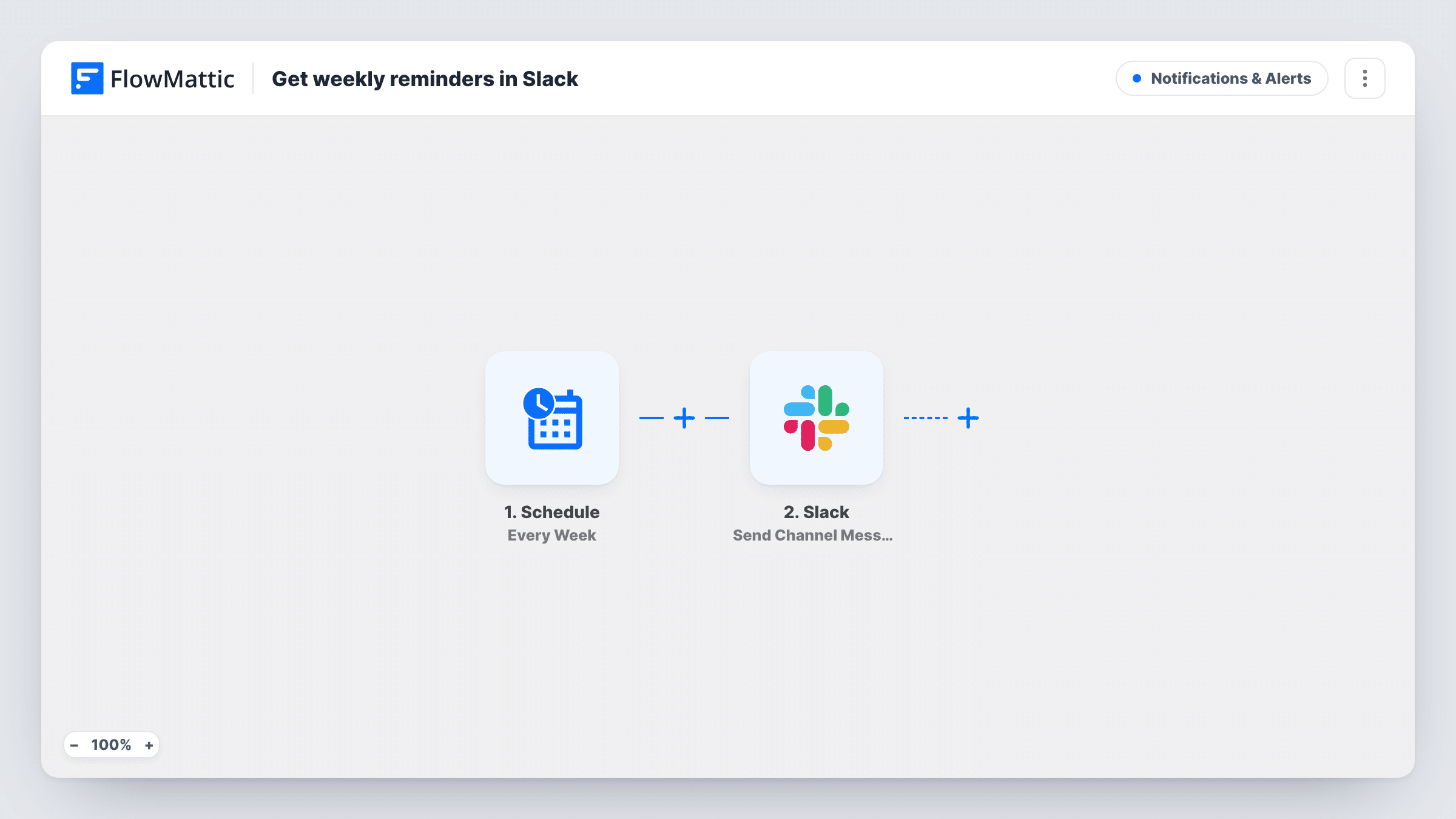
The first step is FlowMattic's Schedule trigger set to Every Week. You choose when it runs after import. At that time, the workflow moves straight to Slack, where the Send Channel Message action posts the text you wrote to the channel you picked.
There is no other data in this flow, so the message is the same each week unless you add steps that bring in something new. The workflow runs whatever happens that week, including holidays, until you switch it off. Each run is listed in Task History, where you can confirm the reminder went out and see Slack's reply if a post failed.
Friday timesheet nudge
An agency posts a reminder in its general channel every Friday afternoon asking everyone to log their hours before the week closes.
Weekly pipeline update for sales
The sales channel gets a Monday morning prompt to update deal stages before the team meeting, with a link to the CRM in the message.
Rota and on-call handover
A support team receives a weekly reminder to check next week's on-call schedule and swap shifts in good time.
How this workflow runs
What happens at each step once the workflow is on, and what you need before you import it.
 Schedule Every Week
Starts the workflow once a week on the schedule you set after import. Nothing else is needed to trigger it, and it repeats every week until you turn the workflow off.
- Slack Send Channel Message
Sends your reminder text to the Slack channel you select. Connect your Slack account, pick the channel and write the message, including any links or mentions your team needs.
What you need
- FlowMatticCore
- Slack AccountAccount
After importing, map your own data. To keep the template universal, not every step is pre-filled. Open each step in the builder and connect your accounts and fields (channels, lists, sheets, recipients) before you switch the workflow on.
Make it yours
Changes worth making after you import it.
- For a reminder that belongs in a private channel, swap the step for Slack's Send Private Channel Message action, since Send Channel Message is for public channels.
- Need the same reminder sent to one person instead? Use Slack's Send Direct Message action and pick the teammate.
- Put different reminders on different days by importing the template more than once and setting each copy's schedule and message separately.
Questions about this workflow
Can the weekly Slack reminder skip holidays?
Not as imported. The Schedule trigger runs every week. Switch the workflow off before a holiday week and back on afterwards.
Does the reminder text change from week to week?
No. The Slack step posts the text you wrote each time. Add steps before it, such as a Date/Time Formatter, if you want changing content like the date.
Do I need anything besides Slack to run this?
No other app. FlowMattic on your WordPress site runs the schedule, and you connect your Slack account for the message.
Can I post the weekly reminder to two Slack channels?
Yes. Add a second Send Channel Message step after the first and pick the other channel. Both posts go out on each run.
More Notifications & Alerts workflows
Other ready-to-import templates from the same category.




Import this workflow into your WordPress site
Download the JSON, import it from the Workflows screen and connect your accounts. Every run stays on your server, with no per-task fees.
30-day money-back guarantee Unlimited workflows and runs Self-hosted