

When a message is delivered in OpenPhone, send a Slack channel message
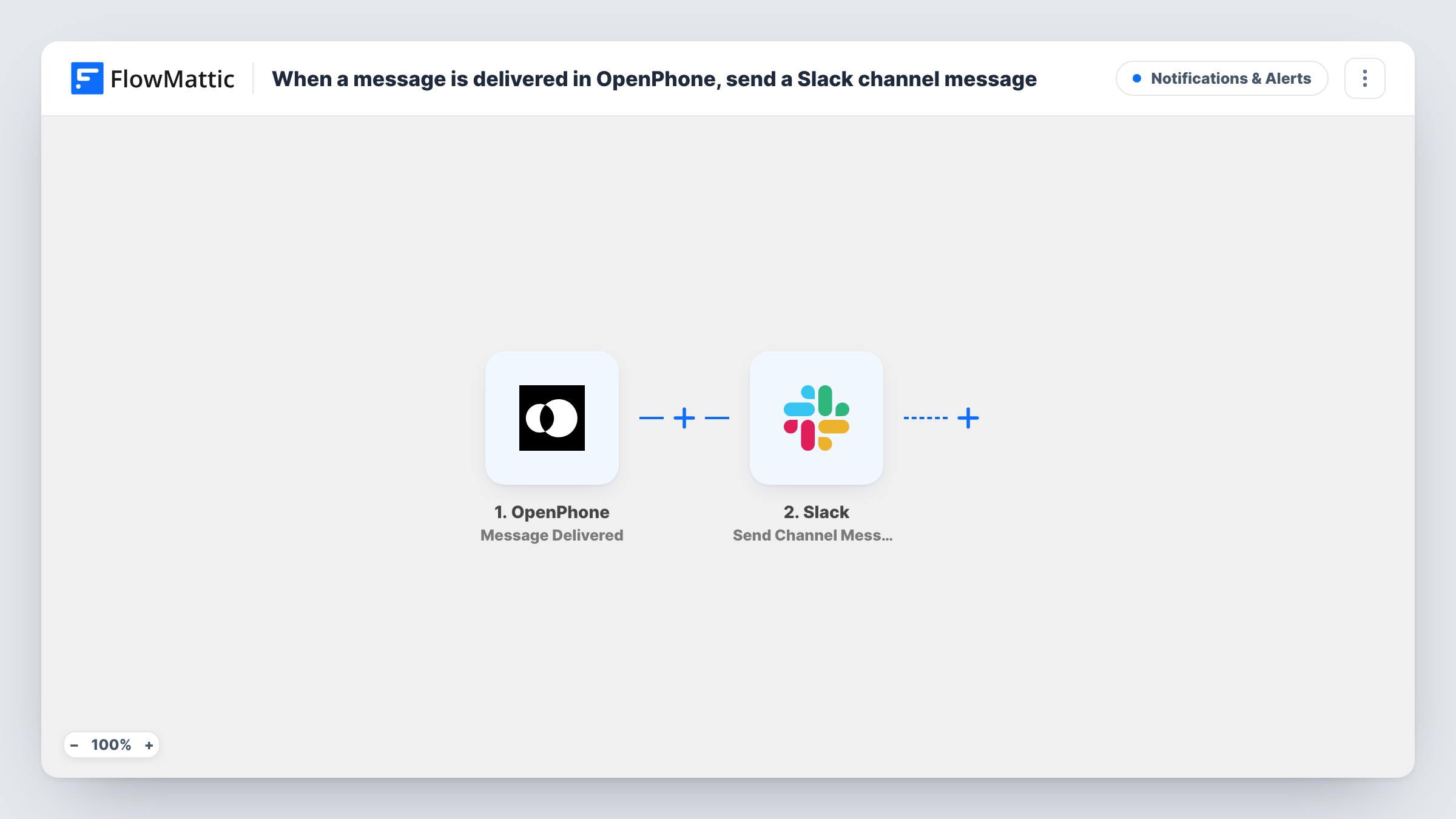
Each time OpenPhone reports a message as delivered, FlowMattic posts a note to the Slack channel you choose, so your team can see in Slack which texts reached their recipients.
 OpenPhone
 Slack
2 steps Setup ~5 min Used on 3.3k sites Free to import
What this workflow does
Text messages to customers often matter to more than the person who sent them. A reminder, a quote or an address confirmation may need a teammate to follow up, and they won't see it in someone else's OpenPhone inbox. This workflow copies each delivery event into a shared Slack channel.
The OpenPhone trigger, Message Delivered, fires when a message is delivered. The details OpenPhone sends with that event come into FlowMattic, where you can map them. The Slack step then uses Send Channel Message to post into the channel you select, with the text you write around those details.
The workflow runs once for every delivered message, with nothing in between to narrow it down. On a busy number that means a lot of posts, so consider a Filter or a dedicated channel. Task History records each run and Slack's response.
Appointment reminders for a clinic
Front desk staff send reminders from OpenPhone. Each delivered reminder shows up in a Slack channel, so the rest of the team knows which patients were reached.
Shared sales number
Several reps text from one OpenPhone line. The Slack channel gives the sales manager a running record of messages that were delivered.
Field service updates
Dispatch texts customers with arrival times. Technicians follow the delivered updates in Slack without needing access to the phone line.
How this workflow runs
What happens at each step once the workflow is on, and what you need before you import it.
 OpenPhone Message Delivered
Fires when OpenPhone reports that a message was delivered. The data in the delivery event becomes available to map into the Slack post.
- Slack Send Channel Message
Posts a message into the Slack channel you select. Write the text, map in the OpenPhone details you want shown, and connect your Slack workspace on import.
What you need
- FlowMatticCore
- OpenPhone AccountAccount
- Slack AccountAccount
After importing, map your own data. To keep the template universal, not every step is pre-filled. Open each step in the builder and connect your accounts and fields (channels, lists, sheets, recipients) before you switch the workflow on.
Make it yours
Changes worth making after you import it.
- Send one text from OpenPhone after import, then check Task History to see which fields the delivery event carries before you write the Slack message.
- If you only care about messages from one line, and the delivery event carries the sending number, add a Filter after the trigger that continues only when it equals that line.
- Use a channel set aside for these posts so delivery notes don't bury the rest of your team's conversation.
Questions about this workflow
Does every delivered OpenPhone message post to Slack?
Yes, as imported. Each delivery event runs the workflow once. Add a Filter after the trigger if you want fewer posts.
Can the OpenPhone notes go to a private Slack channel?
The imported step targets ordinary public channels. For a private one, replace it with Slack's Send Private Channel Message action, or use Send Direct Message to notify one person.
Does this workflow send texts from OpenPhone?
No. It only listens for delivery events from your OpenPhone account and posts about them in Slack. Messages are still sent from OpenPhone as usual.
Are older OpenPhone messages posted?
No. Only messages delivered after you turn the workflow on start a run.
More Notifications & Alerts workflows
Other ready-to-import templates from the same category.




Import this workflow into your WordPress site
Download the JSON, import it from the Workflows screen and connect your accounts. Every run stays on your server, with no per-task fees.
30-day money-back guarantee Unlimited workflows and runs Self-hosted