

When an entry is updated in Cognito Forms, send a notification via Slack
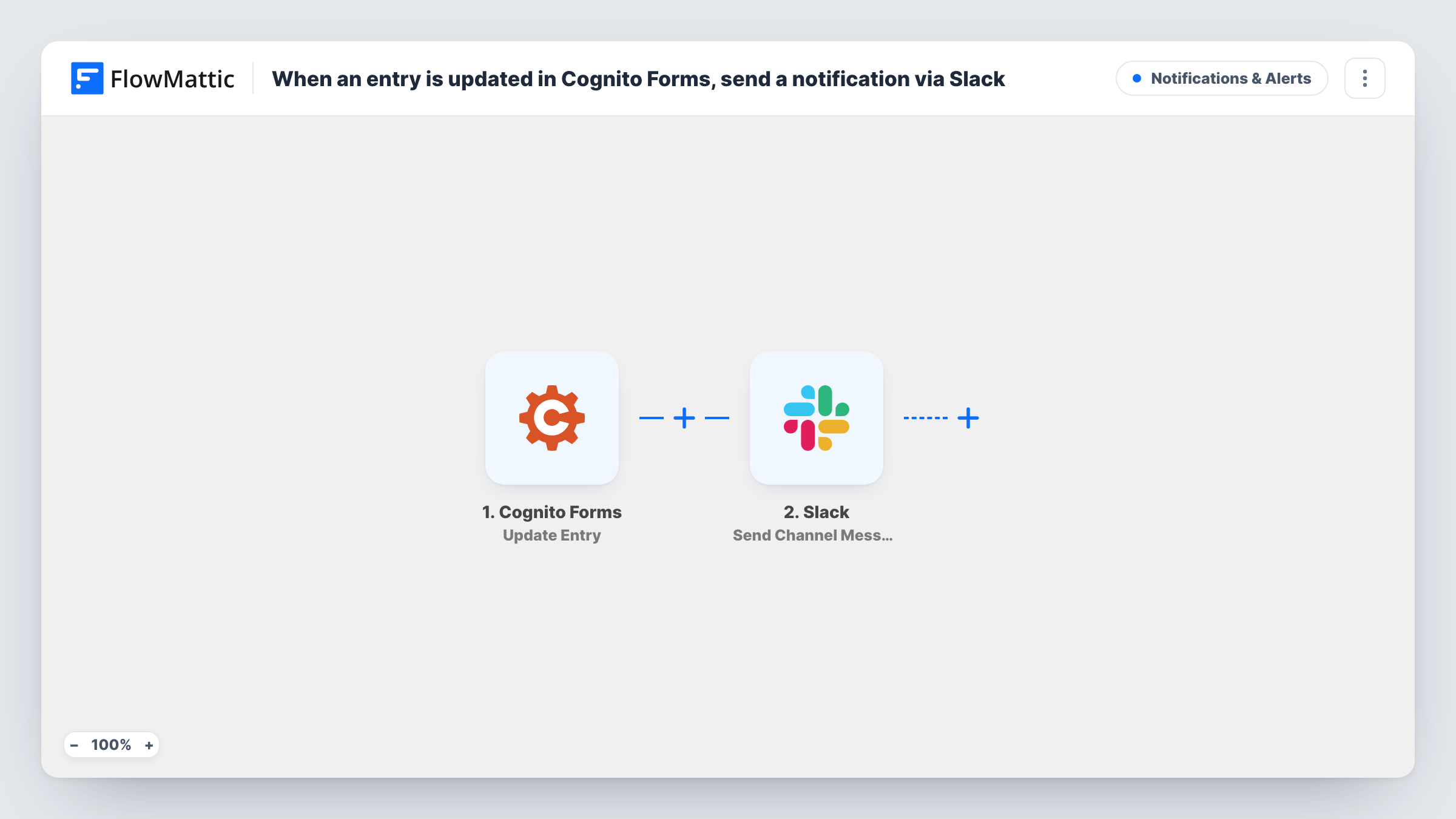
Whenever someone updates an existing Cognito Forms entry, this workflow posts a message to the Slack channel you choose, so your team learns about changed answers without checking the form.
 Cognito Forms
 Slack
2 steps Setup ~5 min Used on 845 sites Free to import
What this workflow does
Some forms are not finished when they are first submitted. Applicants correct details, staff add notes, and customers come back to change an order. Those edits happen quietly inside Cognito Forms, and the people who rely on the entry may be working from the old version. This workflow tells your team in Slack each time an entry changes.
The Cognito Forms trigger uses the Update Entry event, which fires when someone updates an entry. The entry's current answers come through with that event and are ready to map. The Slack step then writes a message into a channel you set, built from text you type and the entry fields you place in it.
Every saved update starts a run, so an entry edited three times produces three Slack messages. The message shows the entry as it stands after the change. The workflow does not compare it with the earlier version, so if you need to know exactly what changed, include the fields that matter in the message. New submissions use a different Cognito trigger and do not start this workflow.
Applications that applicants can revise
Job or grant applicants return to edit their Cognito entry. Reviewers see a Slack message each time, so they re-read the latest answers before scoring.
Order forms with late changes
Customers update quantities or delivery details on an order entry. The fulfilment channel hears about each update before items are packed.
Internal requests updated by staff
A team edits Cognito entries to record approvals or notes. The requester's team channel gets a message whenever an entry is changed.
How this workflow runs
What happens at each step once the workflow is on, and what you need before you import it.
 Cognito Forms Update Entry
Fires each time someone updates an existing Cognito Forms entry. The entry's answers after the change are passed on for mapping into the Slack message.
- Slack Send Channel Message
Sends one message per entry update to the Slack channel you pick. Type the text, map the Cognito fields you want shown, and connect your Slack workspace on import.
What you need
- FlowMatticCore
- Cognito Forms AccountAccount
- Slack AccountAccount
After importing, map your own data. To keep the template universal, not every step is pre-filled. Open each step in the builder and connect your accounts and fields (channels, lists, sheets, recipients) before you switch the workflow on.
Make it yours
Changes worth making after you import it.
- Include the entry's identifying fields, such as the person's name or an order reference, in the Slack message so readers know which entry changed.
- Add a Filter after the trigger with a condition on a status or approval field, if you only want messages for entries in a particular state.
- Update a test entry after import so FlowMattic captures the fields Cognito Forms sends, then map them into the Slack step before you turn it on.
Questions about this workflow
Do new Cognito Forms submissions post to Slack too?
No. This workflow uses the Update Entry trigger. New submissions fire Cognito's separate New Entry trigger, which you can use in another workflow.
Does the Slack message show what changed in the Cognito entry?
It shows the entry as it is after the update, using the fields you map. The workflow does not hold the previous values, so it cannot list the differences.
What if a Cognito entry is edited several times?
Each saved update starts its own run, so each one posts its own Slack message.
Can the Cognito update alert go to one person instead of a channel?
Swap the step for Slack's Send Direct Message action. For a private channel, use Send Private Channel Message instead of Send Channel Message.
More Notifications & Alerts workflows
Other ready-to-import templates from the same category.



Import this workflow into your WordPress site
Download the JSON, import it from the Workflows screen and connect your accounts. Every run stays on your server, with no per-task fees.
30-day money-back guarantee Unlimited workflows and runs Self-hosted