

Post a Discord notification when an Onfleet driver status changes
Whenever an Onfleet driver’s status changes, this workflow posts a message to the Discord channel you choose, so dispatchers see the update without keeping the Onfleet dashboard open.
 Onfleet
 Discord
2 steps Setup ~5 min Used on 731 sites Free to import
What this workflow does
Dispatch teams need to know which drivers are available right now. Watching the Onfleet dashboard all day isn't practical when the team already talks in Discord. This workflow brings each driver status change into a channel there.
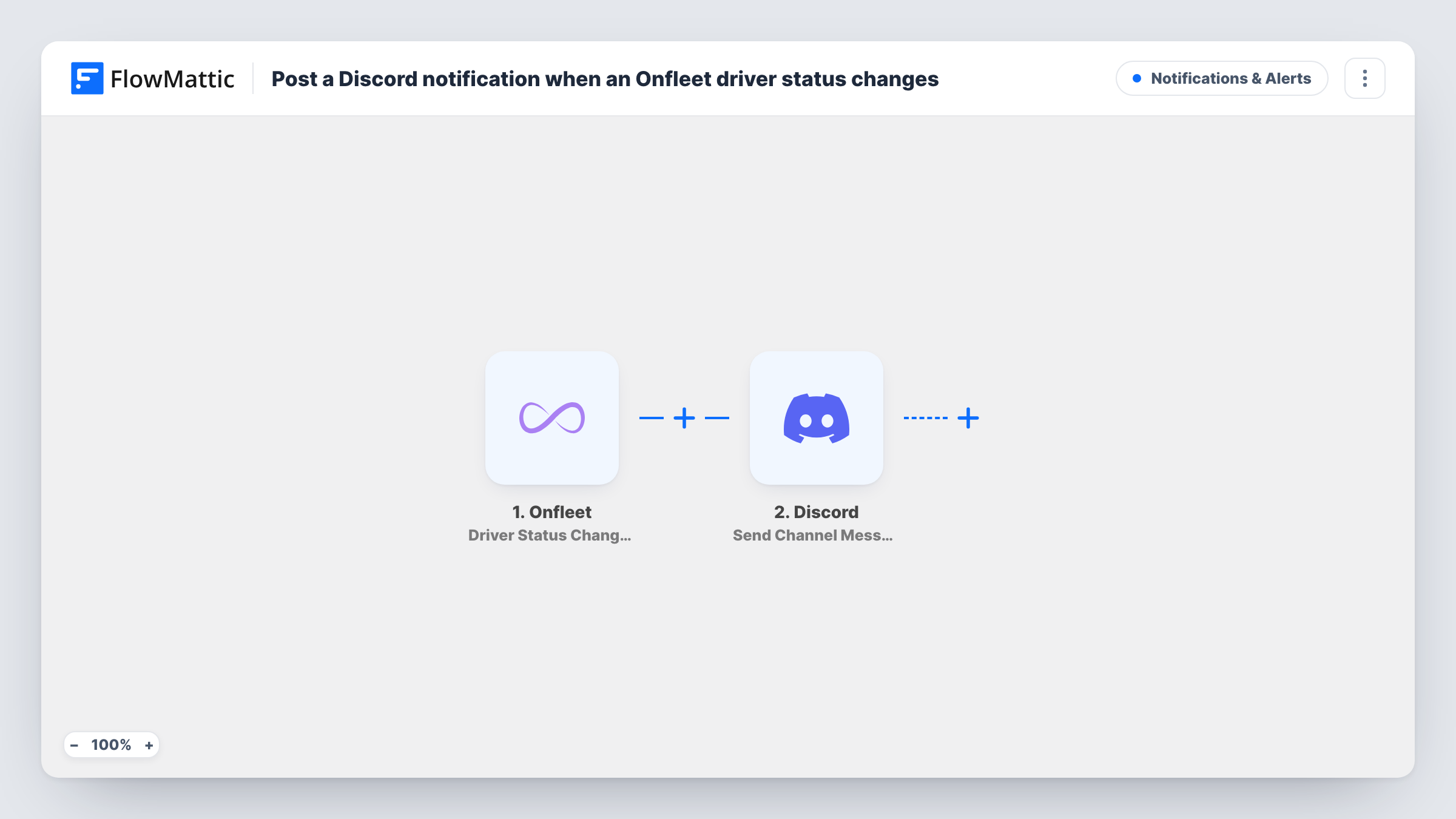
The Onfleet trigger, Driver Status Changed, fires when a driver's status changes. FlowMattic receives the data Onfleet sends about that driver and passes it to Discord. Send Channel Message then posts a new message to the channel you pick, with text you write and fill with values from the Onfleet event, such as the driver's name.
Every status change for every driver posts a message, since there is no Filter. For a small fleet that is a handy live feed. With many drivers the channel can get busy, so consider a dedicated channel or a Filter on the drivers or statuses you care about.
Live driver feed for a small courier
A courier with a handful of drivers keeps a #drivers channel in Discord. Each status change appears there, so the dispatcher knows who is free before assigning work.
Restaurant delivery team
Kitchen staff keep a Discord channel open and see delivery drivers' status changes while they prepare the next orders.
Shift start checks
A manager glances at Discord at the start of a shift to confirm each driver's status changed in Onfleet as expected.
How this workflow runs
What happens at each step once the workflow is on, and what you need before you import it.
 Onfleet Driver Status Changed
Fires when an Onfleet driver's status changes. The data Onfleet sends about that driver and the change is passed to the Discord step.
- Discord Send Channel Message
Posts a new message to a Discord channel of your choice. Write the text and insert values from the Onfleet event, then run a test to see which driver fields arrive.
What you need
- FlowMatticCore
- Onfleet AccountAccount
- Discord AccountAccount
After importing, map your own data. To keep the template universal, not every step is pre-filled. Open each step in the builder and connect your accounts and fields (channels, lists, sheets, recipients) before you switch the workflow on.
Make it yours
Changes worth making after you import it.
- Add a Filter after the Onfleet trigger that continues only for the status value you care about, after a test shows how Onfleet reports it.
- Create a Discord channel just for driver updates, so these messages don't bury the team's conversations.
- Add a Google Sheets Add New Row step after Discord if you want a dated record of every driver status change for later review.
Questions about this workflow
Does every Onfleet driver status change post to Discord?
Yes, as imported. There is no Filter, so each change for each driver posts one message. Add a Filter to limit it to certain drivers or statuses.
Which driver details can the Discord message show?
Whatever Onfleet includes in the Driver Status Changed event. Change a test driver's status after import, then pick from the captured fields in the Discord step.
Does this tell Discord when an Onfleet task is assigned or completed?
No. This workflow only listens for driver status changes. Onfleet has separate triggers in FlowMattic, such as Task Assigned and Task Completed, for task events.
Can the Onfleet updates go to more than one Discord channel?
Add a second Send Channel Message step pointed at the other channel, or use a Router to send different statuses to different channels.
More Notifications & Alerts workflows
Other ready-to-import templates from the same category.





Import this workflow into your WordPress site
Download the JSON, import it from the Workflows screen and connect your accounts. Every run stays on your server, with no per-task fees.
30-day money-back guarantee Unlimited workflows and runs Self-hosted