

Post a Slack message to the team when a new Leave Dates request is submitted
When someone submits a leave request in Leave Dates, this workflow posts a message in the Slack channel you choose, so approvers and teammates know about it straight away.
 Leave Dates
 Slack
2 steps Setup ~5 min Used on 3.2k sites Free to import
What this workflow does
Leave requests that sit unnoticed hold up planning for everyone. Approvers may not check Leave Dates every day, but they do see Slack. This workflow posts there each time a new request comes in.
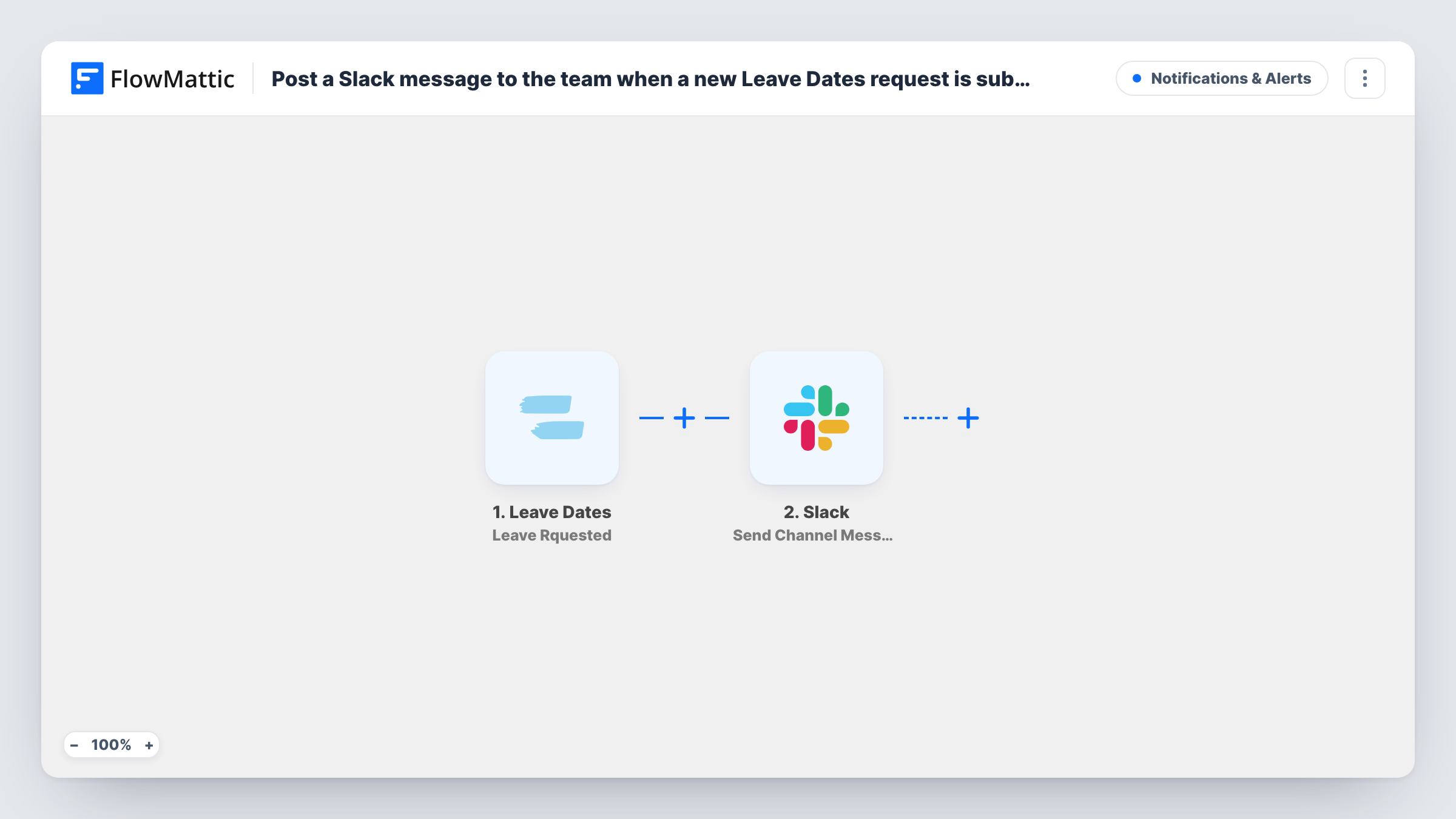
The Leave Dates trigger used here fires when a leave is requested (FlowMattic lists it as "Leave Rquested"). FlowMattic passes the request's details to Slack, where Send Channel Message posts in the channel you pick. You write the text and add values such as the person's name and the dates.
The message is an alert only. Approving or rejecting still happens in Leave Dates. Every request posts once, and Task History shows each run of the workflow.
Managers approving holiday
A #leave-requests channel shows each new request, and the manager opens Leave Dates to approve it.
Team awareness in small companies
Everyone sees when a colleague asks for time off and can raise a clash before it is approved.
HR oversight
HR follows a channel of incoming requests to spot busy periods when many people ask for the same dates.
How this workflow runs
What happens at each step once the workflow is on, and what you need before you import it.
 Leave Dates Leave Rquested
Runs when a new leave request is made in Leave Dates; FlowMattic labels this trigger Leave Rquested. Request details are passed to Slack.
- Slack Send Channel Message
Shares the new leave request in a public Slack channel of your choice. Write the message with values from Leave Dates. Use Send Private Channel Message for a private channel.
What you need
- FlowMatticCore
- Leave Dates AccountAccount
- Slack AccountAccount
After importing, map your own data. To keep the template universal, not every step is pre-filled. Open each step in the builder and connect your accounts and fields (channels, lists, sheets, recipients) before you switch the workflow on.
Make it yours
Changes worth making after you import it.
- Use Slack's Send Direct Message instead if only the approving manager should be told about each request.
- Submit a test leave request after import so FlowMattic captures the details, then decide which ones to show in the message.
- Add a second workflow on the Leave Approved trigger to post the outcome, so the team knows the request went through.
Questions about this workflow
Can managers approve the Leave Dates request from Slack?
No. Slack only receives a notice from this workflow. Approval still happens in Leave Dates.
Does an edited Leave Dates request post again?
Not through this trigger. Leave Dates has a separate Leave Updated trigger, which this template doesn't use.
Why is the trigger spelled Leave Rquested?
That is how the trigger is labelled in FlowMattic's Leave Dates integration. It fires when a leave is requested.
More Notifications & Alerts workflows
Other ready-to-import templates from the same category.




Import this workflow into your WordPress site
Download the JSON, import it from the Workflows screen and connect your accounts. Every run stays on your server, with no per-task fees.
30-day money-back guarantee Unlimited workflows and runs Self-hosted