

Log new JotForm submissions in Smartsheet rows
Each new Jotform submission is added as a row in the Smartsheet sheet you choose, with the answers you map to its columns, so your team can track responses where it already plans its work.
 Jotform
 Smartsheet
2 steps Setup ~5 min Used on 2.1k sites Free to import
What this workflow does
Jotform is good at collecting answers, but if your team runs its projects in Smartsheet, those answers need to end up there. Exporting responses and pasting them in leaves the sheet out of date between batches. This workflow adds each submission to Smartsheet as it arrives.
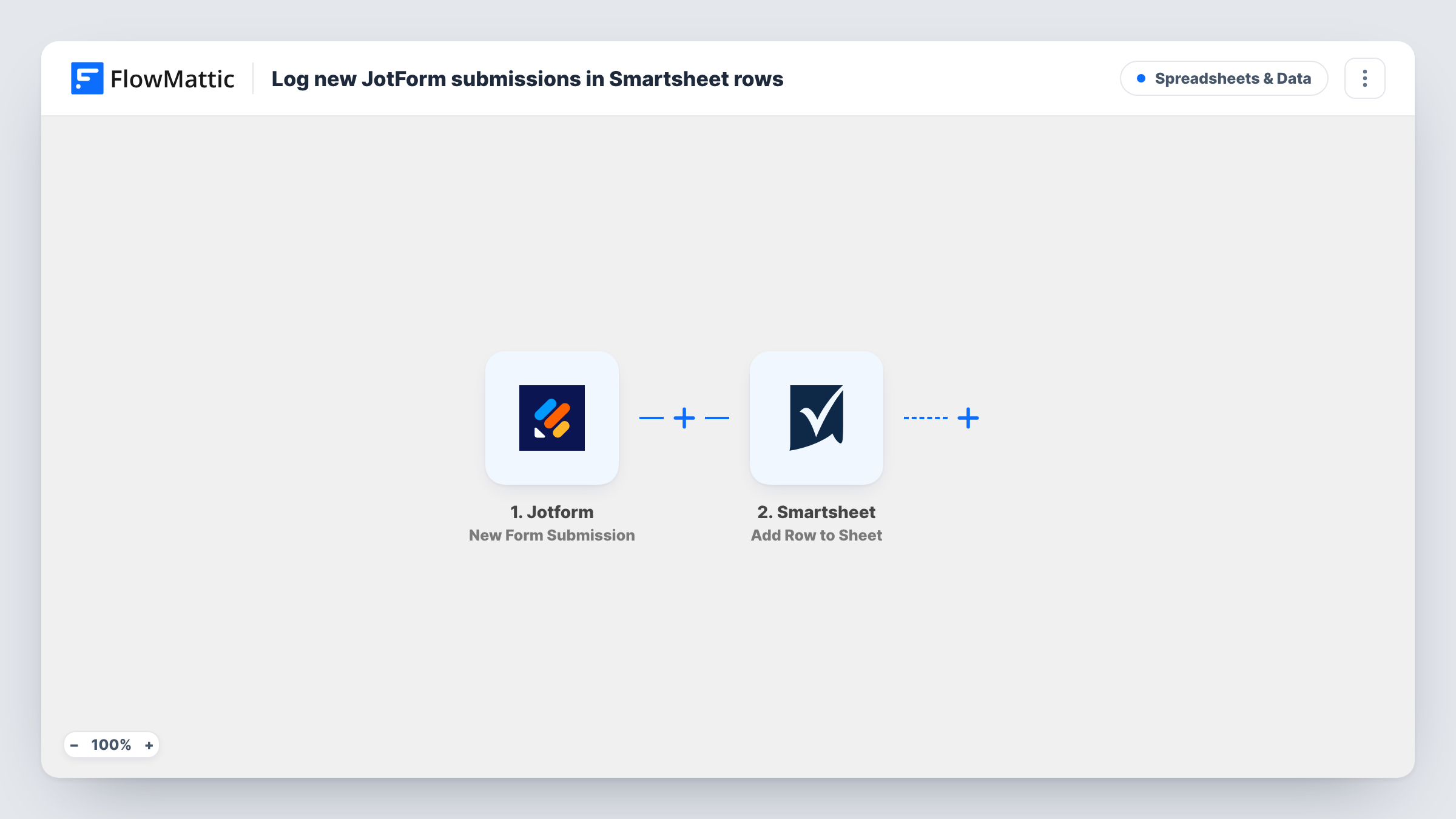
The Jotform trigger fires on each new form submission and passes the answers along. The Smartsheet step uses Add Row to Sheet to write them into the sheet you pick, with each column filled from the answer you mapped to it. Once the row is there, your Smartsheet columns, owners and views work on it like any other row.
Every submission adds one row, and nothing is checked first, so repeat or test submissions appear too. The step only ever adds rows, so it never changes a row that is already in the sheet. When Smartsheet rejects a row, Task History shows the error it returned on that step.
Project intake requests
Colleagues request work through a Jotform. Each request lands as a Smartsheet row, where the project lead assigns an owner and a due date.
Event registrations tracked by a team
Attendees register on a Jotform. The event team works from a Smartsheet that fills itself, adding status columns for badges and dietary needs.
Maintenance or IT tickets
Staff report a problem through a Jotform. Each report becomes a row on the maintenance sheet, ready to be prioritised and tracked to done.
How this workflow runs
What happens at each step once the workflow is on, and what you need before you import it.
 Jotform New Form Submission
Fires when someone submits your Jotform. Every answer in the submission becomes available to map to Smartsheet columns in the next step.
- Smartsheet Add Row to Sheet
Writes one new row per submission into the Smartsheet sheet of your choice. Map each Jotform answer to a column, then connect your Smartsheet account when you import the workflow.
What you need
- FlowMatticCore
- Jotform AccountAccount
- Smartsheet AccountAccount
After importing, map your own data. To keep the template universal, not every step is pre-filled. Open each step in the builder and connect your accounts and fields (channels, lists, sheets, recipients) before you switch the workflow on.
Make it yours
Changes worth making after you import it.
- Create the Smartsheet columns before you map the step, so each Jotform answer has a column waiting for it.
- Add a Filter after the trigger that continues only when the email answer does not contain your own domain, so test entries stay out of the team's sheet.
- Send a test submission after import so FlowMattic captures the form's answers, then map them in the Smartsheet step before you turn it on.
Questions about this workflow
Will this workflow ever change a Jotform row already in Smartsheet?
No. Add Row to Sheet only adds rows. Any change to an existing row is made by you in Smartsheet.
What if I rename a Smartsheet column after mapping?
Check the mapping in the Smartsheet step afterwards. If the step can no longer write to that column, Task History shows the error for the run.
Do Jotform responses from before import reach Smartsheet?
No. Only submissions received while the workflow is turned on add rows. Older responses stay in Jotform.
Can one Jotform feed two Smartsheet sheets?
Yes. Add a second Add Row to Sheet step after the first and point it at the other sheet, mapping the answers each sheet needs.
More Spreadsheets & Data workflows
Other ready-to-import templates from the same category.






Import this workflow into your WordPress site
Download the JSON, import it from the Workflows screen and connect your accounts. Every run stays on your server, with no per-task fees.
30-day money-back guarantee Unlimited workflows and runs Self-hosted