

When a dataset is added in FlowMattic Tables, convert data size from MB to GB in Unit Converter, then sync to Google Sheets
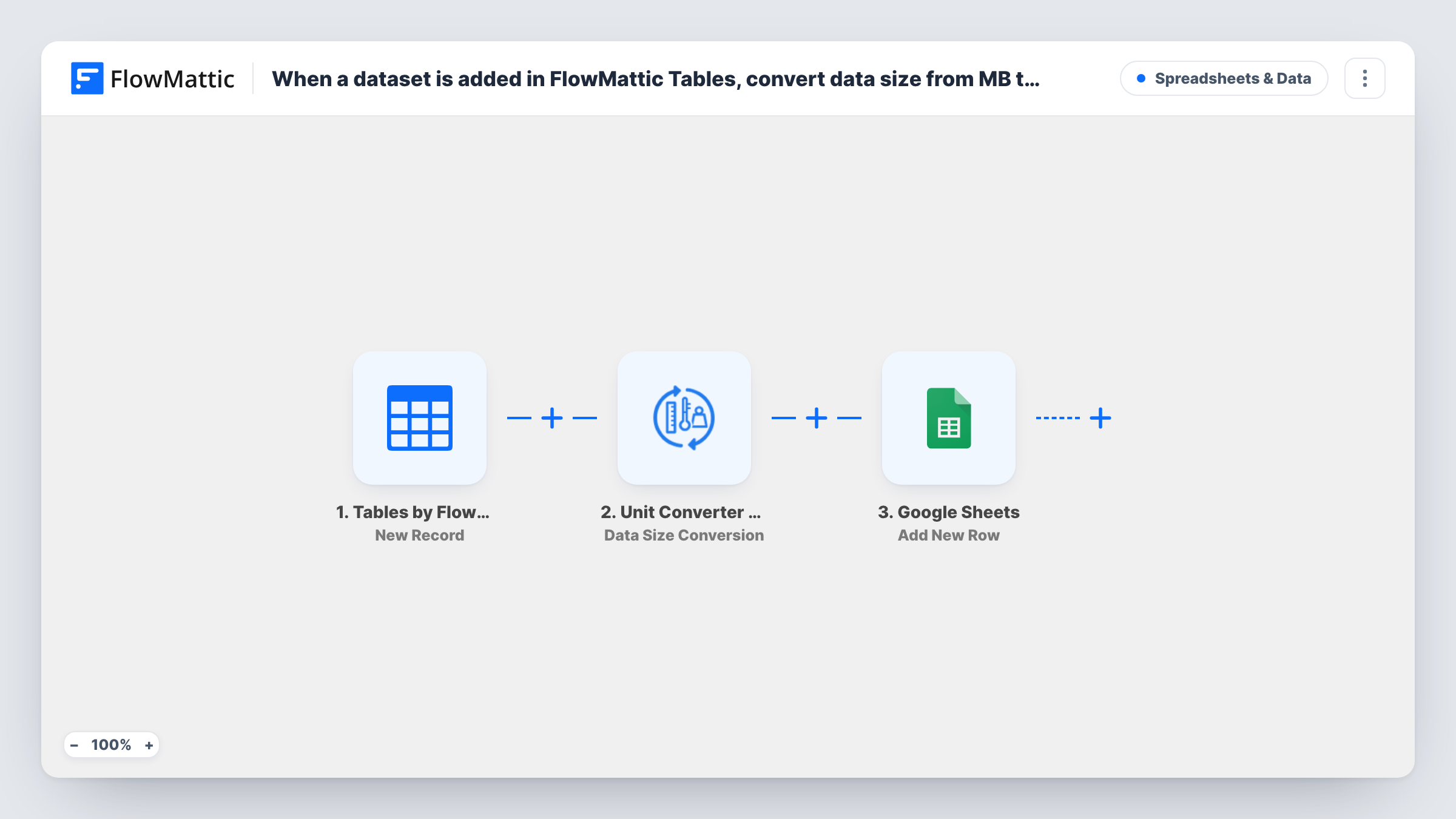
When a new row is added to a FlowMattic Tables table, the built-in Unit Converter turns its data size from megabytes into gigabytes, and FlowMattic adds the row with the converted value to Google Sheets.
 Tables by FlowMattic
 Unit Converter by FlowMattic
 Google Sheets
3 steps Setup ~5 min Used on 2.7k sites Free to import
What this workflow does
If you track storage, backups or file uploads in FlowMattic Tables, sizes often arrive in megabytes. Reports read better in gigabytes, and converting by hand in a spreadsheet is one more formula to keep right. This workflow does the conversion on the way to Google Sheets.
The Tables by FlowMattic trigger fires when a new row is added to the table you choose. FlowMattic sends the size value from that row to the Unit Converter Data Size Conversion action, which converts between bytes, KB, MB, GB and other units. The Google Sheets step then adds a row with the values you map, including the converted size.
The Unit Converter runs inside FlowMattic, so only the last step leaves your site. The template doesn't show its conversion settings, so after import confirm the step converts MB to GB and check the result in a test run. Rows edited later in the table don't run the workflow again.
Hosting usage report
An agency logs each client's backup size in a FlowMattic table in MB. The Google Sheet shows the same backups in GB for the monthly report.
Upload tracking for a media library
Each new upload record holds its size in MB. The sheet keeps a GB figure you can total to see how much space a project uses.
Data export log
A table records export jobs and their file size. The sheet gives finance a readable GB column without anyone writing a formula.
How this workflow runs
What happens at each step once the workflow is on, and what you need before you import it.
 Tables by FlowMattic New Record
Fires when a new row is added to the FlowMattic table you pick. The row's columns, including the size in MB, are passed on to the next steps.
- Unit Converter by FlowMattic Data Size Conversion
Converts the mapped size value with FlowMattic's Unit Converter. Map the table's MB column in, and confirm the step is set to convert MB to GB with a test run.
- Google Sheets Add New Row
Writes the result to a new row in your chosen spreadsheet. Map the table columns you need, plus the converted GB value from the Unit Converter step.
What you need
- FlowMatticCore
- Google Sheets AccountAccount
After importing, map your own data. To keep the template universal, not every step is pre-filled. Open each step in the builder and connect your accounts and fields (channels, lists, sheets, recipients) before you switch the workflow on.
Make it yours
Changes worth making after you import it.
- Keep the size column in your FlowMattic table as a plain number with no unit text, so the Unit Converter receives a value it can convert.
- Map both the original MB value and the converted GB value into the sheet, which makes it easy to spot a wrong conversion setting.
- If edits to existing table rows should also reach the sheet, build a second workflow on the Tables Updated Record trigger with the same two actions.
Questions about this workflow
Does editing a FlowMattic Tables row update the sheet?
No. The trigger is New Record, so only rows added to the table run the workflow. Each run adds a new row to Google Sheets.
Can I convert to TB or KB instead of GB?
Yes. The Data Size Conversion action converts between bytes, KB, MB, GB, TB, PB and bits, so set the units you need in the step.
Does the Unit Converter need an API key?
No. It is built into FlowMattic, so the conversion runs on your WordPress site without a third-party account.
What happens if the size cell is empty?
The converter has no number to work with, so check that run in Task History. Filling in the size whenever you add a table row avoids it.
More Spreadsheets & Data workflows
Other ready-to-import templates from the same category.




Import this workflow into your WordPress site
Download the JSON, import it from the Workflows screen and connect your accounts. Every run stays on your server, with no per-task fees.
30-day money-back guarantee Unlimited workflows and runs Self-hosted