

Add new Oracle Commerce shopper profiles to a Mailchimp audience
When a new shopper registers on your Oracle Commerce instance, this workflow adds them to the Mailchimp audience you choose, or updates their member record if the address is already on the list.
 Oracle Commerce
 Mailchimp
2 steps Setup ~5 min Used on 969 sites Free to import
What this workflow does
Shoppers who register on your Oracle Commerce storefront are people you may want to email later, but the store and Mailchimp don't share a list on their own. Exporting registrations and importing them into Mailchimp is a chore that leaves gaps between batches. Here, every registration reaches your chosen audience the moment the shopper signs up.
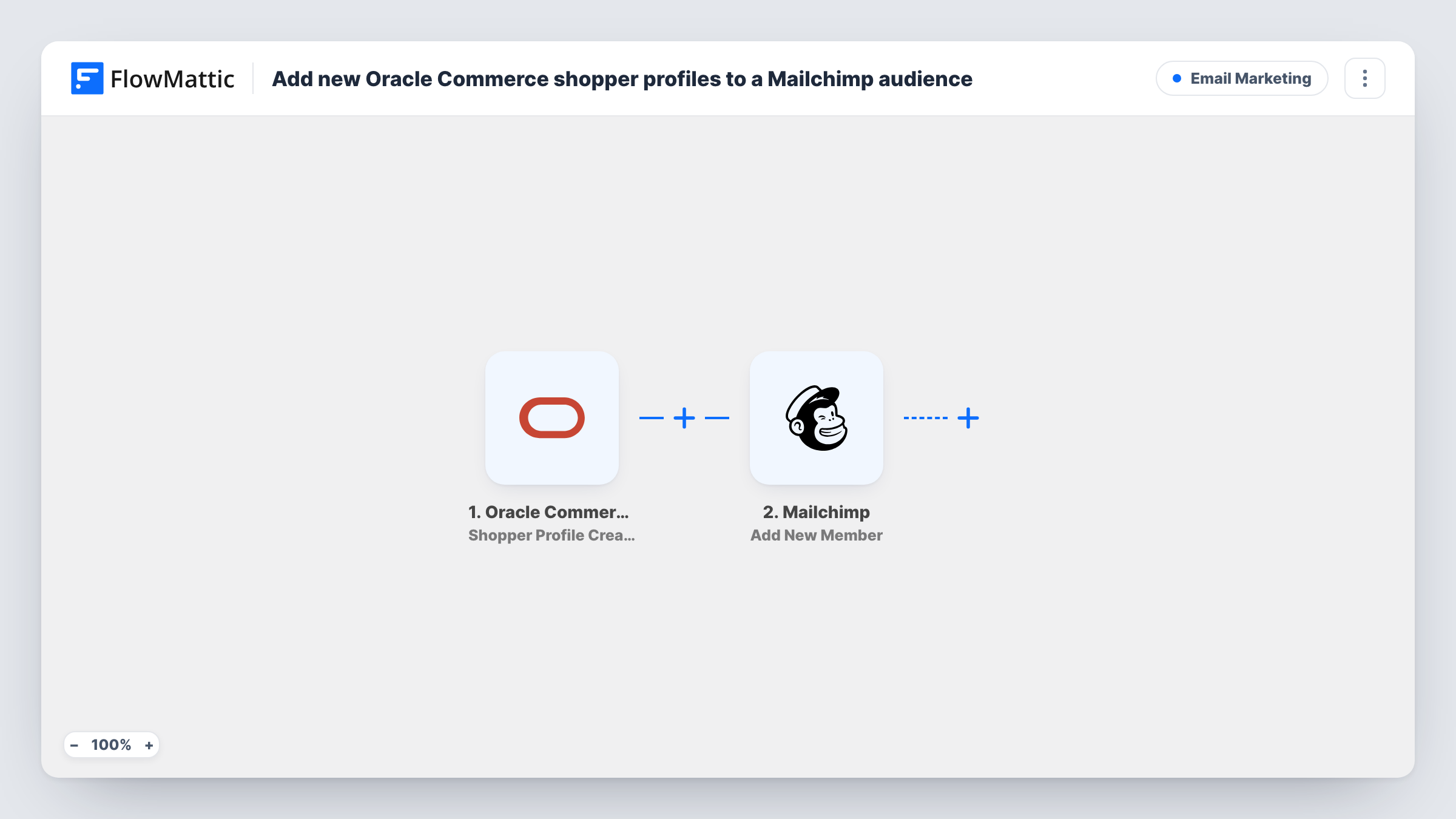
The Oracle Commerce trigger, Shopper Profile Create, fires when a new shopper registers on your instance. FlowMattic captures the profile data that comes with it. The Mailchimp step then runs Add New Member on the audience you pick, using the shopper's email and any other details you map.
Add New Member adds the person to the list, or updates them if they already exist, so a shopper who is already a subscriber is not added twice. Only add shoppers you have permission to email, and check how your registration form records marketing consent before you switch this on.
Welcome series for new store accounts
Registered shoppers join a Mailchimp audience that runs your welcome emails, without waiting for a weekly export.
Store-wide newsletter list
Every shopper who signs up on your Oracle Commerce site and agreed to marketing appears in the audience your newsletter goes to.
Separating shoppers from other sign-ups
Point the step at an audience used only for store accounts, so you can tell registered shoppers apart from people who joined through other forms.
How this workflow runs
What happens at each step once the workflow is on, and what you need before you import it.
 Oracle Commerce Shopper Profile Create
Fires when a new shopper registers on your Oracle Commerce instance. The shopper profile data is captured for mapping into Mailchimp.
- Mailchimp Add New Member
Adds the shopper to your chosen Mailchimp audience, or updates the member if that email is already on the list. Map the shopper's email and any name fields you want stored.
What you need
- FlowMatticCore
- Oracle Commerce AccountAccount
- Mailchimp AccountAccount
After importing, map your own data. To keep the template universal, not every step is pre-filled. Open each step in the builder and connect your accounts and fields (channels, lists, sheets, recipients) before you switch the workflow on.
Make it yours
Changes worth making after you import it.
- Register a test shopper on your store after import so FlowMattic captures a real profile, then map the email and other fields from that sample.
- If your registration form collects a marketing opt-in, add a Filter after the trigger that continues only when it is set, so only shoppers who agreed are added.
- Add a Mailchimp Add Member Tag step after Add New Member to tag these contacts as store shoppers, which helps you target them in campaigns.
Questions about this workflow
What if the Oracle Commerce shopper is already in my Mailchimp audience?
The person keeps a single Mailchimp record, because Add New Member updates an existing address rather than duplicating it. Mapped fields left blank in the shopper data may overwrite what Mailchimp holds, so test with a known subscriber.
Are accounts created by Oracle Commerce administrators included?
This trigger fires when a shopper registers. Oracle Commerce has a separate Account Created trigger in FlowMattic for accounts an administrator creates.
Are shoppers who registered before I imported this added to Mailchimp?
No. The workflow reacts only to registrations made after it is turned on.
Does every new shopper get added, or only those who opted in?
Every new shopper, as imported. Add a Filter on your consent field if you only want people who agreed to receive marketing email.
More Email Marketing workflows
Other ready-to-import templates from the same category.






Import this workflow into your WordPress site
Download the JSON, import it from the Workflows screen and connect your accounts. Every run stays on your server, with no per-task fees.
30-day money-back guarantee Unlimited workflows and runs Self-hosted