

When a new form submission received in Jotform, add a new subscriber in Sendinblue, and add the form data to Google Spreadsheet
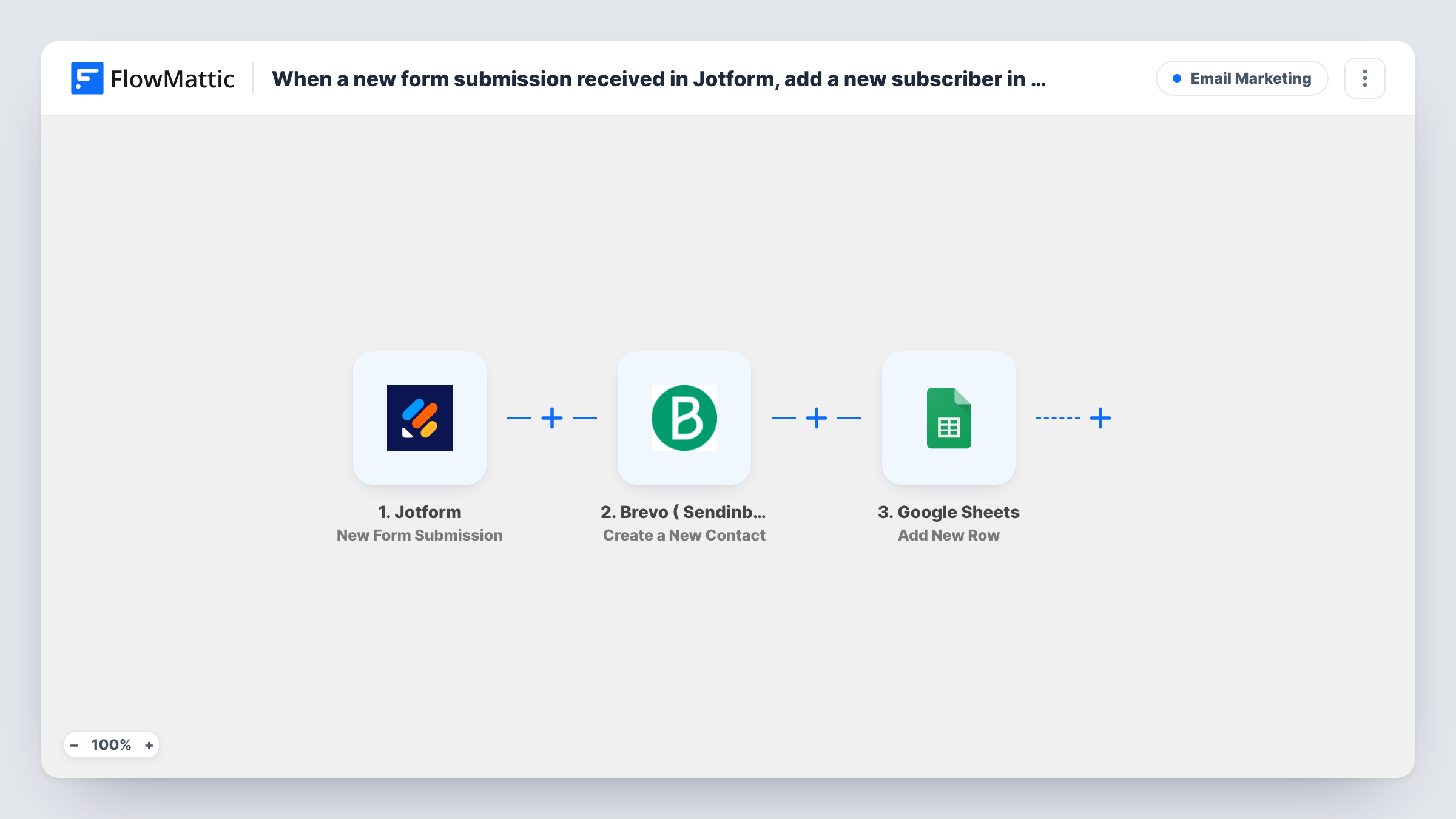
Each new Jotform submission adds the person to Brevo (formerly Sendinblue) as a contact, then writes the form answers to a new Google Sheets row, so your mailing list and your records both get the entry.
 Jotform
 Brevo ( Sendinblue )
 Google Sheets
3 steps Setup ~5 min Used on 3.5k sites Free to import
What this workflow does
Jotform collects the answers, but your email marketing runs in Brevo and your team keeps records in a spreadsheet. Without a link between them, someone exports entries and imports them twice. This workflow sends every submission to both places in one run.
The Jotform trigger fires when a new submission arrives for your form and passes the answers to FlowMattic. The second step runs Create a New Contact in Brevo ( Sendinblue ), where you map the email address and any other answers you want stored on the contact. The third step uses Add New Row in Google Sheets to record the submission in the spreadsheet you pick.
The steps run in that order for every submission. If Brevo returns an error, for example because of an invalid email address, the Google Sheets step still runs and the row is still added. Task History shows each step's result, so you can see which contacts did not reach Brevo.
Webinar sign-ups
A Jotform registration form adds each attendee to Brevo for reminder emails, and the sheet gives the host a list of who registered and what they asked about.
Product waitlist
Visitors join a waitlist through Jotform. Brevo holds the contacts for the launch email, while the sheet keeps the extra answers, such as which plan interests them.
Customer feedback with opt-in
A survey on Jotform stores every response in Google Sheets for review, and the respondent's details go to Brevo so you can send a thank-you or follow-up.
How this workflow runs
What happens at each step once the workflow is on, and what you need before you import it.
 Jotform New Form Submission
Fires when a new submission is received for your Jotform form. Every answer becomes available to map in the Brevo and Google Sheets steps.
- Brevo ( Sendinblue ) Create a New Contact
Creates a new contact in Brevo from the submission. Connect your Brevo account, map the email field, and add other answers you want on the contact. A test run shows which contact details the step accepts.
- Google Sheets Add New Row
Adds a row to the Google Sheets spreadsheet you choose with the submitted answers. Connect your Google account and map each Jotform answer to a column.
What you need
- FlowMatticCore
- Jotform AccountAccount
- Brevo ( Sendinblue ) AccountAccount
- Google Sheets AccountAccount
After importing, map your own data. To keep the template universal, not every step is pre-filled. Open each step in the builder and connect your accounts and fields (channels, lists, sheets, recipients) before you switch the workflow on.
Make it yours
Changes worth making after you import it.
- Add a Filter between the Jotform trigger and the Brevo step that continues only when a consent checkbox is ticked. Note that the Filter then also stops the sheet row for people who did not opt in.
- If you want every submission in the sheet but only consenting people in Brevo, move the Google Sheets step directly after the trigger and put the Filter just before Brevo.
- Map a column in the sheet to a value from Brevo's response, so you can see which rows were added as contacts and which returned an error.
Questions about this workflow
What happens if the email is already a contact in Brevo?
The step is a create action, so Brevo may reject a duplicate address. The workflow carries on, the Google Sheets row is still added, and Task History shows Brevo's response.
Is Brevo the same as Sendinblue in this Jotform workflow?
Yes. Sendinblue renamed itself Brevo. FlowMattic lists the app as Brevo ( Sendinblue ), and the template connects to your Brevo account.
Will old Jotform submissions be sent to Brevo and Google Sheets?
No. The trigger picks up Jotform entries that arrive once the workflow is active. Export earlier entries from Jotform if you need them in Brevo or the sheet.
Can I add the Jotform contact to a specific Brevo list?
Open the imported Brevo step and see whether it offers a list choice. If it does, pick your list there; if not, manage the contact's list membership in Brevo itself.
More Email Marketing workflows
Other ready-to-import templates from the same category.




Import this workflow into your WordPress site
Download the JSON, import it from the Workflows screen and connect your accounts. Every run stays on your server, with no per-task fees.
30-day money-back guarantee Unlimited workflows and runs Self-hosted