

When a new lead is identified in Happierleads, create a contact in Brevo (Sendinblue)
Each lead Happierleads identifies is created as a contact in Brevo (Sendinblue), so website visitors your tracking picks up land in the email platform your team already uses.
 Happierleads
 Brevo ( Sendinblue )
2 steps Setup ~5 min Used on 3.4k sites Free to import
What this workflow does
Happierleads shows you which companies and people visit your website. That is useful only if the lead reaches a place where you follow up. This workflow sends each new Happierleads lead into Brevo as a contact, ready for the lists and campaigns you run there.
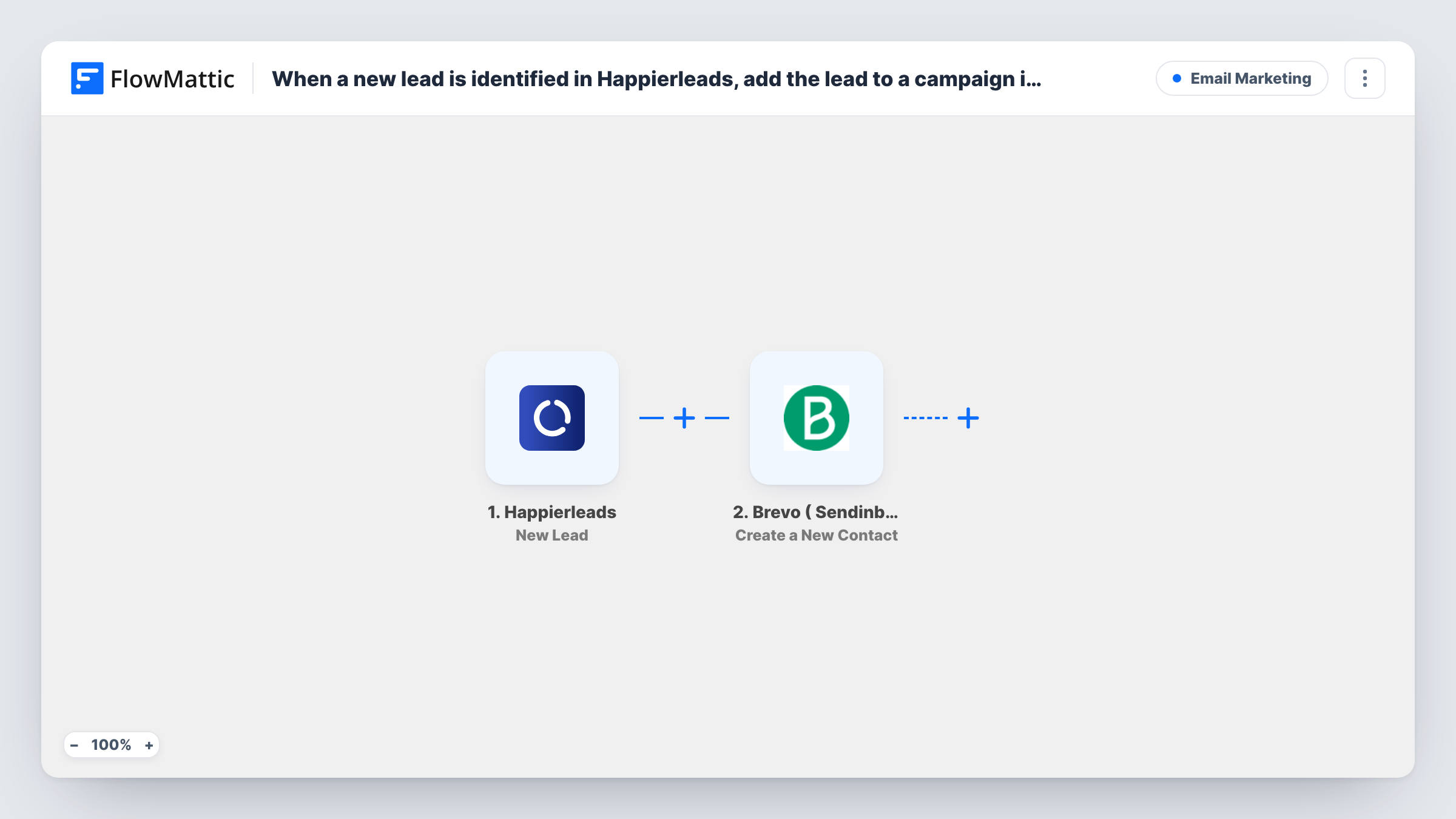
The Happierleads New Lead trigger fires whenever a new lead is identified. FlowMattic passes the lead's data on, which may include a person's name, email address and company details, depending on what Happierleads found. Run a test lead and look at the trigger's output to see which fields you actually get.
The Brevo ( Sendinblue ) Create a New Contact step ships unmapped. After import you connect Brevo and map the lead's email, plus the name and company values you want as contact attributes. Brevo contacts normally need an email address, so a lead without one is unlikely to become a contact. Brevo may also return an error for an address it already holds; Task History shows what it sent back.
Because every identified lead creates a run, decide how you will use these contacts before you mail them, and keep your consent rules in mind.
Sales follow-up list in Brevo
A B2B software company collects identified visitors as Brevo contacts so the sales team can pick them up in their next outreach.
Lead record next to your newsletter
A marketing agency keeps Happierleads leads in Brevo alongside newsletter subscribers, so one tool shows everyone who has shown interest.
Visitors from a pricing page campaign
During a pricing page campaign, an agency gathers each identified company contact in Brevo to review which ones came back after an ad.
How this workflow runs
What happens at each step once the workflow is on, and what you need before you import it.
 Happierleads New Lead
Fires when Happierleads identifies a new lead. Whatever details it found about the person and company, such as name, email and company name, are passed on.
- Brevo ( Sendinblue ) Create a New Contact
Creates a contact in Brevo from the lead's data. The step arrives empty, so connect Brevo, map the email address and add the name or company fields you want stored as attributes.
What you need
- FlowMatticCore
- Happierleads AccountAccount
- Brevo ( Sendinblue ) AccountAccount
After importing, map your own data. To keep the template universal, not every step is pre-filled. Open each step in the builder and connect your accounts and fields (channels, lists, sheets, recipients) before you switch the workflow on.
Make it yours
Changes worth making after you import it.
- Put a Filter between the Happierleads trigger and the Brevo step that continues only when the lead's email is not empty, so leads without an address stop before Brevo.
- Map a fixed value such as Happierleads into a Brevo contact attribute you create for the source, so you can build a segment of these leads apart from people who subscribed themselves.
- Map the lead's company details into Brevo contact attributes, if Happierleads sends them, so you can segment by company later. Create the attributes in Brevo first.
Questions about this workflow
Does every Happierleads lead come with an email for Brevo?
Not necessarily. It depends on what Happierleads identified. Brevo contacts normally need an email, so check a few test leads and consider a Filter on the email field.
What if the Happierleads lead is already a Brevo contact?
The step tries to create a new contact, and Brevo may refuse an email it already has. Look at the step's response in Task History for a lead you know is in Brevo.
Can I send Brevo campaigns to these leads straight away?
The workflow only creates the contacts. Whether you may email someone identified from a website visit depends on your consent rules and the laws that apply to you, so check before adding them to campaigns.
More Email Marketing workflows
Other ready-to-import templates from the same category.






Import this workflow into your WordPress site
Download the JSON, import it from the Workflows screen and connect your accounts. Every run stays on your server, with no per-task fees.
30-day money-back guarantee Unlimited workflows and runs Self-hosted