

Send a Slack alert when an Oneflow contract is signed
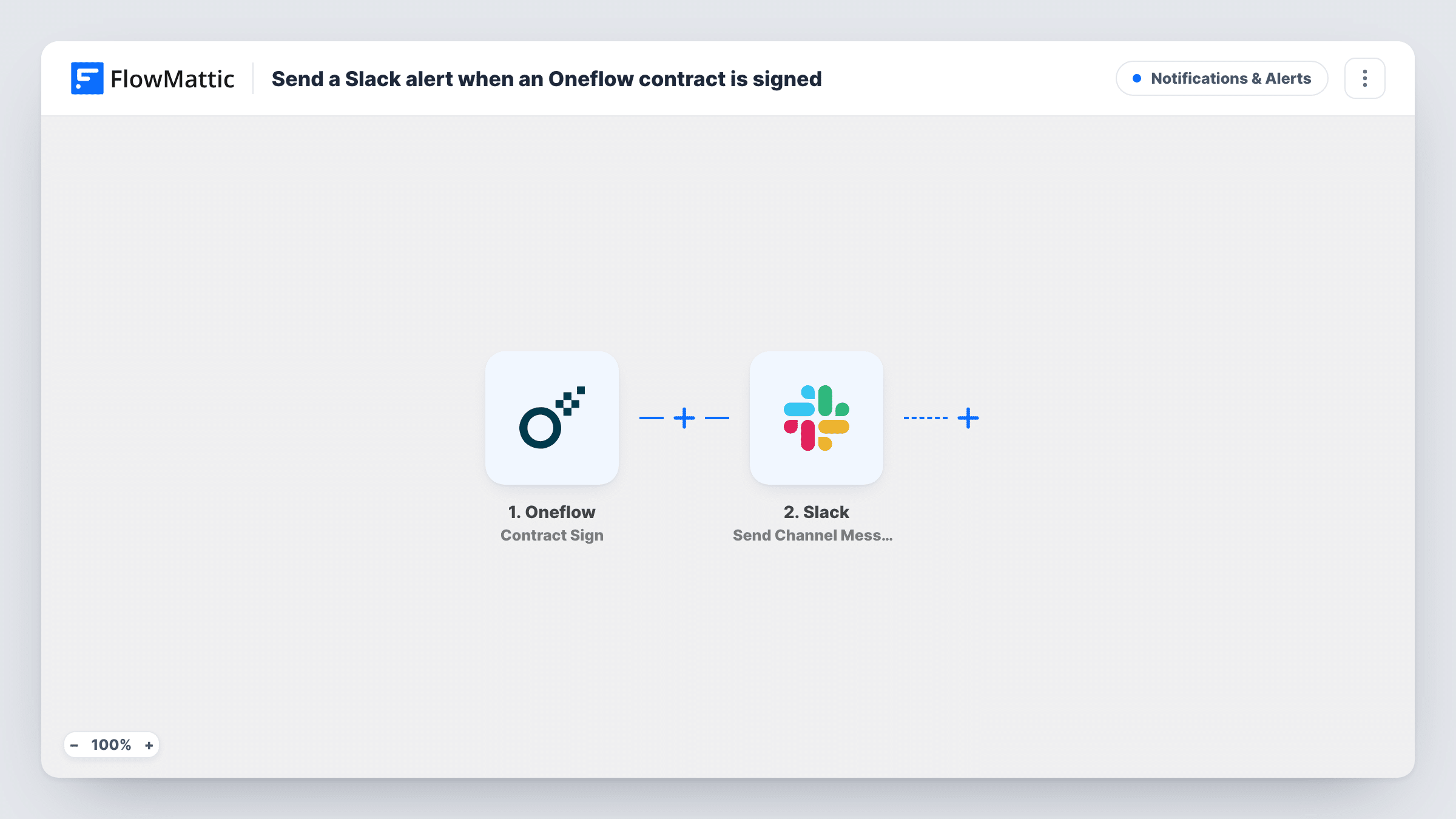
When Oneflow reports that a contract has been signed, FlowMattic posts a message to a Slack channel you pick, so sales and operations know the deal is done without checking Oneflow.
 Oneflow
 Slack
2 steps Setup ~5 min Used on 847 sites Free to import
What this workflow does
A signed contract is the signal for several people to act: sales closes the deal, onboarding books a kick-off, finance prepares the first invoice. If they all wait for someone to forward an email, the start slips. This workflow puts the news in Slack the moment Oneflow sends it.
The Oneflow trigger used here is Contract Sign, the event for a contract being signed. Oneflow has a separate Participant Sign event for each individual signature, so this one is the contract-level signal. FlowMattic then runs the Send Channel Message action in Slack, posting the text you write to the channel you choose, with contract details inserted from the event.
Each Contract Sign event Oneflow sends produces one Slack message. The action posts to a regular channel. For a private channel, Slack's Send Private Channel Message action is the one to use instead. Task History lists each run if you need to check what was posted.
Closed-won alerts for a sales team
Account executives see in #deals that a customer has signed in Oneflow and can update the pipeline straight away.
Onboarding kick-off
The customer success team watches a Slack channel for signed contracts and schedules the welcome call as soon as one appears.
Agency contract tracking
A small agency sends proposals as Oneflow contracts. When a client signs, the project lead gets the go-ahead in Slack to start planning.
How this workflow runs
What happens at each step once the workflow is on, and what you need before you import it.
 Oneflow Contract Sign
Fires on Oneflow's Contract Sign event. The contract data from that event becomes available to insert into the Slack message.
- Slack Send Channel Message
Posts a signing notice to the Slack channel set in the step. Write the text, add contract details from the Oneflow event, and connect your Slack workspace on import.
What you need
- FlowMatticCore
- Oneflow AccountAccount
- Slack AccountAccount
After importing, map your own data. To keep the template universal, not every step is pre-filled. Open each step in the builder and connect your accounts and fields (channels, lists, sheets, recipients) before you switch the workflow on.
Make it yours
Changes worth making after you import it.
- Run a test by signing a sample contract in Oneflow, then look at the trigger data to choose which details to put in the Slack message.
- If one person should hear about signatures, swap the action for Slack's Send Direct Message.
- Want to know about each signer as well? Import a second copy of this workflow and change its trigger to Oneflow's Participant Sign.
Questions about this workflow
Does the Slack alert fire for each Oneflow signer or once per contract?
This template uses the Contract Sign event, which is the contract-level one. Oneflow's Participant Sign trigger is separate and covers each signature. Run a test to confirm the timing for your contracts.
Can the Oneflow alert go to a private Slack channel?
Not as imported, because Send Channel Message covers regular channels only. Change the step to Slack's Send Private Channel Message action to post in a private channel.
Will contracts signed before I import this show up in Slack?
No. Only Contract Sign events that happen after you turn the workflow on produce a message.
More Notifications & Alerts workflows
Other ready-to-import templates from the same category.




Import this workflow into your WordPress site
Download the JSON, import it from the Workflows screen and connect your accounts. Every run stays on your server, with no per-task fees.
30-day money-back guarantee Unlimited workflows and runs Self-hosted