

Log each Amplitude event to a Google Sheets spreadsheet
When one of your Amplitude custom monitors sends its webhook, this workflow writes the alert data into a new Google Sheets row, so you keep a dated history of every monitor alert in one shared sheet.
 Amplitude
 Google Sheets
2 steps Setup ~5 min Used on 1.2k sites Free to import
What this workflow does
Amplitude monitors watch your product metrics and alert you when something changes. Those alerts are easy to miss and hard to look back on. This template keeps a record of them in a spreadsheet, one row per alert, that anyone on the team can open.
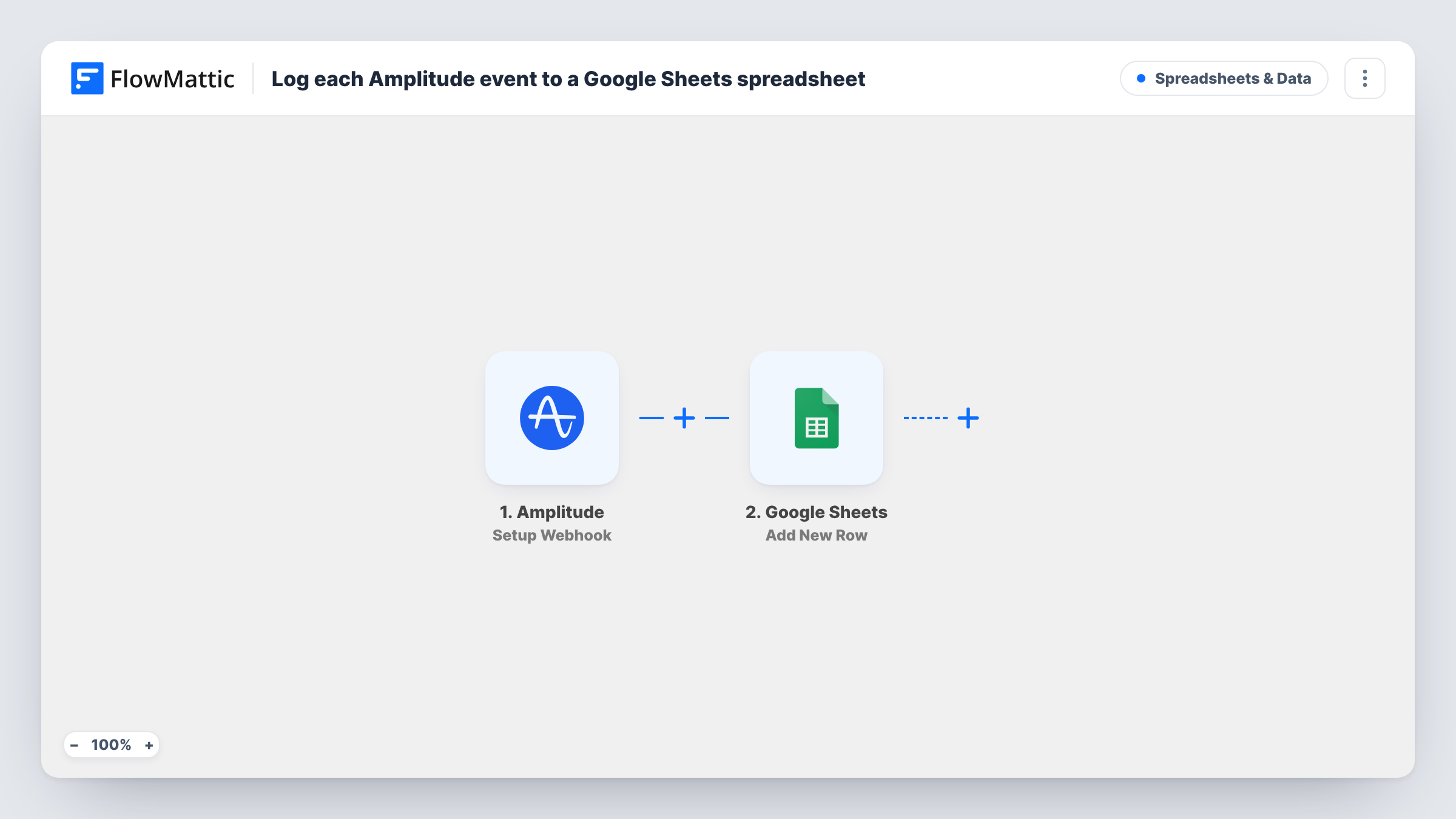
Be clear about what starts a run. The Amplitude trigger, Setup Webhook, fires for custom monitors in Amplitude: each time a monitor sends its webhook to FlowMattic. It does not fire for every tracked user event in your product, so this is a log of monitor alerts, not a raw event export. The values in the monitor's payload become available to map.
The second step adds a row in Google Sheets and fills your columns from that payload, for example the monitor name or the time of the alert if Amplitude includes them. With no Filter in place, every alert that reaches the webhook becomes a row. Task History shows each run and the exact data Amplitude delivered.
History of metric anomalies
A product manager reviews the sheet each sprint to see which Amplitude monitors fired, and when, before deciding what to investigate.
Alert log for stakeholders without Amplitude access
Leadership and support staff read the shared Google Sheet to see when monitors flagged a change, without needing an Amplitude seat.
Matching alerts to releases
An engineer adds a release-date column next to the alert rows to check whether monitor alerts cluster after deployments.
How this workflow runs
What happens at each step once the workflow is on, and what you need before you import it.
 Amplitude Setup Webhook
Fires when an Amplitude custom monitor sends its webhook to FlowMattic. Each value in the monitor's payload is handed on for mapping into the sheet.
- Google Sheets Add New Row
Records the monitor alert as a fresh row in your Google Sheets file. Map columns to payload values and link the Google account that can edit the sheet.
What you need
- FlowMatticCore
- Amplitude AccountAccount
- Google Sheets AccountAccount
After importing, map your own data. To keep the template universal, not every step is pre-filled. Open each step in the builder and connect your accounts and fields (channels, lists, sheets, recipients) before you switch the workflow on.
Make it yours
Changes worth making after you import it.
- Point a test monitor at the webhook after import so FlowMattic captures a real payload, then map the sheet columns from the values you see.
- If several monitors post to the same webhook, keep a column for the monitor name, if the payload carries one, so you can filter the sheet by monitor later.
- Add a Filter after the trigger that continues only for the monitor names you care about, using the exact text a test alert shows, if some monitors are too noisy to log.
Questions about this workflow
Does this log every user event tracked in Amplitude?
No. The Amplitude trigger fires for custom monitors, so a row is added each time a monitor sends its webhook. Individual product events such as page views or clicks are not sent by this trigger.
How do I connect Amplitude to the FlowMattic webhook?
Copy the webhook URL from the trigger step in FlowMattic and add it as the destination for your monitor's alerts in Amplitude. Follow the trigger's setup notes, then send a test alert.
What Amplitude data ends up in Google Sheets?
Only the values Amplitude includes in the monitor webhook, mapped to the columns you choose. Look at a captured test payload to see what is available.
Are earlier Amplitude alerts added when I turn this on?
No. The sheet starts filling with the first monitor alert after the workflow is active.
More Spreadsheets & Data workflows
Other ready-to-import templates from the same category.




Import this workflow into your WordPress site
Download the JSON, import it from the Workflows screen and connect your accounts. Every run stays on your server, with no per-task fees.
30-day money-back guarantee Unlimited workflows and runs Self-hosted