

When an appointment is created, updated or cancelled in SuperSaaS, log it in Google Sheets
Every time a SuperSaaS appointment is created, updated or cancelled, FlowMattic adds a row to your Google Sheet, giving you a running log of bookings and every change made to them.
 SuperSaaS
 Google Sheets
2 steps Setup ~5 min Used on 2.8k sites Free to import
What this workflow does
SuperSaaS shows you the current schedule, but it is harder to look back at what changed: which bookings moved, how many were cancelled last month, which clients rebook often. This workflow writes each appointment event to Google Sheets, so you build a history you can sort, filter and chart.
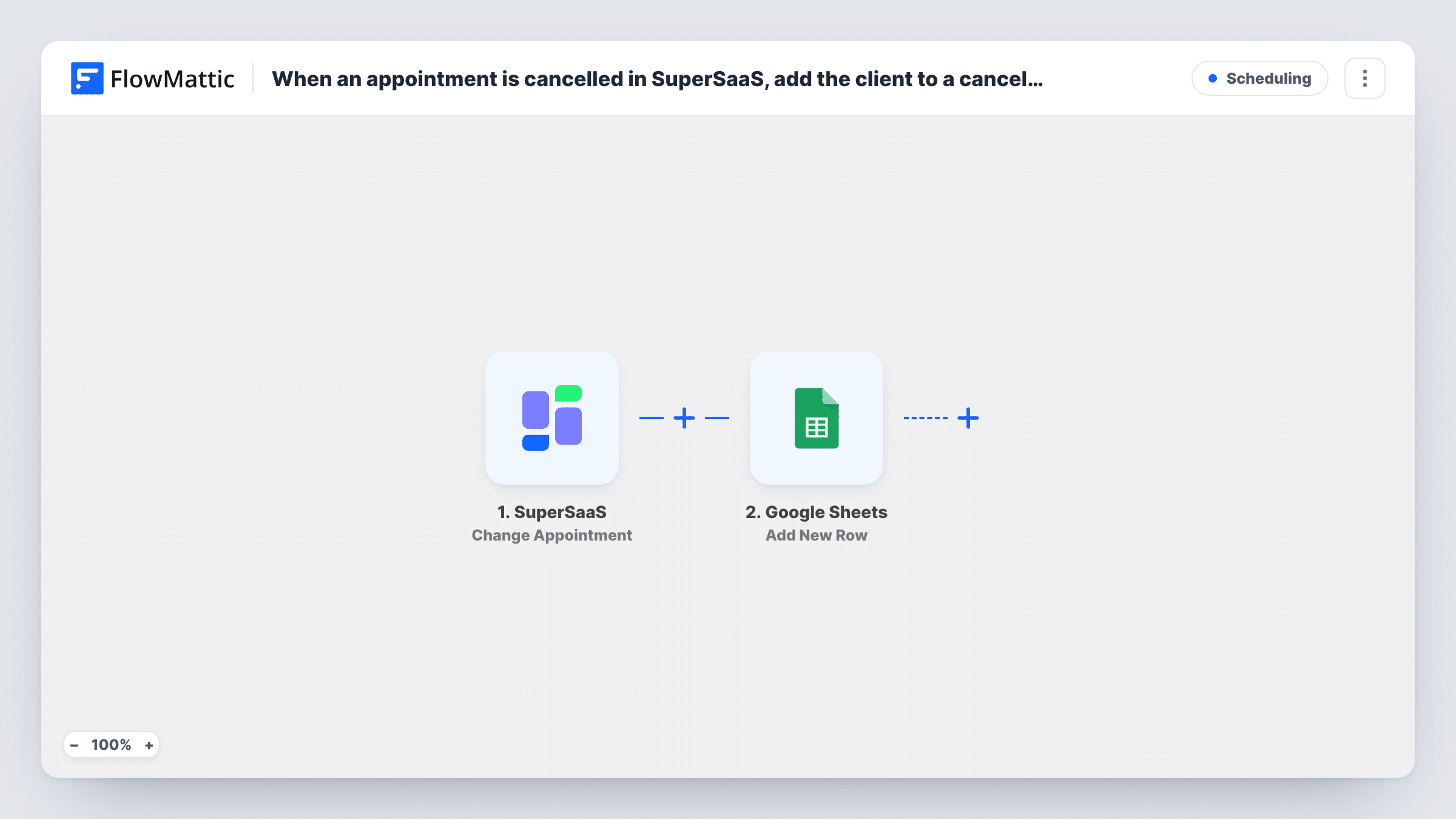
The SuperSaaS Change Appointment trigger fires when an appointment is created, updated or cancelled. All three start a run, and the appointment's details, such as the client, the time and the resource or service, are passed on with each event.
Next, each of those events becomes its own line through the Google Sheets Add New Row step. It never edits an earlier row, so one appointment that is booked, moved and then cancelled leaves three rows. That's the point of a log, but plan your columns for it: include the event type or status if SuperSaaS sends it, so you can tell new bookings from changes. The step ships unmapped, so pick the spreadsheet and map the appointment fields into your headers after import.
Make a test booking, change it, then cancel it, and check Task History and the sheet to see what each event sent.
Cancellation reporting for a clinic
A physiotherapy practice filters the sheet by cancelled events each month to see how many slots were lost and which days are affected.
Audit trail for a shared resource
A coworking space that rents meeting rooms through SuperSaaS keeps every booking change on record in case a member disputes a reservation.
Booking trends for a tutor
A tutor charts new bookings per week from the sheet to plan when to open more slots.
How this workflow runs
What happens at each step once the workflow is on, and what you need before you import it.
 SuperSaaS Change Appointment
Fires when an appointment is created, updated or cancelled in SuperSaaS. The appointment details from that event are passed on to the Google Sheets step.
- Google Sheets Add New Row
Adds one new row to your chosen sheet for each appointment event. No columns are mapped in the template, so choose the spreadsheet and map the client, time and status fields into your headers.
What you need
- FlowMatticCore
- SuperSaaS AccountAccount
- Google Sheets AccountAccount
After importing, map your own data. To keep the template universal, not every step is pre-filled. Open each step in the builder and connect your accounts and fields (channels, lists, sheets, recipients) before you switch the workflow on.
Make it yours
Changes worth making after you import it.
- Map an event or status field into its own column, if SuperSaaS sends one, so you can filter the log by new, changed and cancelled appointments.
- If you only want new bookings in the sheet, switch the trigger to SuperSaaS's New Appointment, which fires only when an appointment is created.
- Add a timestamp column and map the appointment's created or updated time, if the event includes one, so you can see the order in which changes happened.
Questions about this workflow
Does an updated SuperSaaS appointment change its existing row?
No. Each event adds a new row, so the sheet keeps the history. You'll see several rows for an appointment that changed more than once.
Will cancelled SuperSaaS appointments be logged too?
Yes. The Change Appointment trigger fires for cancellations as well as new and updated bookings, and each one adds a row.
Which appointment details can go into Google Sheets?
Whatever the SuperSaaS event includes. Make a test booking, check the trigger's output in Task History, and map the fields you want into columns.
More Scheduling workflows
Other ready-to-import templates from the same category.






Import this workflow into your WordPress site
Download the JSON, import it from the Workflows screen and connect your accounts. Every run stays on your server, with no per-task fees.
30-day money-back guarantee Unlimited workflows and runs Self-hosted