

Create a Google Calendar onboarding event when a Rippling employee record changes
When Rippling sends the employee event you choose, this workflow creates a Google Calendar event with the details you map, so onboarding sessions go on the calendar without someone booking them by hand.
 Rippling
 Google Calendar
2 steps Setup ~5 min Used on 2.5k sites Free to import
What this workflow does
Booking an onboarding session usually waits on someone noticing a change in Rippling and then opening Google Calendar. If that person is busy, the new starter's first meeting slips. This workflow books the calendar event from the Rippling data itself.
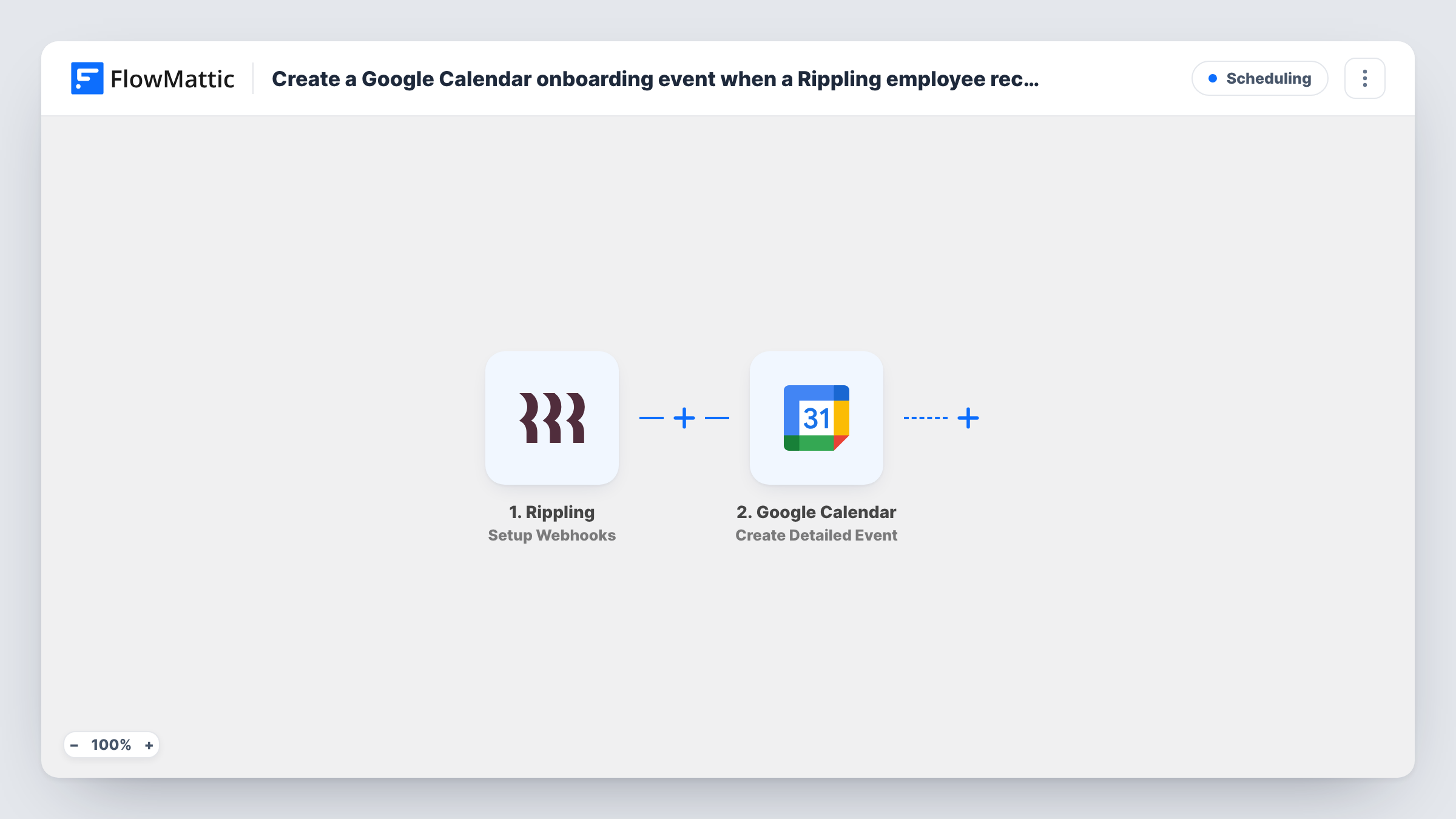
The Rippling trigger here is Setup Webhooks, which fires on the Rippling event you specify. The template leaves that choice to you. Pick the employee event that should lead to an onboarding session. When Rippling sends it, FlowMattic hands the data to Google Calendar, where Create Detailed Event adds an event using the title, time and other details you map.
Every event Rippling sends books one calendar event, and the template has no Filter. If you choose an event that fires on any edit to a record, a routine change such as a new address would book another session. Choose the event carefully, or add a Filter as the tips explain. The calendar event needs a start time, so map a date from the Rippling data or set a fixed one. A test record and Task History show which values Rippling sends.
First-day welcome session
An HR coordinator wants a welcome meeting on the calendar for each starter. When Rippling sends the employee event, the session is added with the new hire's name in the title.
IT setup appointment
Your IT lead runs laptop handovers for new staff. Mapping the employee details into the event description gives them a calendar slot with the context they need.
Manager check-in after a role change
If you choose an event that reports changes to a record, each change books a short check-in, which suits teams that review every title or department move.
How this workflow runs
What happens at each step once the workflow is on, and what you need before you import it.
 Rippling Setup Webhooks
Fires on the Rippling event you specify in the trigger settings. Choose the employee event that should book the session, so its data is passed on for mapping.
- Google Calendar Create Detailed Event
Creates a Google Calendar event with detailed options on the calendar you connect. Map the employee's name into the title and a date from Rippling, or a fixed time, into the start.
What you need
- FlowMatticCore
- Rippling AccountAccount
- Google Calendar AccountAccount
After importing, map your own data. To keep the template universal, not every step is pre-filled. Open each step in the builder and connect your accounts and fields (channels, lists, sheets, recipients) before you switch the workflow on.
Make it yours
Changes worth making after you import it.
- Add a Filter after the Rippling trigger that continues only when a value you care about, such as a start date, is not empty. Edits that lack it then book nothing.
- Add a Delay before the Google Calendar step if your team wants the event created a set time after Rippling reports the change rather than straight away.
- Add a Slack step after the calendar event so the hiring manager also gets a message naming the employee and the session they were booked into.
Questions about this workflow
Which Rippling event should I choose for onboarding sessions?
The template does not set one. Choose the event that matches when you want a session booked. Then create a test record and check Task History to confirm the data that arrives.
Will each Rippling update create another Google Calendar event?
Yes, if the event you choose fires on updates. Every event Rippling sends runs the workflow once. Add a Filter after the trigger to limit which ones book a session.
Can the new employee be invited to the calendar event?
Create Detailed Event offers more options than a quick event. Check its settings after import and, if it lets you add guests, map the employee's email from the Rippling data.
Does the workflow change anything in Rippling?
No. It only reads the data Rippling sends and creates an event in Google Calendar. Employee records in Rippling stay as they are.
More Scheduling workflows
Other ready-to-import templates from the same category.






Import this workflow into your WordPress site
Download the JSON, import it from the Workflows screen and connect your accounts. Every run stays on your server, with no per-task fees.
30-day money-back guarantee Unlimited workflows and runs Self-hosted