

When a new Planyo reservation is entered, create a calendar event and email a confirmation via Gmail
When a new reservation is entered in Planyo, this workflow adds it to Google Calendar and sends the customer an email from your Gmail account with the booking details.
 Planyo
 Google Calendar
 Gmail
3 steps Setup ~5 min Used on 966 sites Free to import
What this workflow does
Planyo handles bookings for rentals, rooms and appointments, but your day may be planned in Google Calendar and write to customers from Gmail. This workflow puts each new Planyo reservation on your calendar and emails the customer, without copying anything by hand.
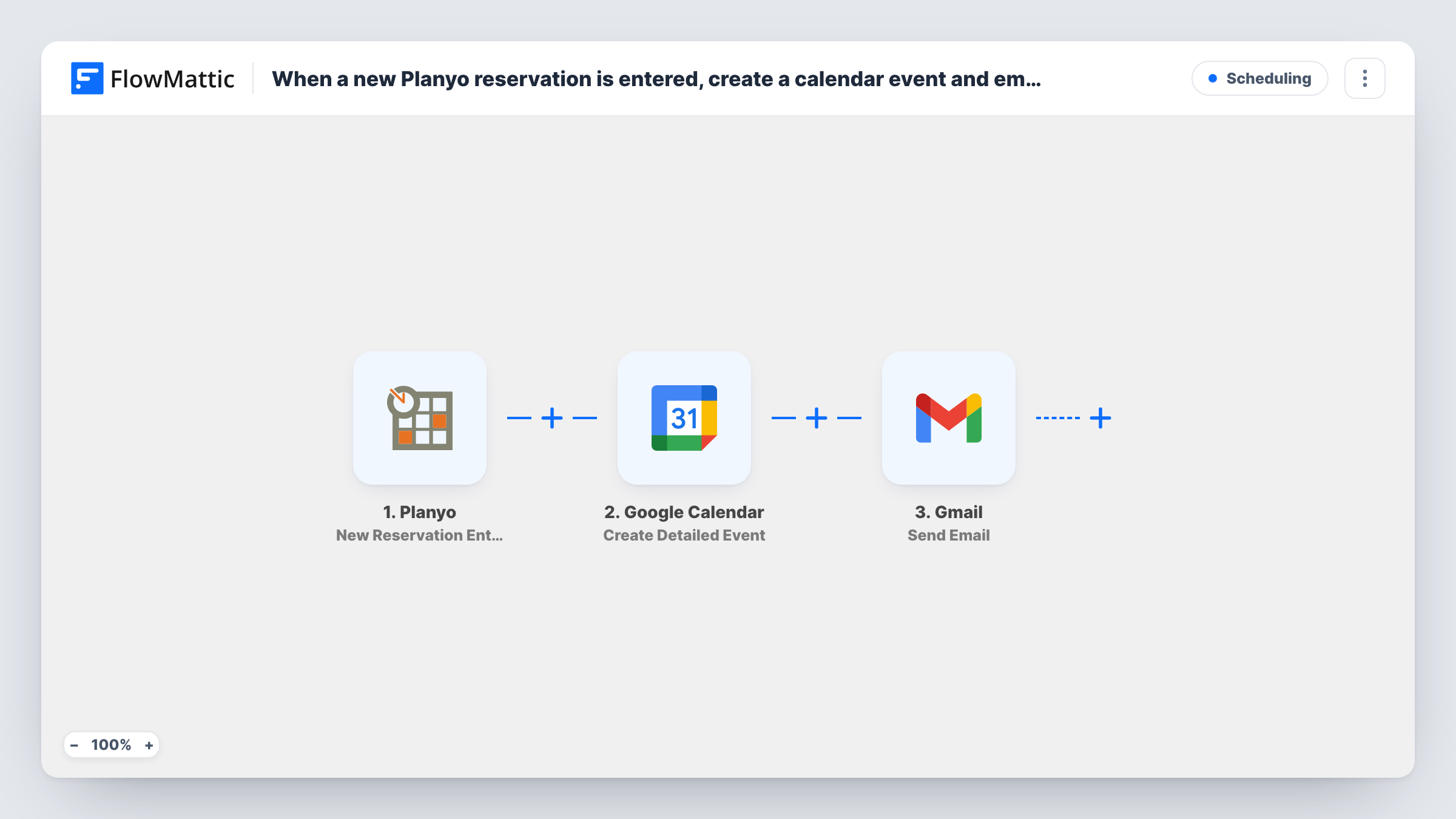
The Planyo trigger fires when a new reservation is entered. FlowMattic passes the reservation data to Google Calendar, where Create Detailed Event adds an event built from the start and end values you map. The final step uses Gmail to send an email from your connected account, which you address to the customer and fill with their booking details.
The email goes out when the reservation is entered, not when you later confirm it in Planyo. If you approve bookings by hand, word the email as a receipt, or switch the trigger to Planyo's Reservation Confirmed event. Changes and cancellations in Planyo do not update the calendar event.
Equipment rental shop
Each rental booked in Planyo appears on the shop's Google Calendar, and the customer gets an email with the pick-up date and item.
Guest house bookings
A new room reservation blocks the dates on the owner's calendar and sends the guest an email with arrival details.
Studio or meeting room hire
Hourly bookings show up on the studio calendar, and the client receives an email from the studio's Gmail with the slot they booked.
How this workflow runs
What happens at each step once the workflow is on, and what you need before you import it.
 Planyo New Reservation Entered
Starts whenever a new booking is entered into your Planyo account. The reservation and customer details are passed to the next two steps.
- Google Calendar Create Detailed Event
Creates a Google Calendar event for the reservation. Map Planyo's start and end values and a title, then run a test booking to check the time and time zone.
- Gmail Send Email
Emails the customer from the Google account you link. Map the customer's email from Planyo as the recipient and write a message with the booking details.
What you need
- FlowMatticCore
- Planyo AccountAccount
- Google Calendar AccountAccount
- Gmail AccountAccount
After importing, map your own data. To keep the template universal, not every step is pre-filled. Open each step in the builder and connect your accounts and fields (channels, lists, sheets, recipients) before you switch the workflow on.
Make it yours
Changes worth making after you import it.
- Switch the trigger to Planyo's Reservation Confirmed event if you only want calendar entries and emails for bookings you have approved.
- Build a second workflow on Reservation Cancelled by Client to email you, so you know to remove the calendar event.
- Include the reservation ID in both the event title and the email, so you can match them to Planyo later.
Questions about this workflow
Is the Gmail email sent before I confirm the Planyo reservation?
Yes. The trigger is New Reservation Entered, so the email goes out as soon as the booking is made. Use the Reservation Confirmed trigger if it should wait for your approval.
If a Planyo booking is cancelled, does its calendar entry disappear?
No. Nothing here edits or deletes calendar entries once they exist. Cancellations are separate Planyo triggers and need their own workflow.
Which Gmail account sends the Planyo booking email?
It comes from whichever Google account you link to the Gmail step while importing. Pick the mailbox you want customers to reply to, and make a test reservation to see how the email reads.
More Scheduling workflows
Other ready-to-import templates from the same category.







Import this workflow into your WordPress site
Download the JSON, import it from the Workflows screen and connect your accounts. Every run stays on your server, with no per-task fees.
30-day money-back guarantee Unlimited workflows and runs Self-hosted