

Create a Zoho Webinar for every new course published in LearnDash
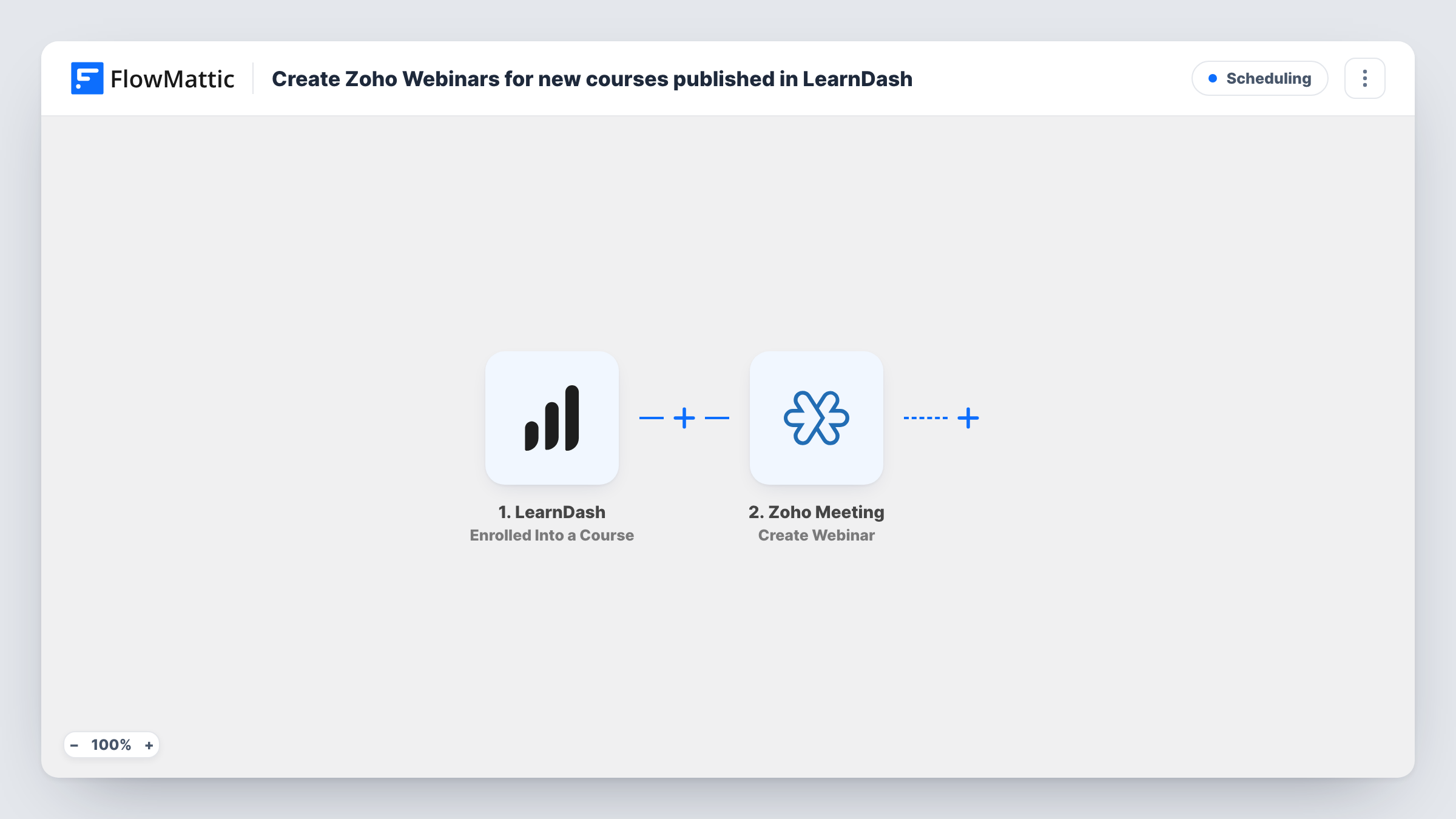
When a LearnDash course is published, FlowMattic checks that the new post is a course and creates a Zoho Meeting webinar for it, so every launch can come with a live session.
 WordPress
 Filter
 Zoho Meeting
3 steps Setup ~5 min Used on 1.4k sites Free to import
What this workflow does
A live kick-off or Q&A session helps a new course get started, but setting one up for each launch is easy to forget. This workflow creates a webinar in Zoho Meeting whenever you publish a LearnDash course on your site.
The WordPress New Post trigger runs once per post, at the moment it is first published. It covers posts and custom post types, and LearnDash courses are a custom post type, so publishing a course starts a run. A Filter then continues only when the post type exactly matches sfwd-courses, LearnDash's course type. Blog posts, lessons and other types stop at the Filter.
The Zoho Meeting Create Webinar step ships unmapped. After import, connect Zoho Meeting, map the course title into the webinar's name and set when the session takes place. The course doesn't carry a date for the webinar, so you decide how the time is chosen. Check a test run to see what the step needs.
Updating a course that is already published doesn't start a run. Task History shows each course that passed the Filter and Zoho Meeting's response.
Launch Q&A for every new course
An online academy holds a live question session for each course it publishes, and the webinar is created as soon as the course goes live.
Orientation sessions for cohorts
A training provider publishing a course per cohort gets a Zoho Meeting webinar ready for the group's welcome call.
Instructor-led companions to self-paced courses
A coach who sells self-paced LearnDash courses adds a live webinar to each one so students can meet the instructor.
How this workflow runs
What happens at each step once the workflow is on, and what you need before you import it.
 WordPress New Post
Fires when a post or custom post type is first published in WordPress, including LearnDash courses. The post title, type, permalink and other fields are passed on.
- Filter Continue If Condition Meet
Continues only when the post type exactly matches sfwd-courses, LearnDash's course type. Blog posts, pages and lessons stop here, so only courses reach Zoho Meeting.
- Zoho Meeting Create Webinar
Creates a new webinar in Zoho Meeting. The step is unmapped: connect your account, map the course title into the webinar's name, set the session time and check a test run for any other details it needs.
What you need
- FlowMatticCore
- Zoho Meeting AccountAccount
After importing, map your own data. To keep the template universal, not every step is pre-filled. Open each step in the builder and connect your accounts and fields (channels, lists, sheets, recipients) before you switch the workflow on.
Make it yours
Changes worth making after you import it.
- Include the course permalink in the webinar text you write, so attendees can find the course from the invitation.
- Add an Email step after the Zoho Meeting step that sends you the webinar's join link, so you can add it to the course page.
- Keep the Filter value as sfwd-courses unless your site uses another post type for courses.
Questions about this workflow
Do LearnDash lessons or quizzes create Zoho webinars too?
No. The Filter that sits between the New Post trigger and the Create Webinar step continues only for the sfwd-courses post type. Lessons, topics and quizzes use other post types, so they stop there.
When is the Zoho Meeting webinar scheduled?
When you set it in the Create Webinar step. The template doesn't choose a time, and a LearnDash course has no webinar date of its own, so set the time in the step yourself and review each webinar in Zoho Meeting after a course launches.
Will updating a published LearnDash course make another webinar?
No. New Post fires only when a post first moves to published, so later edits to the course don't start a run.
More Scheduling workflows
Other ready-to-import templates from the same category.





Import this workflow into your WordPress site
Download the JSON, import it from the Workflows screen and connect your accounts. Every run stays on your server, with no per-task fees.
30-day money-back guarantee Unlimited workflows and runs Self-hosted