

When user roles are updated in Storyblok, send notification via Gmail
When user roles change in your Storyblok space, this workflow sends an email from your Gmail account with the details, so whoever looks after access hears about every role change.
 Storyblok
 Gmail
2 steps Setup ~5 min Used on 1.7k sites Free to import
What this workflow does
Roles in a headless CMS decide who can edit, publish or delete content. A role change made by mistake, or by someone who shouldn't, is easy to miss in a busy team. This workflow emails you whenever Storyblok reports one.
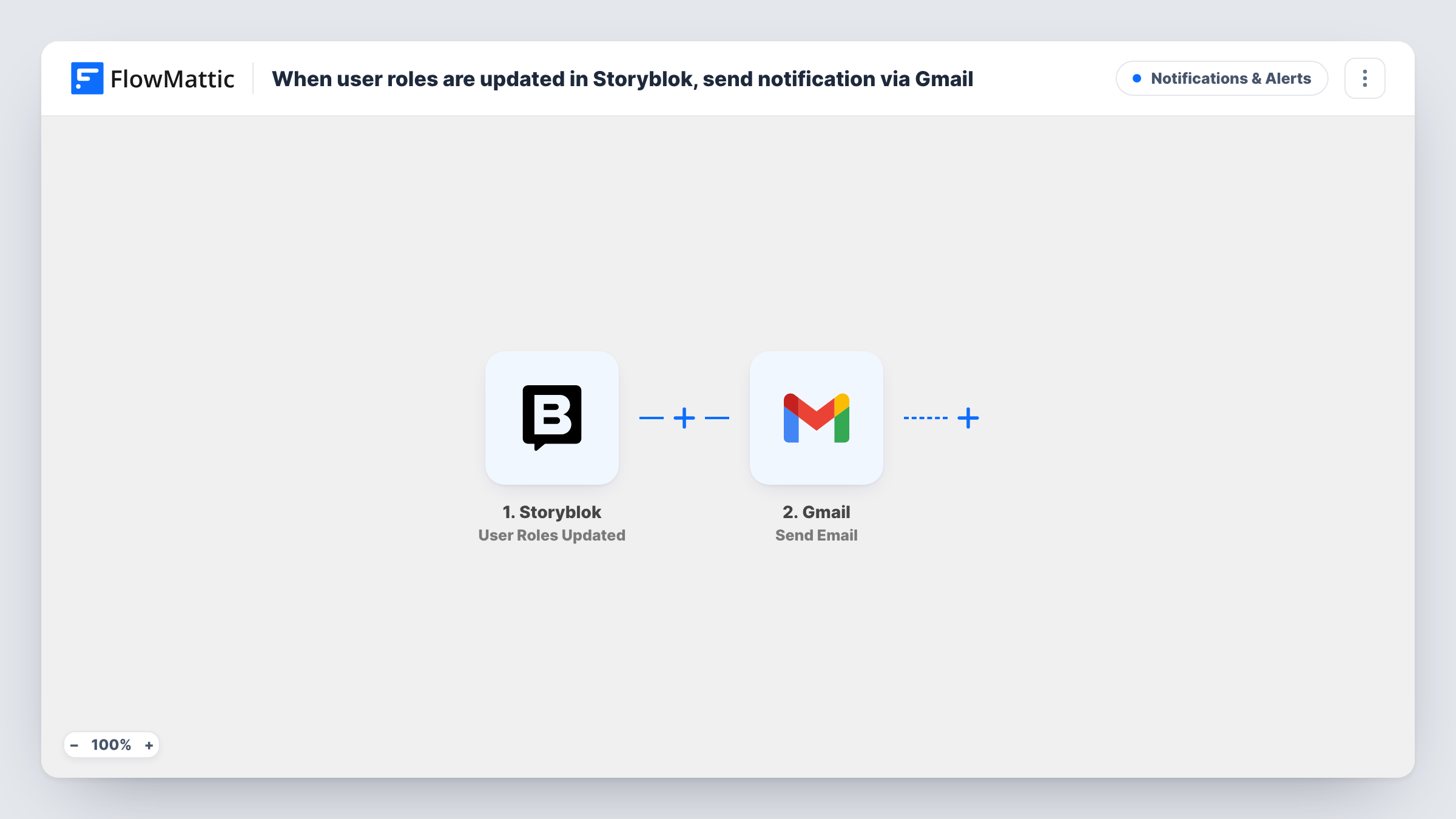
The Storyblok User Roles Updated trigger fires when user roles are updated and passes the event data to FlowMattic. The Gmail Send Email action then sends a message from the Gmail account you connect. You choose the recipient and write the subject and body, using values from the Storyblok event to say what changed.
Every role update sends one email, with no filtering. Other Storyblok events, such as users being added or removed, don't run this workflow because they have their own triggers. Task History shows the Storyblok data for each run and the result of the Gmail step.
Access audit for a content team
The site owner gets an email each time someone's Storyblok role changes, building an inbox record of who was given which access.
Agency managing a client's space
An agency admin is told when the client changes a role in their Storyblok space, so the agency knows when its own editors lose or gain rights.
Security mailbox
Send every role change to a shared security address, where the team can check that each change was expected.
How this workflow runs
What happens at each step once the workflow is on, and what you need before you import it.
 Storyblok User Roles Updated
Fires when user roles are updated in your Storyblok space. The event data is passed on so you can put the details into the email.
- Gmail Send Email
Emails the role change from the Gmail account you connect. Set the recipient, then build the subject and body from the Storyblok event data so the reader can tell what changed.
What you need
- FlowMatticCore
- Storyblok AccountAccount
- Gmail AccountAccount
After importing, map your own data. To keep the template universal, not every step is pre-filled. Open each step in the builder and connect your accounts and fields (channels, lists, sheets, recipients) before you switch the workflow on.
Make it yours
Changes worth making after you import it.
- Change a role on a test user after import. FlowMattic captures the event, and you can see which details Storyblok sends before writing the email.
- For a fuller access log, add a second workflow on Storyblok's User Added and User Removed triggers that emails the same address.
- If you want a record you can search later, add a Google Sheets Add New Row step after Gmail and map the same Storyblok details.
Questions about this workflow
Who receives the Storyblok role-change email?
Whoever you put in the Gmail step's recipient. Use your own address, a shared mailbox, or several people if Gmail accepts them in that field.
Does adding a new Storyblok user send this email?
No. This workflow only uses User Roles Updated. Storyblok has separate User Added and User Removed triggers you can use in another workflow.
Which account does the Gmail email come from?
From the Gmail account you connect in FlowMattic when you import the workflow. That Gmail address is the one shown in the From line.
Can the email say what the new role is?
Only if Storyblok includes it in the event data. Check a test run and map the values it sends into the email body.
More Notifications & Alerts workflows
Other ready-to-import templates from the same category.




Import this workflow into your WordPress site
Download the JSON, import it from the Workflows screen and connect your accounts. Every run stays on your server, with no per-task fees.
30-day money-back guarantee Unlimited workflows and runs Self-hosted