

When a Snackeet story is completed or abandoned, create a new record in Airtable
Each time a visitor completes or abandons one of your Snackeet stories, this workflow adds a record to Airtable with the data Snackeet sends, so you can review story results and drop-offs in one base.
 Snackeet
 Airtable
2 steps Setup ~5 min Used on 1.3k sites Free to import
What this workflow does
Interactive stories and quizzes collect answers and show where people stop. Looking at that across many stories is hard from inside Snackeet alone. A table in Airtable lets you sort, filter and group the results however you like.
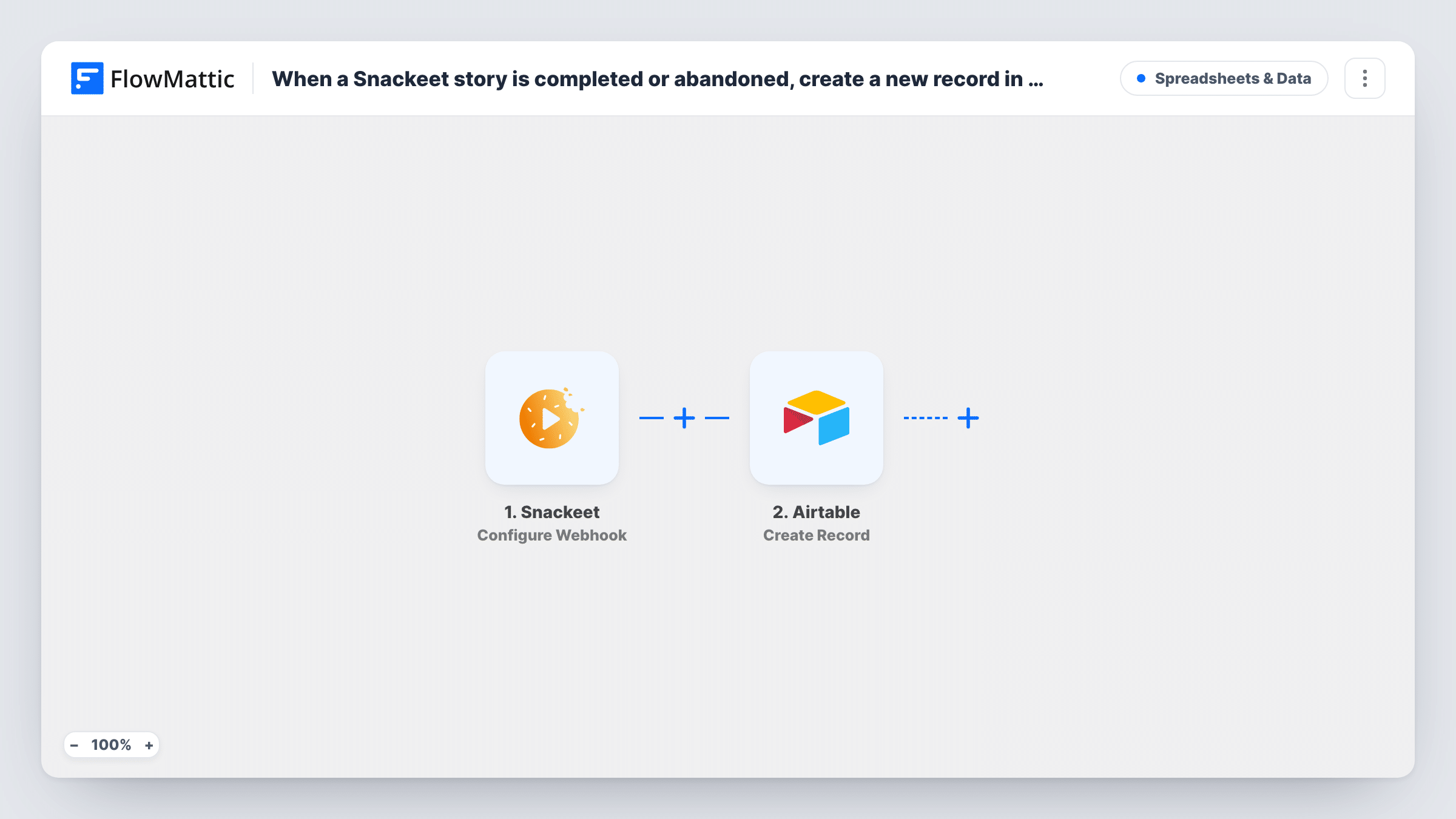
The Snackeet trigger, Configure Webhook, starts a run whenever a visitor reaches the end of a story or leaves it partway. FlowMattic receives the data Snackeet sends about that session. The Airtable step, Create Record, then adds a new record to the base and table you pick. You map each piece of Snackeet data to an Airtable field.
Both finished and abandoned stories create a record, which is what makes this useful for drop-off analysis. If you want to tell them apart in the table, map whatever value Snackeet sends about the outcome into its own field. Task History shows each run and Airtable's reply.
Quiz lead capture
A product-finder quiz in Snackeet collects an email and answers. Each finished session becomes an Airtable record your sales team can sort by answer.
Finding where people drop off
Abandoned stories get a record too, so you can group them in Airtable and see which stories lose people most often.
Comparing campaigns
Run several Snackeet stories for different ads and keep every session in one table, with a field for the story so you can compare them side by side.
How this workflow runs
What happens at each step once the workflow is on, and what you need before you import it.
 Snackeet Configure Webhook
Fires when a visitor completes or abandons one of your Snackeet stories. The session data Snackeet sends is passed on for mapping into Airtable.
- Airtable Create Record
Writes one Airtable record per story session into the table you pick. Map each Snackeet value to a field and connect your Airtable account on import.
What you need
- FlowMatticCore
- Snackeet AccountAccount
- Airtable AccountAccount
After importing, map your own data. To keep the template universal, not every step is pre-filled. Open each step in the builder and connect your accounts and fields (channels, lists, sheets, recipients) before you switch the workflow on.
Make it yours
Changes worth making after you import it.
- Complete one test story and abandon another after import, so FlowMattic captures the data for both cases before you map the Airtable fields.
- Add a Filter after the trigger if you only want completed stories in the table, using whatever value Snackeet sends about how the session ended.
- Create the Airtable fields before you map them, using field types that suit the data, such as email for addresses and number for scores.
Questions about this workflow
Do abandoned Snackeet stories create Airtable records as well?
Yes. The trigger fires when a story is completed or abandoned, so both kinds of session add a record. Add a Filter if you want only one kind.
What Snackeet data ends up in the Airtable record?
Only the values you map to fields in the Create Record step. Run a test story first to see what Snackeet sends, then map the parts you need.
Will older Snackeet sessions be copied to Airtable?
No. Only sessions that end after you turn the workflow on start a run. Earlier results stay in Snackeet.
Can each Snackeet story go to its own Airtable table?
Yes, with a Router. Give each route a condition on a value that identifies the story, and a Create Record step pointing at the right table.
More Spreadsheets & Data workflows
Other ready-to-import templates from the same category.





Import this workflow into your WordPress site
Download the JSON, import it from the Workflows screen and connect your accounts. Every run stays on your server, with no per-task fees.
30-day money-back guarantee Unlimited workflows and runs Self-hosted