

Send a congratulations email via Gmail when a Senseily lesson is completed
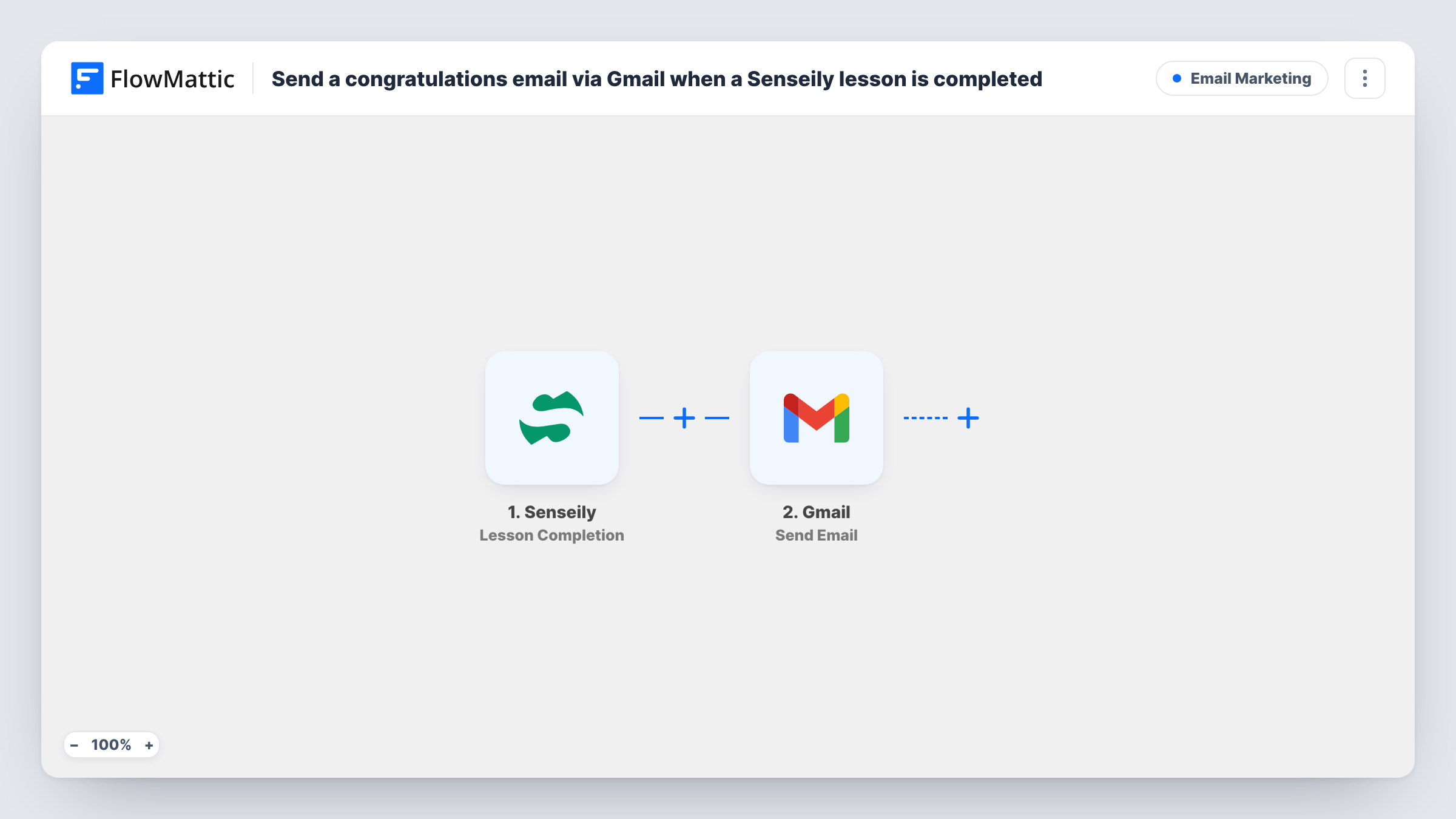
When a student finishes all the content in a Senseily course lesson, this workflow sends them a congratulations email from your Gmail account, so their progress gets a personal note from you.
 Senseily
 Gmail
2 steps Setup ~5 min Used on 978 sites Free to import
What this workflow does
Online learners work alone, and a quick message after a lesson shows that someone notices their progress. Writing those notes by hand does not scale past a few students. This workflow sends one from your Gmail address each time a lesson is finished.
The Senseily trigger, Lesson Completion, fires when a student completes all the content from a course lesson. Details about the student and the lesson are passed to FlowMattic, ready to place in the email.
The Gmail step sends the message through the Google account you connect. Map the student's email address as the recipient and write a subject and body that can name the lesson they just finished. Keep in mind how often this runs: the trigger fires for every completed lesson, so a course with eight lessons sends a student eight emails. The tips cover how to send fewer. Task History shows each email that went out and any error Gmail returned.
Encouragement in a self-paced course
Students working through a Senseily course get a short note after each lesson, which can point them to what comes next.
Marking a key lesson
With a Filter on a value that identifies the lesson, only students who finish a capstone or exam-prep lesson receive a congratulations email.
Personal touch from a solo instructor
The email arrives from the instructor's own Gmail address, so students can reply with questions straight to the person who teaches them.
How this workflow runs
What happens at each step once the workflow is on, and what you need before you import it.
 Senseily Lesson Completion
Fires when a student completes all the content in a Senseily course lesson. Student and lesson details are passed on to the email step.
- Gmail Send Email
Emails the student from your Gmail account. Map their email address as the recipient, then write a congratulations subject and message using the lesson details.
What you need
- FlowMatticCore
- Senseily AccountAccount
- Gmail AccountAccount
After importing, map your own data. To keep the template universal, not every step is pre-filled. Open each step in the builder and connect your accounts and fields (channels, lists, sheets, recipients) before you switch the workflow on.
Make it yours
Changes worth making after you import it.
- To email only after certain lessons, add a Filter after the trigger that continues when the lesson name or ID matches the ones you choose, based on what your test run shows.
- Senseily in FlowMattic also has New Course Enrollment and New User Registration triggers. Build a second workflow from one of them to send a welcome email too.
- Finish a test lesson with your own student account after import, so the Gmail step has real values to map before you go live.
Questions about this workflow
Will a student get an email for every Senseily lesson?
Yes, as imported. The trigger fires for each completed lesson. Add a Filter on the lesson if you only want to mark certain ones.
Which address sends the Senseily congratulations email?
The Gmail account you link in the Send Email step. Student replies go back to that inbox.
Does a lesson count as complete if the student skips part of it?
The trigger fires when a student completes all the content from a lesson, so partly finished lessons do not start a run.
Can I send something when the whole Senseily course is finished?
The Senseily triggers in FlowMattic cover lesson completion, enrollment, registration and newsletter sign-ups. Filtering on the final lesson is the closest way to mark the end of a course.
More Email Marketing workflows
Other ready-to-import templates from the same category.




Import this workflow into your WordPress site
Download the JSON, import it from the Workflows screen and connect your accounts. Every run stays on your server, with no per-task fees.
30-day money-back guarantee Unlimited workflows and runs Self-hosted