

Create new Brilliant Directories posts from updated Google Sheets rows
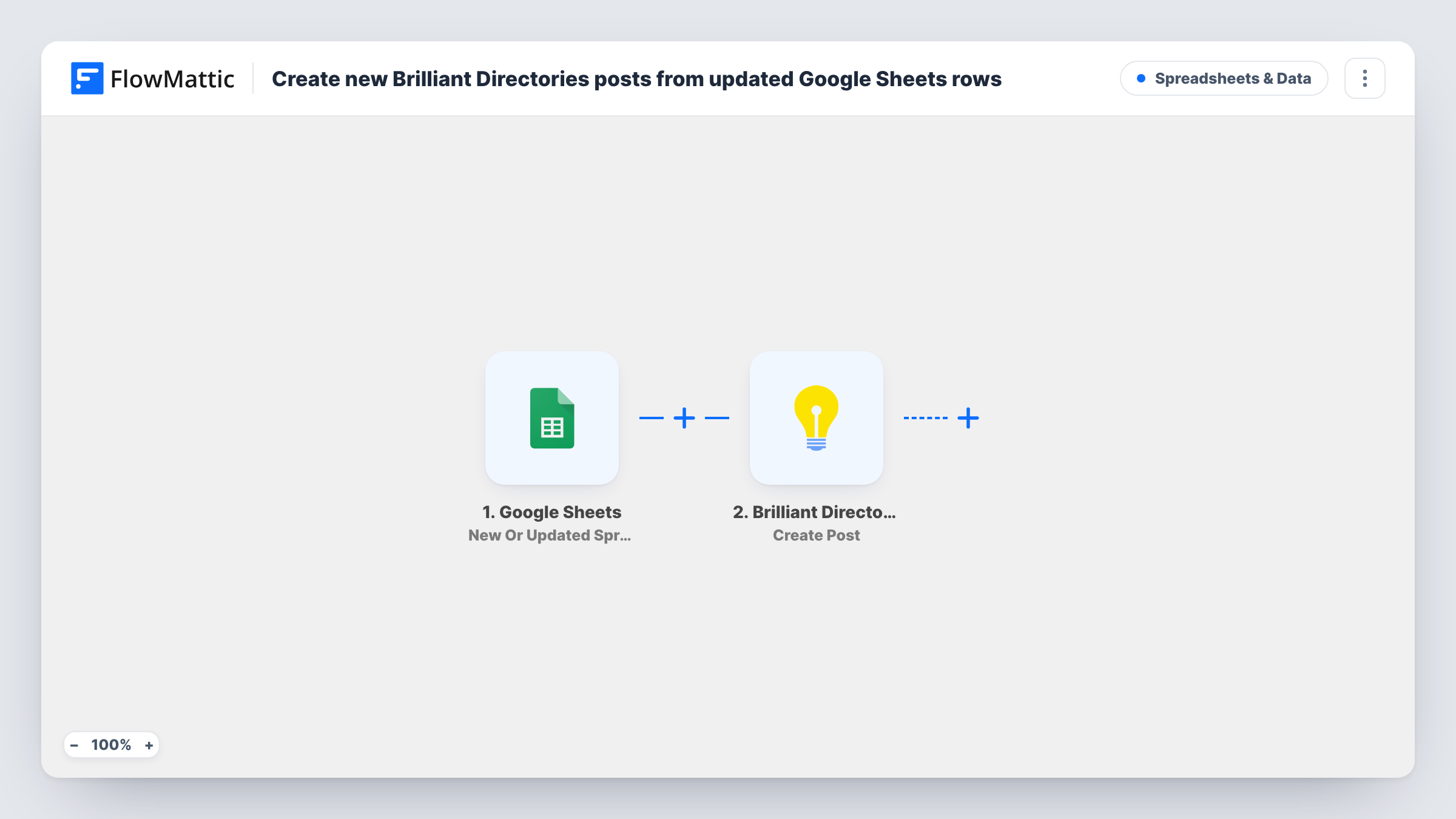
When a row in your Google Sheets spreadsheet is added or changed, FlowMattic creates a new post on your Brilliant Directories site from that row. Each further change to a row creates another post.
 Google Sheets
 Brilliant Directories
2 steps Setup ~5 min Used on 3.1k sites Free to import
What this workflow does
Some directory owners draft listings, articles or events in a spreadsheet first, where several people can work on them at once. Moving each one into Brilliant Directories by hand is the slow part. This workflow takes a row from Google Sheets and creates a post from it in Brilliant Directories.
The trigger is New Or Updated Spreadsheet Row, which fires when a row in the spreadsheet you choose is updated. The row's cells become values you can map. The Brilliant Directories step, Create Post, then adds a single or group post to your directory's database with the cell values you placed in it.
Read this before you turn it on: the action always creates a new post. It never edits a post made by an earlier run. So when you fix a typo in a row that already produced a post, you get a second post, and depending on how often the trigger sees a row change, editing it cell by cell can produce several. This suits a sheet where each row is written once and then left alone. Task History shows every run, which helps you spot duplicates early.
Bulk loading a new directory's first posts
Paste finished post rows into a fresh sheet in one go, and each row becomes a post in Brilliant Directories without opening the admin for each one.
A content team that writes in a shared sheet
Writers prepare complete rows in a staging tab, and the finished row is pasted into the watched sheet only when it is ready to publish.
Event listings gathered by volunteers
Volunteers collect local events in a spreadsheet, and an editor copies each approved, complete row into the sheet this workflow watches.
How this workflow runs
What happens at each step once the workflow is on, and what you need before you import it.
 Google Sheets New Or Updated Spreadsheet Row
Runs when a row in the Google Sheets spreadsheet you select is added or updated. The row's cell values are passed on so you can map them into the post.
- Brilliant Directories Create Post
Creates a new single or group post in your Brilliant Directories site's database. Connect your Brilliant Directories account and map the sheet's cells into the post. Each run makes a separate post.
What you need
- FlowMatticCore
- Google Sheets AccountAccount
- Brilliant Directories AccountAccount
After importing, map your own data. To keep the template universal, not every step is pre-filled. Open each step in the builder and connect your accounts and fields (channels, lists, sheets, recipients) before you switch the workflow on.
Make it yours
Changes worth making after you import it.
- Write rows in another tab and paste each one into the watched sheet only when it is complete. Typing directly into the watched sheet can fire a run per edit, and each run makes a post.
- Add a Filter after the trigger that continues only when a Ready column says yes. Rows still being drafted then create nothing, though later edits to a ready row will still post again.
- To change posts that already exist, build a separate workflow around Brilliant Directories' Update Post action, which edits an existing post instead of making a new one.
Questions about this workflow
Does editing a Google Sheets row update its Brilliant Directories post?
No. The template only uses Create Post, so every run adds a new post. Editing a row that already produced a post creates a second one. You can delete duplicates in Brilliant Directories.
Which Brilliant Directories post fields can I fill from the sheet?
Open the Create Post step after import to see what it offers, then map your sheet's columns into it. Run a test with one row and check the result in your directory before you add more.
Will rows already in the sheet create Brilliant Directories posts?
Rows only start a run when the trigger reports them as added or changed after the workflow is on. Existing rows that nobody touches won't create posts.
Can the post be published from a specific Google Sheets tab?
Yes. You pick the spreadsheet and the sheet in the trigger step. Point it at a tab used only for finished posts so edits elsewhere don't create anything.
More Spreadsheets & Data workflows
Other ready-to-import templates from the same category.





Import this workflow into your WordPress site
Download the JSON, import it from the Workflows screen and connect your accounts. Every run stays on your server, with no per-task fees.
30-day money-back guarantee Unlimited workflows and runs Self-hosted