

When an ACF field is updated in options page, create a new WooCommerce product and add details to Google Sheet
Updating a field on an Advanced Custom Fields options page creates a new WooCommerce product from the values you map, then adds the product’s details as a row in Google Sheets.
 Advanced Custom Fields
 WooCommerce
 Google Sheets
3 steps Setup ~5 min Used on 3.2k sites Free to import
What this workflow does
An ACF options page is a settings screen you build in WordPress. Some site owners use one as a simple entry screen: staff type a product name and price into it without opening the full WooCommerce product editor. This workflow turns each update on that page into a new product and keeps a log of what was created.
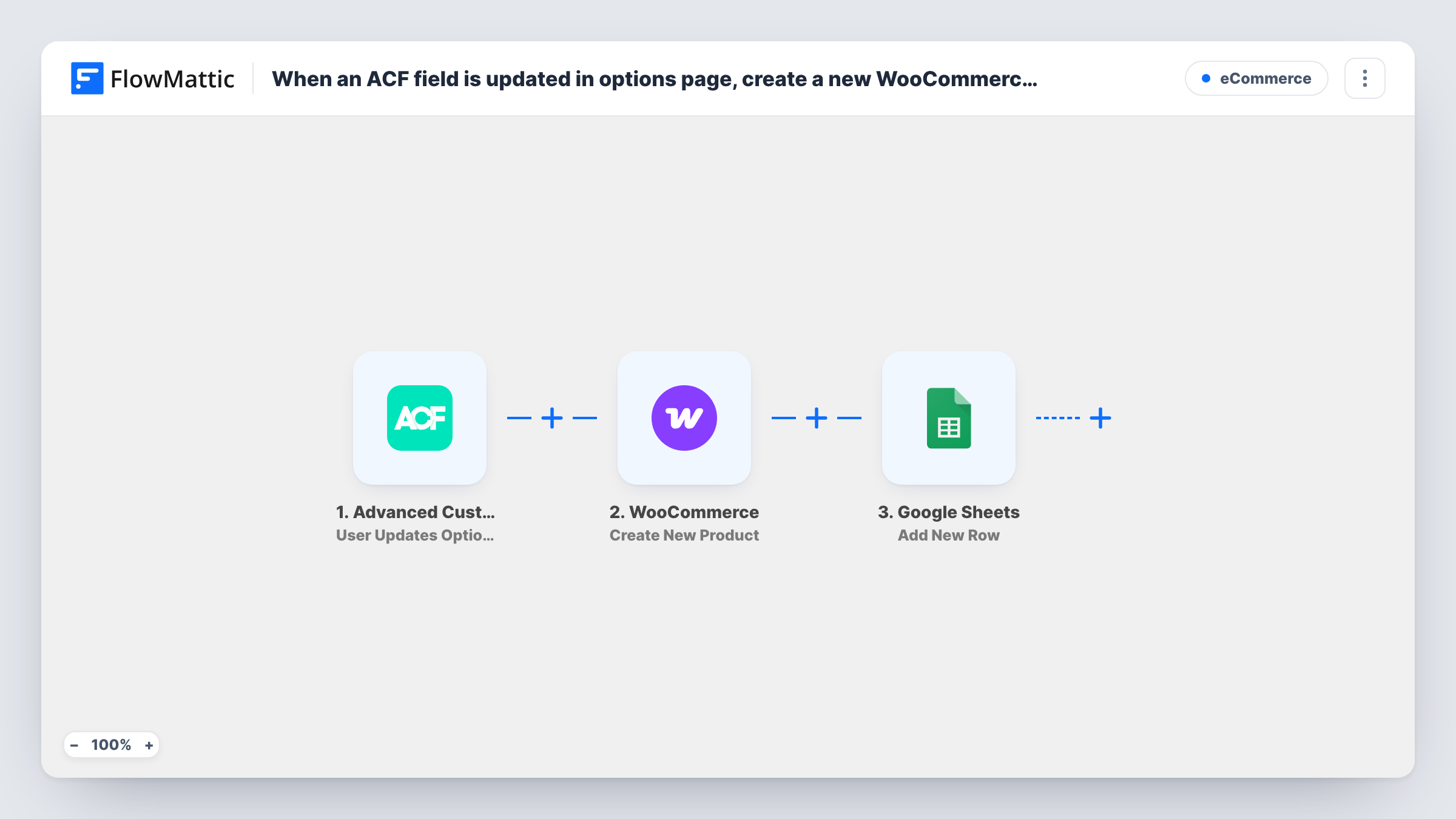
The Advanced Custom Fields trigger fires when a custom field on an options page is updated. FlowMattic then runs WooCommerce Create New Product with the values you map from the fields. Last, Google Sheets adds a row with the details you pick, from the options page or from WooCommerce's reply.
Every update creates another product. If you correct a typo on the options page, you get a second product rather than a fix to the first. Saving a page with several changed fields may also start more than one run, so test before you rely on it.
Quick product entry for shop staff
Staff fill in a short ACF options page with a name, price and description, and a WooCommerce product is created without them using the product editor.
Weekly special added from a settings page
A cafe updates its weekly special on an options page, and each update adds the special to WooCommerce as a new product.
A log of products created this way
The Google Sheets row records what was created and when, so the owner can review products added from the options page.
How this workflow runs
What happens at each step once the workflow is on, and what you need before you import it.
 Advanced Custom Fields User Updates Options Page Field
Runs when a custom field on an Advanced Custom Fields options page is updated. The field values are passed to the WooCommerce and Google Sheets steps.
- WooCommerce Create New Product
Creates a new WooCommerce product. Map values from the options page into the product, such as a name and price, and test once to see how the new product is set up.
- Google Sheets Add New Row
Logs the new product in Google Sheets as an extra row. Map the options page values and the details WooCommerce returned about the product into the columns you set up.
What you need
- FlowMatticCore
- Advanced Custom Fields PluginPlugin
- WooCommerce PluginPlugin
- Google Sheets AccountAccount
After importing, map your own data. To keep the template universal, not every step is pre-filled. Open each step in the builder and connect your accounts and fields (channels, lists, sheets, recipients) before you switch the workflow on.
Make it yours
Changes worth making after you import it.
- Set the new product to draft in the WooCommerce step, if the step offers a status, so you can check each product before it goes on sale.
- Add the WooCommerce product ID from the step's reply to the sheet, so each row leads straight to the product it created.
- Add a Filter after the trigger so a run only continues when the product name field on the options page is not empty.
Questions about this workflow
Does editing the ACF options page update the product it created?
No. The WooCommerce step is Create New Product, so each update makes a new product. Edit existing products in WooCommerce directly.
How many WooCommerce products does one save of the options page create?
The trigger fires when an options page field is updated. If one save updates several fields, it may start several runs. Test with your page and check Task History.
Can the Google Sheets row show the new product's ID?
Yes. The sheet step runs after WooCommerce, so values WooCommerce returns about the new product, such as its ID, are available to map into a column.
More E-Commerce workflows
Other ready-to-import templates from the same category.




Import this workflow into your WordPress site
Download the JSON, import it from the Workflows screen and connect your accounts. Every run stays on your server, with no per-task fees.
30-day money-back guarantee Unlimited workflows and runs Self-hosted