

Update a contact in HubSpot CRM when a Cardly contact changes address
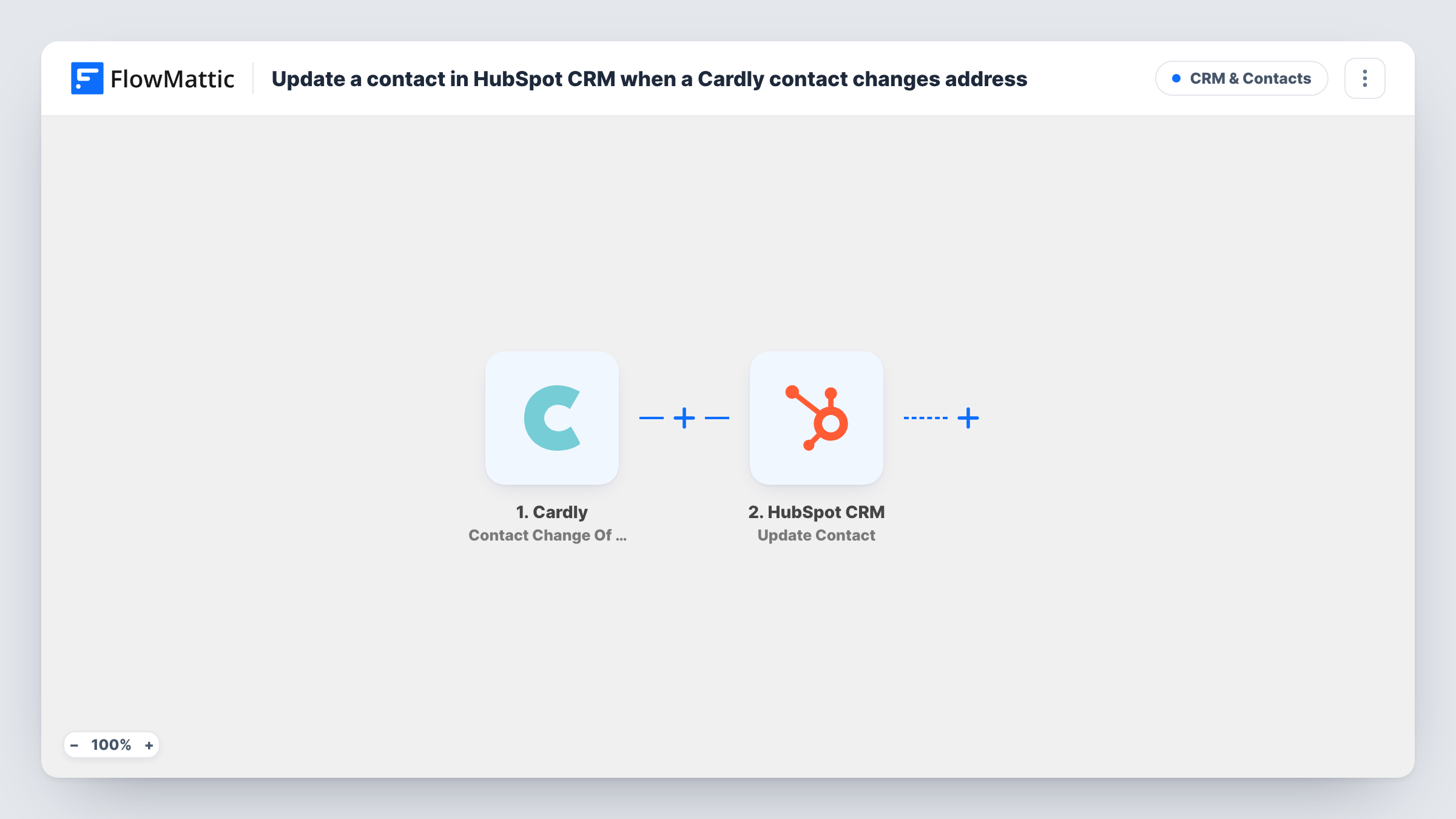
When Cardly reports a contact’s change of address, with the USPS-recommended new address, FlowMattic writes it to that person’s existing HubSpot CRM contact, found by email or contact ID.
 Cardly
 HubSpot CRM
2 steps Setup ~5 min Used on 2.9k sites Free to import
What this workflow does
If you mail cards through Cardly, you are often the first to learn that a customer has moved. Cardly reports the original address alongside the USPS-recommended updated one. That is worth keeping in HubSpot too, so your next mailing, invoice or sales visit uses the right address.
The Cardly Contact Change Of Address trigger fires when Cardly provides a contact's original address with the recommended updated address. FlowMattic then runs HubSpot CRM Update Contact on the matching person. The HubSpot integration resolves a contact from an email address or a contact ID, so no separate search step sits between the two.
You set up the HubSpot step after import, since the template maps nothing. Connect HubSpot, map the email address from the Cardly trigger data into the contact field, then map the updated address parts into HubSpot's address properties. Take care to map the new address, not the original one. Check a test run in Task History to see which fields Cardly sent, including whether an email is among them.
Only contacts that already exist in HubSpot are updated; this workflow doesn't add new people to your CRM.
Next mailing goes to the new address
A real estate agent who sends anniversary cards through Cardly sees the client's new address in HubSpot before planning the next mailing from the CRM.
Accurate billing addresses
A subscription box company that keeps customer addresses in HubSpot gets Cardly's recommended address on the contact, ready for the next shipment.
Field sales visit planning
A sales team plans in-person visits from HubSpot and works from the updated address Cardly reported rather than the old one.
How this workflow runs
What happens at each step once the workflow is on, and what you need before you import it.
 Cardly Contact Change Of Address
Fires when Cardly provides a contact's original address together with the USPS-recommended updated address. Look at a test run in Task History to see the address fields and whether an email is included.
- HubSpot CRM Update Contact
Writes to an existing HubSpot contact. Map the email from the Cardly data into the contact field (or a HubSpot contact ID, if you have one), then map the updated street, city, state and postal code into HubSpot's address properties.
What you need
- FlowMatticCore
- Cardly AccountAccount
- HubSpot CRM AccountAccount
After importing, map your own data. To keep the template universal, not every step is pre-filled. Open each step in the builder and connect your accounts and fields (channels, lists, sheets, recipients) before you switch the workflow on.
Make it yours
Changes worth making after you import it.
- Map the old address into a custom HubSpot property such as Previous address, so you keep a record of where the contact lived before.
- Put a Filter between the Cardly trigger and the Update Contact step that continues only when the contact's email is not empty, so address changes without an email stop before HubSpot.
- Add a Slack Send Channel Message step after Update Contact if your office team should double-check moves before the next mailing.
Questions about this workflow
Which address does HubSpot get, the old or the new one?
Whichever you map. Cardly's change-of-address event includes both the original address and the USPS-recommended update, so map the updated fields into HubSpot's address properties.
How is the Cardly contact matched in HubSpot?
By an email address or HubSpot contact ID that you map into the step's contact field; FlowMattic's HubSpot integration resolves the contact from either. Run a test to confirm the Cardly data carries an email.
Will Cardly contacts missing from HubSpot be created?
No. Update Contact changes contacts that already exist and doesn't create new ones. Task History shows HubSpot's reply for every address change.
More CRM & Contacts workflows
Other ready-to-import templates from the same category.





Import this workflow into your WordPress site
Download the JSON, import it from the Workflows screen and connect your accounts. Every run stays on your server, with no per-task fees.
30-day money-back guarantee Unlimited workflows and runs Self-hosted