

Create a new coupon in WooCommerce whenever a new form submission is received from Bricks Form
Each time a visitor submits a Bricks Builder form, this workflow creates a WooCommerce coupon on your store, ready for you to hand out as a sign-up or lead-magnet reward.
 Bricks Forms
 WooCommerce
2 steps Setup ~5 min Used on 1.0k sites Free to import
What this workflow does
Offering a discount in return for a form submission is a common way to reward sign-ups, but making each coupon by hand in WooCommerce doesn't keep up. This workflow creates the coupon in your store as each form comes in.
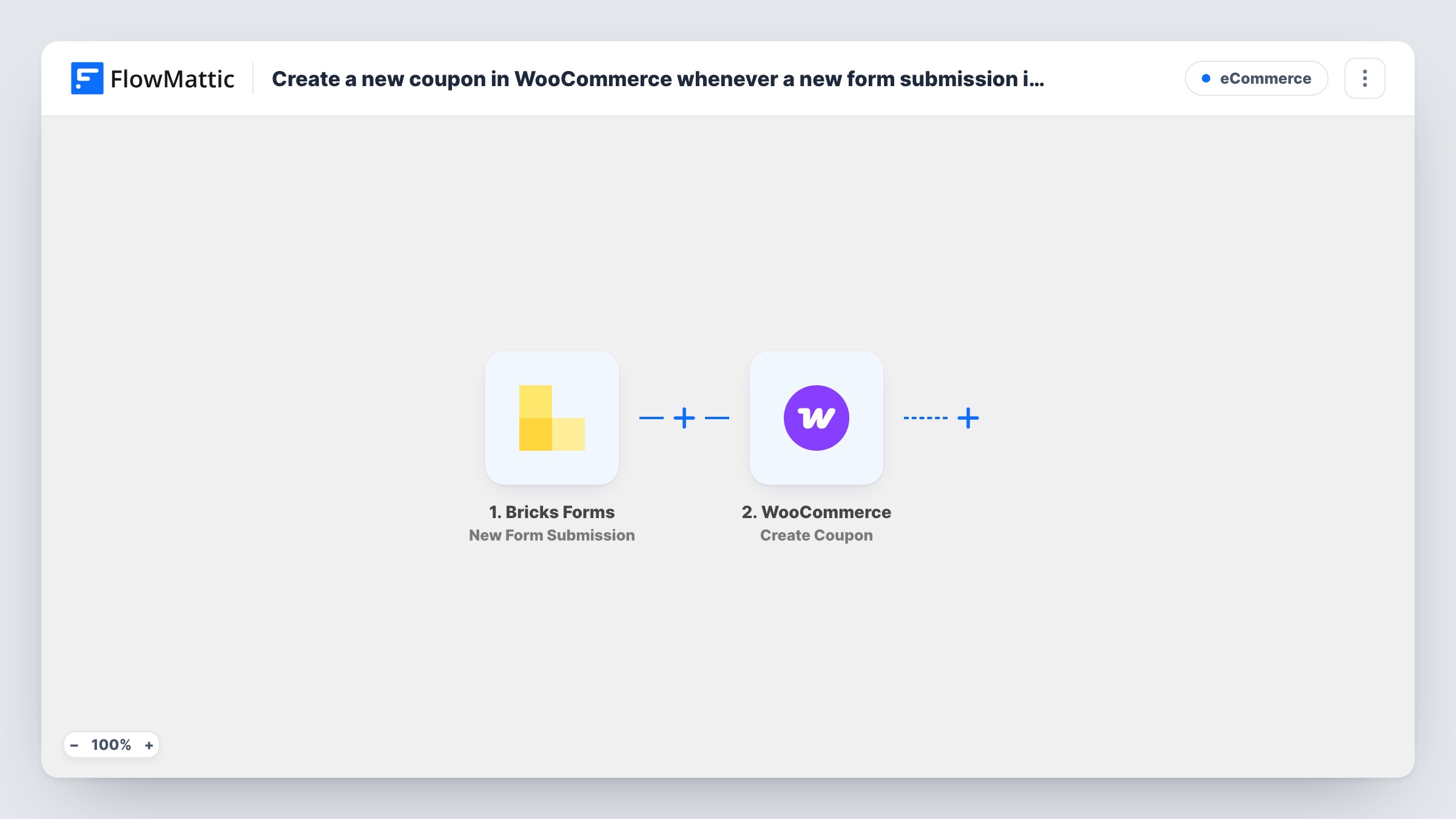
The Bricks Forms trigger fires when a visitor submits a form built with Bricks Builder on your site. Every field in that submission becomes data you can map. Next, the WooCommerce Create Coupon step adds a coupon to your store using the values you set and any form data you map in.
Plan the coupon code before you turn this on. A fixed code would repeat on every run, and WooCommerce may refuse a code that already exists; You'll find WooCommerce's reply on that step in Task History. Building the code from a form value, or combining fixed text with one, gives each submission its own coupon. Check the options in the step after import.
As imported, nothing sends the coupon to the visitor. The tips below show how to add an email step that delivers it.
Welcome discount for newsletter sign-ups
Visitors join your list through a Bricks form, and each sign-up gets its own WooCommerce coupon you can send in a welcome email.
Survey thank-you codes
Customers who fill in a feedback survey built in Bricks receive a coupon as thanks, created as soon as the survey is submitted.
Event or trade show lead capture
A Bricks form on a tablet at your booth collects visitor details, and each entry produces a coupon for their first online order.
How this workflow runs
What happens at each step once the workflow is on, and what you need before you import it.
 Bricks Forms New Form Submission
Fires when a visitor submits a form built with Bricks Builder on your WordPress site. All submitted fields are passed on for mapping in the coupon step.
- WooCommerce Create Coupon
Creates a coupon in your WooCommerce store. Set the discount and map form values where you want them, making sure each run produces a code that doesn't already exist.
What you need
- FlowMatticCore
- Bricks Forms PluginPlugin
- WooCommerce PluginPlugin
After importing, map your own data. To keep the template universal, not every step is pre-filled. Open each step in the builder and connect your accounts and fields (channels, lists, sheets, recipients) before you switch the workflow on.
Make it yours
Changes worth making after you import it.
- Add an email step after the coupon step that sends the new code to the address from the form, otherwise the visitor never receives it.
- WooCommerce has an Add Email(s) to Coupon action. Add it after Create Coupon and map the form's email so only that person can redeem the code.
- If one Bricks form on your site should create coupons and others shouldn't, add a Filter after the trigger that continues only for that form.
Questions about this workflow
Does the visitor get the WooCommerce coupon code automatically?
No. The workflow only creates the coupon in your store. Add an email step after it, mapping the code and the visitor's email, to deliver it.
Can the same person submit the Bricks form twice and get two coupons?
Yes, as imported. Every submission creates a coupon, so someone who sends the form twice ends up with two codes.
Do Bricks Builder and WooCommerce need to be on the same site as FlowMattic?
Yes. The Bricks Forms trigger and the WooCommerce step both work with plugins on the WordPress site where FlowMattic is installed.
What happens if the coupon code already exists in WooCommerce?
WooCommerce may refuse to create it. Task History shows the response on the coupon step, so build codes that change with each submission.
More E-Commerce workflows
Other ready-to-import templates from the same category.






Import this workflow into your WordPress site
Download the JSON, import it from the Workflows screen and connect your accounts. Every run stays on your server, with no per-task fees.
30-day money-back guarantee Unlimited workflows and runs Self-hosted