

When a new customer is created in Stripe, create a new user in WordPress, and add user details to Google Spreadsheet
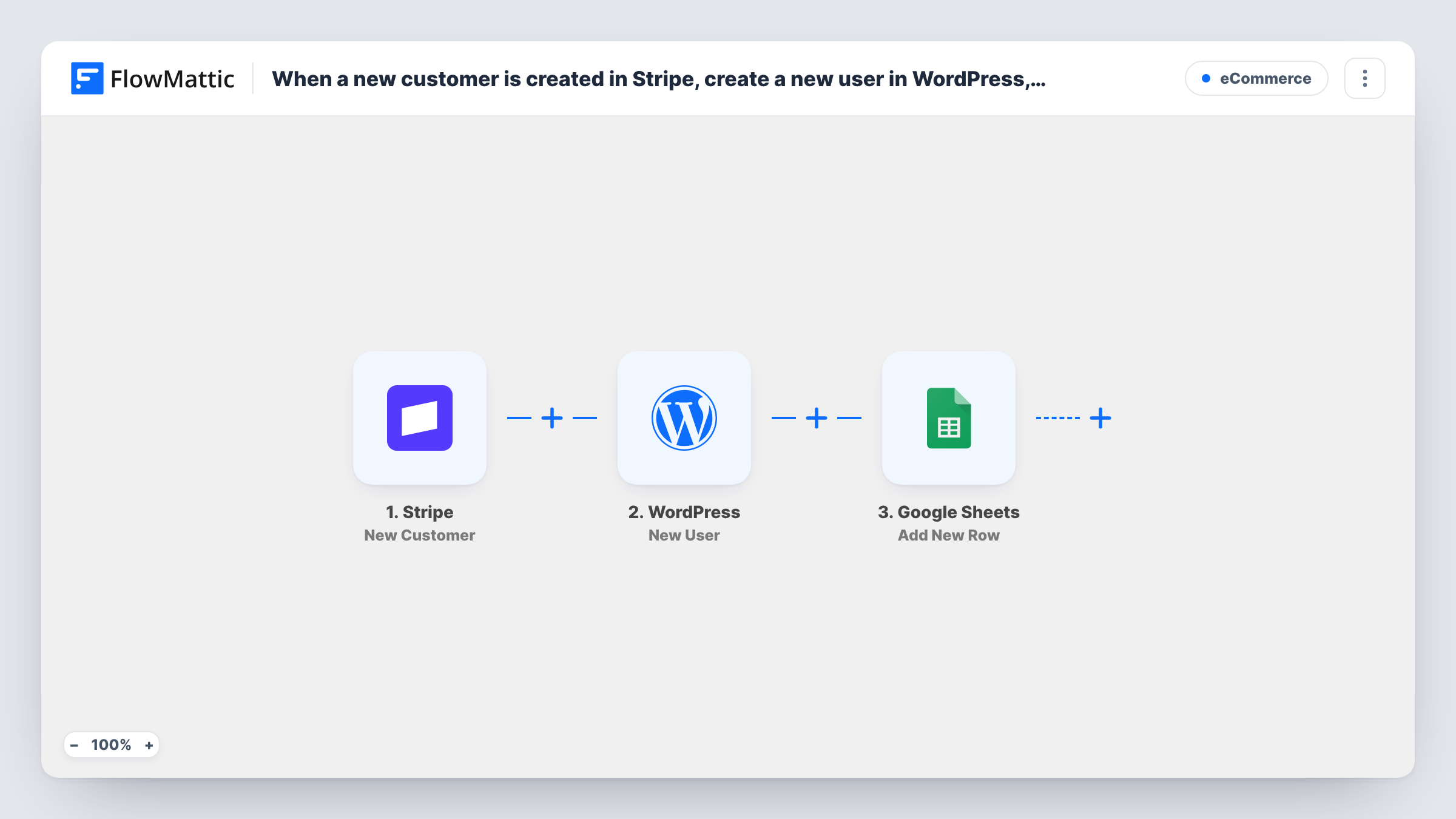
When a new customer is created in Stripe, this workflow creates a matching WordPress user account and then adds that customer’s details as a new row in a Google Sheets spreadsheet.
 Stripe
 WordPress
 Google Sheets
3 steps Setup ~5 min Used on 2.6k sites Free to import
What this workflow does
If people pay you through Stripe and then need an account on your WordPress site, someone usually creates that account by hand. A spreadsheet of new customers is often the second chore. This workflow turns each new Stripe customer into a WordPress user and records them in Google Sheets.
The Stripe trigger starts a run each time a customer record appears in your Stripe account. The customer's details, such as name and email, are mapped into the WordPress New User step, which creates a user on the site where FlowMattic runs. The final step adds a row to Google Sheets with the customer details you map, and you can include data the WordPress step returns.
The trigger is a Stripe customer event, not a payment, so it runs whenever a customer record is created, by checkout or by hand in the dashboard. WordPress needs each user to have a unique email, so check a test run for a customer whose email is already registered. Task History shows that response on the New User step.
Member accounts for paid subscribers
A membership site that sells through Stripe gives each new customer a WordPress login without anyone creating it by hand.
Course buyers who need a site login
Course buyers checking out with Stripe get a WordPress user so they can sign in and reach the course area on your site.
Customer register for bookkeeping
Your accountant gets a Google Sheet listing each new Stripe customer without needing access to Stripe or your WordPress admin.
How this workflow runs
What happens at each step once the workflow is on, and what you need before you import it.
 Stripe New Customer
Runs whenever a new customer is created in your Stripe account. The customer's details are passed on to the WordPress and Google Sheets steps.
- WordPress New User
Creates a new WordPress user on your site from the Stripe customer data. Map the email and name, and check the step's settings after import for anything else it needs.
- Google Sheets Add New Row
Adds a row with the customer's details to the Google Sheets spreadsheet you choose. Map columns from the Stripe trigger and, if useful, from the new WordPress user.
What you need
- FlowMatticCore
- Stripe AccountAccount
- Google Sheets AccountAccount
After importing, map your own data. To keep the template universal, not every step is pre-filled. Open each step in the builder and connect your accounts and fields (channels, lists, sheets, recipients) before you switch the workflow on.
Make it yours
Changes worth making after you import it.
- Add a Filter after the trigger that continues only when the Stripe customer has an email address, so the New User step always has one to work with.
- Add a Gmail or other email step at the end to send the new user a welcome note with a link to your login page.
- Create a test customer in Stripe's test mode or dashboard after import so FlowMattic captures the customer fields, then map them in both later steps.
Questions about this workflow
Does a Stripe payment trigger this, or only a new customer?
Only a new customer. The trigger listens for Stripe customer creation, so a returning customer paying again does not create another WordPress user.
What if the Stripe customer's email already has a WordPress account?
WordPress does not allow two users with the same email, so the New User step will not create a second account. Task History shows the response, and the Google Sheets step still runs.
Will the new WordPress user get a password?
It depends on what you map in the New User step. Run a test after import to see which options the step offers and how the user is created.
Do I need a Google account as well as Stripe for this workflow?
Yes. The last step writes to Google Sheets, so you connect a Google account with access to the spreadsheet. The WordPress step needs no extra account.
More E-Commerce workflows
Other ready-to-import templates from the same category.






Import this workflow into your WordPress site
Download the JSON, import it from the Workflows screen and connect your accounts. Every run stays on your server, with no per-task fees.
30-day money-back guarantee Unlimited workflows and runs Self-hosted