

Send new YouTube videos in a channel to a Facebook Page
When a new video is published on the YouTube channel you specify, this workflow creates a post on your Facebook Page with the text and video link you map, so your Page followers hear about each upload.
 Youtube
 Facebook Pages
2 steps Setup ~5 min Used on 671 sites Free to import
What this workflow does
Every new upload deserves a mention where your audience already is, and for many creators and businesses that includes a Facebook Page. Copying the title and link across after each upload is easy to forget. This workflow shares each new YouTube video on your Page for you.
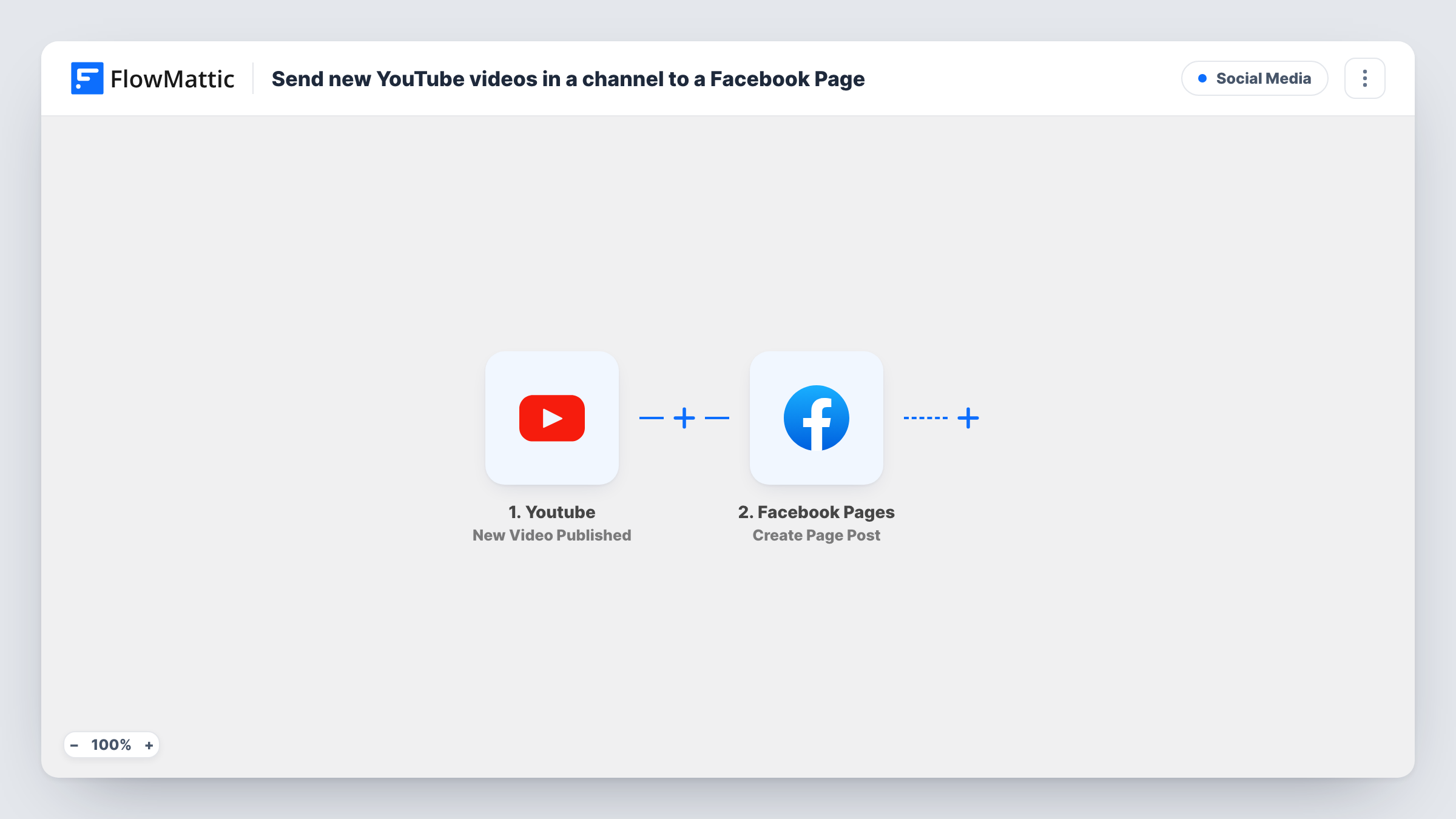
Runs begin with the YouTube trigger New Video Published, which watches one channel you name and reacts to each video that goes live there. The video's details, such as its title, description and link, become values you can map. The Facebook Pages step then runs Create Page Post and publishes a post on the Page you choose, with the text you write and the video values filled in.
Every new video on that channel produces one post. That includes Shorts or announcements you might not want on Facebook, unless you add a Filter. Publish a test video, or use a recent one, to see the values YouTube passes, and check Task History for each post.
Creator cross-posting
A cooking channel uploads a new recipe video, and the Facebook Page gets a post with the video title, a short line of text and the link.
Local business video updates
A gym posts workout tutorials on YouTube, and members who follow its Facebook Page see each new one without subscribing to the channel.
Church or community broadcasts
After each sermon or meeting recording goes up on YouTube, the community's Facebook Page shares the link with the date in the post text.
How this workflow runs
What happens at each step once the workflow is on, and what you need before you import it.
 Youtube New Video Published
Reacts to each video that goes live on the YouTube channel you name in the trigger. The video's title, description, link and other details are passed on for the Facebook post.
- Facebook Pages Create Page Post
Publishes a post on the Facebook Page you choose. Write the post text and map the YouTube title and video link into it, then connect the Facebook account that manages the Page.
What you need
- FlowMatticCore
- Youtube AccountAccount
- Facebook Pages AccountAccount
After importing, map your own data. To keep the template universal, not every step is pre-filled. Open each step in the builder and connect your accounts and fields (channels, lists, sheets, recipients) before you switch the workflow on.
Make it yours
Changes worth making after you import it.
- Put the video link on its own line in the post text so it is easy for readers to spot and tap.
- Add a Filter after the YouTube trigger on the title or description, for example continuing only when the title doesn't contain #shorts, if you only want full videos on Facebook.
- Add a Delay before the Facebook step if you want the post to go out some time after the upload, for example once you have checked the video.
Questions about this workflow
Does this upload the YouTube video itself to Facebook?
No. The step creates a Page post with the text and link you map. People follow the link to watch the video on YouTube.
Which YouTube channel does the Facebook workflow watch?
The channel you specify in the New Video Published trigger. Only videos published on that channel start a run.
Will older YouTube videos be posted to the Facebook Page?
No. Only videos published after the workflow is on start a run, so your back catalogue isn't posted.
Can I post to more than one Facebook Page?
Yes, by adding a second Create Page Post step for the other Page, each with its own text if you like.
More Social Media workflows
Other ready-to-import templates from the same category.





Import this workflow into your WordPress site
Download the JSON, import it from the Workflows screen and connect your accounts. Every run stays on your server, with no per-task fees.
30-day money-back guarantee Unlimited workflows and runs Self-hosted