

Add new Bricks Form submission as new row in Google Sheet
Every time a visitor sends a form built with Bricks Builder, this workflow adds the answers to a new row in your Google Sheets spreadsheet, giving you one shareable list of entries.
 Bricks Forms
 Google Sheets
2 steps Setup ~5 min Used on 2.2k sites Free to import
What this workflow does
Bricks Builder lets you design forms right inside your page layouts, but the entries are not easy to share with someone who doesn't log in to WordPress. A spreadsheet fixes that. This workflow copies each submission into Google Sheets the moment the form is sent.
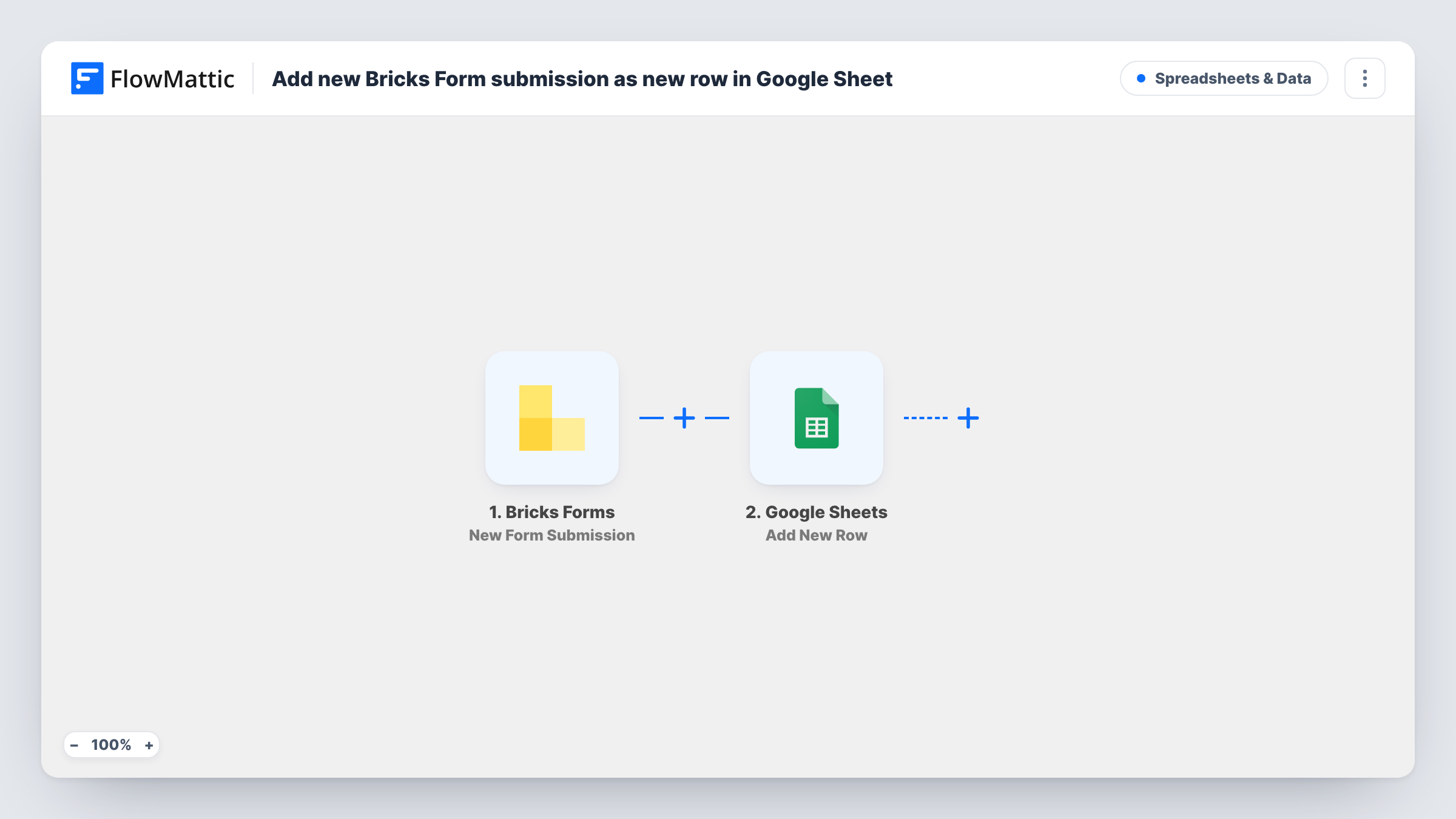
The Bricks Forms trigger listens for new submissions from your Bricks forms on the same site as FlowMattic. Each field the visitor filled in becomes a value you can map. The Google Sheets step then appends one row to the spreadsheet and sheet you choose, with each form field placed in the column you assign.
As imported, there is no Filter, so every submission gets a row. The form's own actions in Bricks, such as sending you an email, keep working as they did. If a row doesn't appear, Task History shows the run and any error the Google Sheets step returned.
Contact requests for a team without WordPress access
A Bricks contact form on a business site feeds a sheet the office manager checks each morning, with name, email and message in their own columns.
Event sign-ups on a landing page
Registrations from a Bricks form build an attendee list in Google Sheets that you can print or share with the venue.
Client sites built with Bricks
Agencies that hand over Bricks sites give each client a spreadsheet of form entries instead of a WordPress login just to read leads.
How this workflow runs
What happens at each step once the workflow is on, and what you need before you import it.
 Bricks Forms New Form Submission
Fires whenever a visitor submits a form built with Bricks Builder on your WordPress site. Submit one test entry after import so FlowMattic captures the form's fields for mapping.
- Google Sheets Add New Row
Appends a row to the Google Sheets spreadsheet you pick and fills it with the submitted answers. Connect your Google account, choose the spreadsheet and sheet, then map each column to a Bricks form field.
What you need
- FlowMatticCore
- Bricks Forms PluginPlugin
- Google Sheets AccountAccount
After importing, map your own data. To keep the template universal, not every step is pre-filled. Open each step in the builder and connect your accounts and fields (channels, lists, sheets, recipients) before you switch the workflow on.
Make it yours
Changes worth making after you import it.
- Running several Bricks forms on the site? Add a Filter after the trigger that continues only when the form ID matches the form you want in this sheet. A test run shows which field holds it.
- Add a column for the submission date and map the time value from the trigger, if your test run shows one, so you can sort entries by when they arrived.
- Bricks Forms also offers a New Pro Forms Submission trigger in FlowMattic. If your forms are Pro Forms, swap that trigger in and remap the columns.
Questions about this workflow
Do my Bricks form's email actions still run?
Yes. The workflow listens for new Bricks entries and leaves the form's settings alone. Whatever actions you set on the form in Bricks carry on as before.
Will older Bricks submissions be added to Google Sheets?
No. Only forms submitted after you turn the workflow on reach the spreadsheet. Earlier entries are not copied over.
Can one workflow log several Bricks forms to different sheets?
As imported, every Bricks form submission goes to the same sheet. Use a Router with one route per form ID, each with its own Google Sheets step, to split them.
What if I add a new field to the Bricks form later?
Send a fresh test entry so FlowMattic captures the new field, add a matching column to the sheet, and map it in the Google Sheets step.
More Spreadsheets & Data workflows
Other ready-to-import templates from the same category.




Import this workflow into your WordPress site
Download the JSON, import it from the Workflows screen and connect your accounts. Every run stays on your server, with no per-task fees.
30-day money-back guarantee Unlimited workflows and runs Self-hosted