

Add new Bookingmood contacts to a Mailchimp audience for follow-up
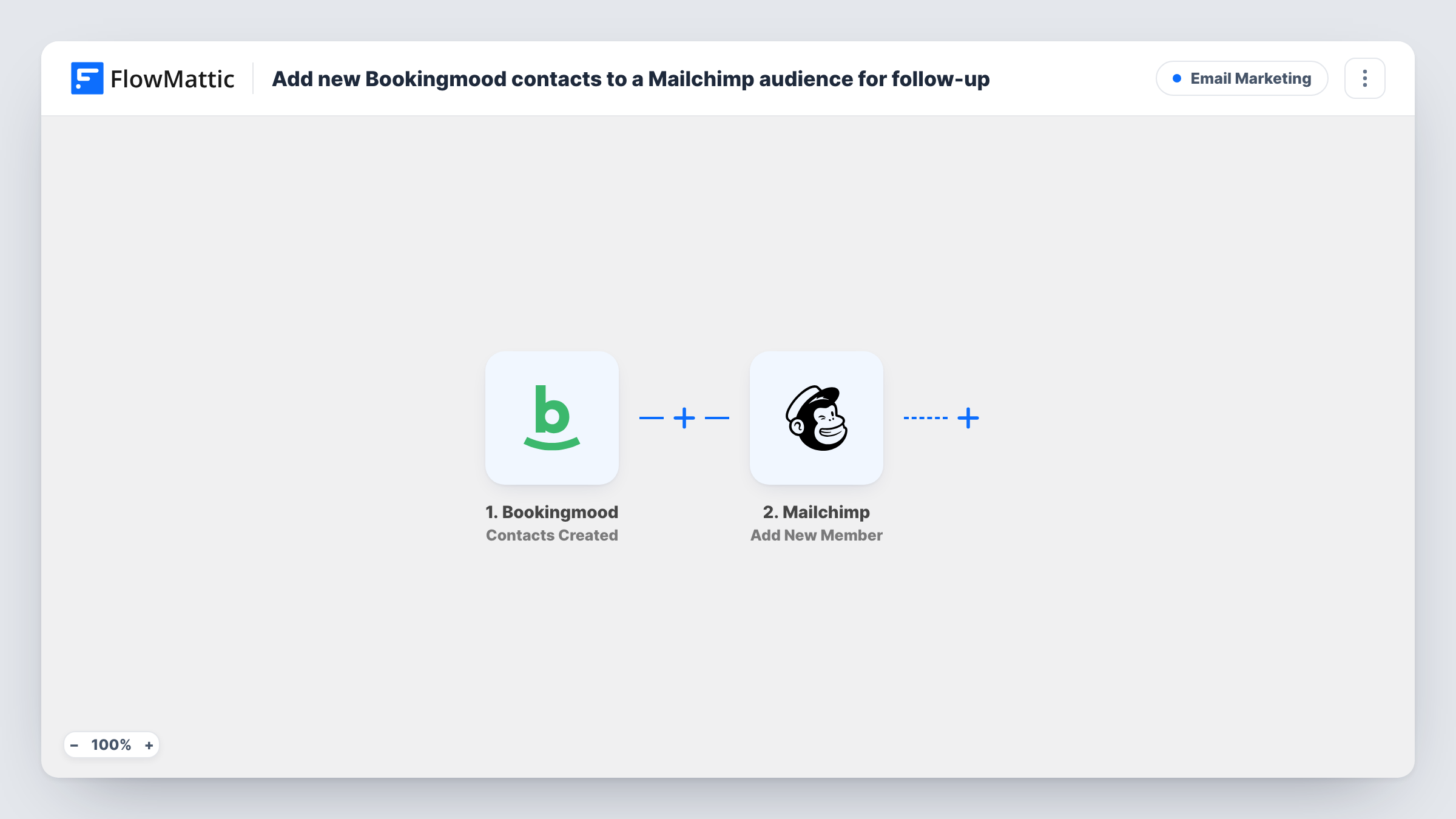
Each time a contact is created in Bookingmood, this workflow sends that person to your Mailchimp audience as a member, so guests from your booking calendar end up on the list you email.
 Bookingmood
 Mailchimp
2 steps Setup ~5 min Used on 3.3k sites Free to import
What this workflow does
Bookingmood keeps a contact for the guests who book with you, but your newsletters and follow-up emails go out from Mailchimp. Copying each guest's address from one tool to the other is easy to forget, and the list falls behind your bookings. This workflow moves each new contact across as soon as Bookingmood creates it.
The Bookingmood trigger fires when a contact is created in your account. FlowMattic passes that contact's details to Mailchimp, where the Add New Member action adds the person to the audience you choose. If the address is already on that audience, Mailchimp updates the existing member instead of adding a second one.
The workflow only reacts to contacts created after you turn it on. Contacts already in Bookingmood stay where they are until you export them another way. Every run shows up in Task History, so you can see which contact was sent and what Mailchimp answered.
Holiday rental owner building a guest list
Every guest Bookingmood records for your cottage or apartment joins a Mailchimp audience, ready for a seasonal email about next year's open dates.
Tour or activity operator
People who book a guided walk or a boat trip through Bookingmood land in Mailchimp, where you can send them practical details or news about upcoming dates.
Small venue with one shared audience
A venue that takes bookings for rooms and events keeps a single Mailchimp audience fed from Bookingmood, so nobody exports contact lists by hand.
How this workflow runs
What happens at each step once the workflow is on, and what you need before you import it.
 Bookingmood Contacts Created
Runs when a new contact is created in your Bookingmood account. The contact's details become available to map in the Mailchimp step.
- Mailchimp Add New Member
Adds the Bookingmood contact to the Mailchimp audience you pick, or updates them if the address is already a member there. Map the contact's email, plus any name details you want stored in Mailchimp.
What you need
- FlowMatticCore
- Bookingmood AccountAccount
- Mailchimp AccountAccount
After importing, map your own data. To keep the template universal, not every step is pre-filled. Open each step in the builder and connect your accounts and fields (channels, lists, sheets, recipients) before you switch the workflow on.
Make it yours
Changes worth making after you import it.
- Create one test contact in Bookingmood after import so FlowMattic captures the contact's data, then map it in the Mailchimp step and check the result in Task History.
- Point the step at a Mailchimp audience used only for booking guests, so emails meant for guests don't go to newsletter subscribers who never stayed with you.
- If only some contacts should be emailed, add a Filter after the trigger that checks a Bookingmood contact field before the Mailchimp step runs.
Questions about this workflow
What happens if the Bookingmood guest is already in my Mailchimp audience?
Mailchimp's Add New Member action updates a member whose address is already on the audience, rather than creating a second copy. Their record then holds whatever you mapped from Bookingmood, so a blank field could replace a value they had.
Are my existing Bookingmood contacts sent to Mailchimp?
No. The trigger fires when a contact is created, so only contacts made after the workflow is switched on reach Mailchimp.
Does a change to a Bookingmood contact run the workflow again?
No. This template uses Contacts Created. Bookingmood has a separate Contacts Updated trigger in FlowMattic if you also want edits sent across.
Which Mailchimp audience do Bookingmood contacts join?
The list you set in the Mailchimp step after import, once your Mailchimp account is connected. Run a test contact through and check Task History to confirm it reached the right audience.
More Email Marketing workflows
Other ready-to-import templates from the same category.




Import this workflow into your WordPress site
Download the JSON, import it from the Workflows screen and connect your accounts. Every run stays on your server, with no per-task fees.
30-day money-back guarantee Unlimited workflows and runs Self-hosted