

Send a follow-up SMS via Twilio to new IndiaMART leads
Each new IndiaMART lead gets a text message from your Twilio number, written by you and filled with the buyer’s details, so they hear from you right after their enquiry.
 IndiaMART
 Twilio
2 steps Setup ~5 min Used on 787 sites Free to import
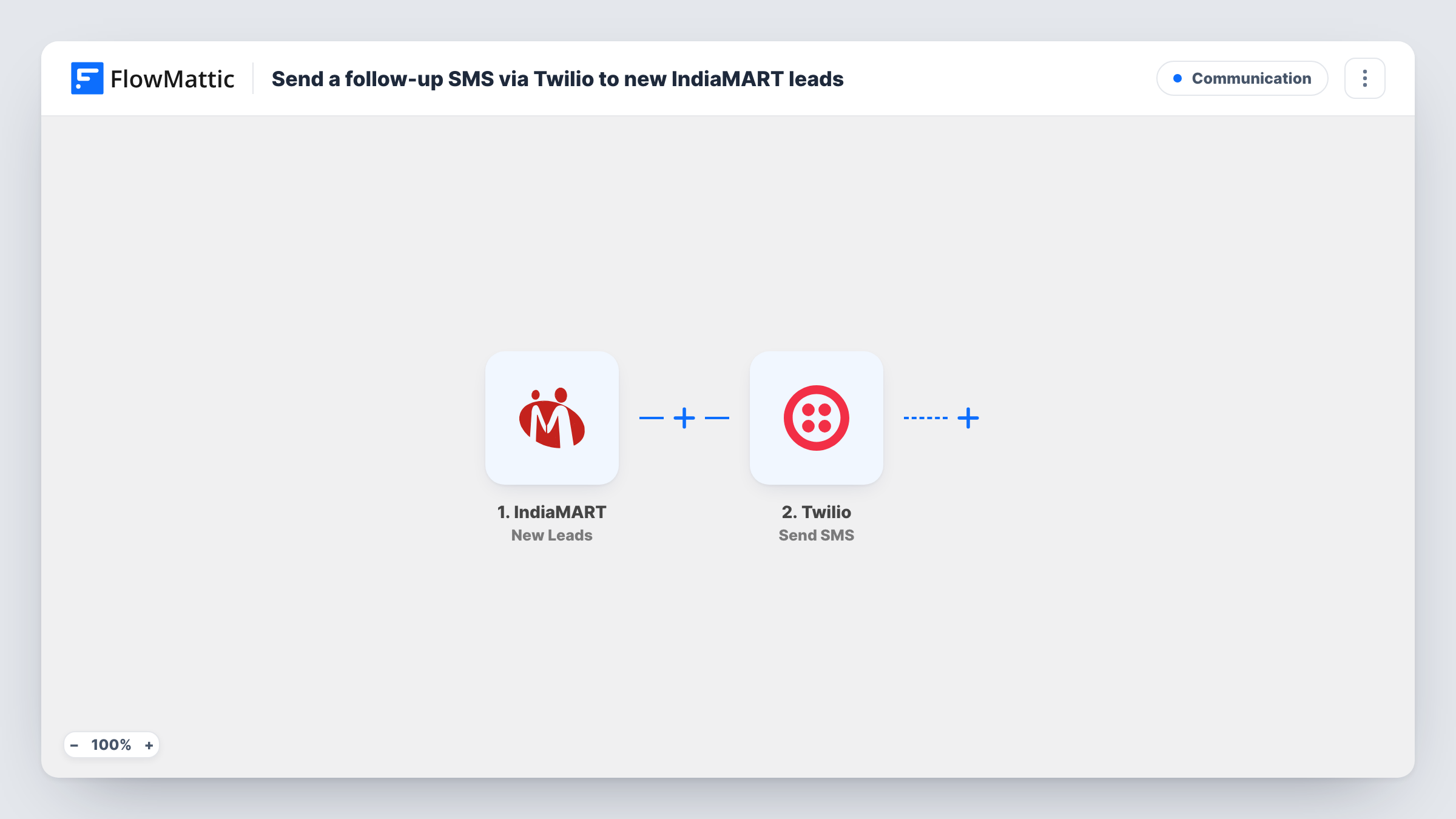
What this workflow does
A buyer who sends an enquiry on IndiaMART may be comparing several sellers. Replying quickly means someone has to notice the lead and pick up the phone. This workflow sends that first message for you, as an SMS from your Twilio account.
The IndiaMART trigger, New Leads, fires when a new lead is captured for your seller account. The buyer's details become values you can map, which should include their mobile number and the product they asked about. Check a test run to see exactly what arrives.
The Twilio step, Send SMS, then sends your message to the number you map, from a Twilio number on your account. You write the text and can add the buyer's name or product to it. Every new lead gets a message, since there is no Filter in the template. If Twilio rejects a send, Task History shows its error on that step.
Acknowledging enquiries out of hours
A supplier's office closes at six, but buyers who enquire in the evening still get a text that their request arrived and when to expect a call.
Sharing a catalogue link
The SMS includes a link to your price list or catalogue page so the buyer can browse before your sales call.
Giving the buyer a direct contact
The message names the sales person and their phone number, so buyers know whom to call back.
How this workflow runs
What happens at each step once the workflow is on, and what you need before you import it.
 IndiaMART New Leads
Fires whenever IndiaMART captures a new lead for your account. Connect IndiaMART on import, then use a real or test lead so FlowMattic shows the buyer fields it sends, including the phone number.
- Twilio Send SMS
Sends a text through your Twilio account to the phone number you map from the lead. Choose your Twilio sender number, write the message, and add the buyer's name or product where it helps.
What you need
- FlowMatticCore
- IndiaMART AccountAccount
- Twilio AccountAccount
After importing, map your own data. To keep the template universal, not every step is pre-filled. Open each step in the builder and connect your accounts and fields (channels, lists, sheets, recipients) before you switch the workflow on.
Make it yours
Changes worth making after you import it.
- Twilio expects numbers in international format with a plus sign and country code. If IndiaMART sends a number without one, add a Text Formatter step before Twilio to put the country code in front.
- Add a Filter after the trigger that continues only when the buyer's mobile number is not empty, so leads without one end the run quietly.
- Keep the first message short and say who you are and which product the buyer asked about, mapping both from the lead.
Questions about this workflow
Which number does the IndiaMART lead receive the SMS from?
From the Twilio number you choose in the Send SMS step. It must be a number in your Twilio account that can send SMS to the buyer's country.
What if an IndiaMART lead has no phone number?
The Twilio step has nothing to send to and returns an error, which you can see in Task History. Add a Filter on the phone field to stop those runs before Twilio.
Does the buyer get more than one text per lead?
The workflow sends one SMS each time the New Leads trigger fires. A buyer who sends a second enquiry creates a new lead and gets another message.
Can buyers reply to the Twilio text?
A buyer who texts back reaches the Twilio number that sent the message. This template doesn't handle them, but Twilio's Incoming SMS trigger in FlowMattic can start a separate workflow for replies.
More Communication workflows
Other ready-to-import templates from the same category.






Import this workflow into your WordPress site
Download the JSON, import it from the Workflows screen and connect your accounts. Every run stays on your server, with no per-task fees.
30-day money-back guarantee Unlimited workflows and runs Self-hosted