

Send a Slack alert when a new MoClients lead comes in
When MoClients records a new lead, this workflow posts it to a Slack channel you choose, so your sales team can see the lead and pick it up without checking MoClients first.
 MoClients
 Slack
2 steps Setup ~5 min Used on 361 sites Free to import
What this workflow does
A lead sitting unseen in MoClients is a lead nobody has called yet. If your team lives in Slack, the quickest way to get eyes on a new enquiry is to put it in a channel they already read. This workflow does that for every lead MoClients creates.
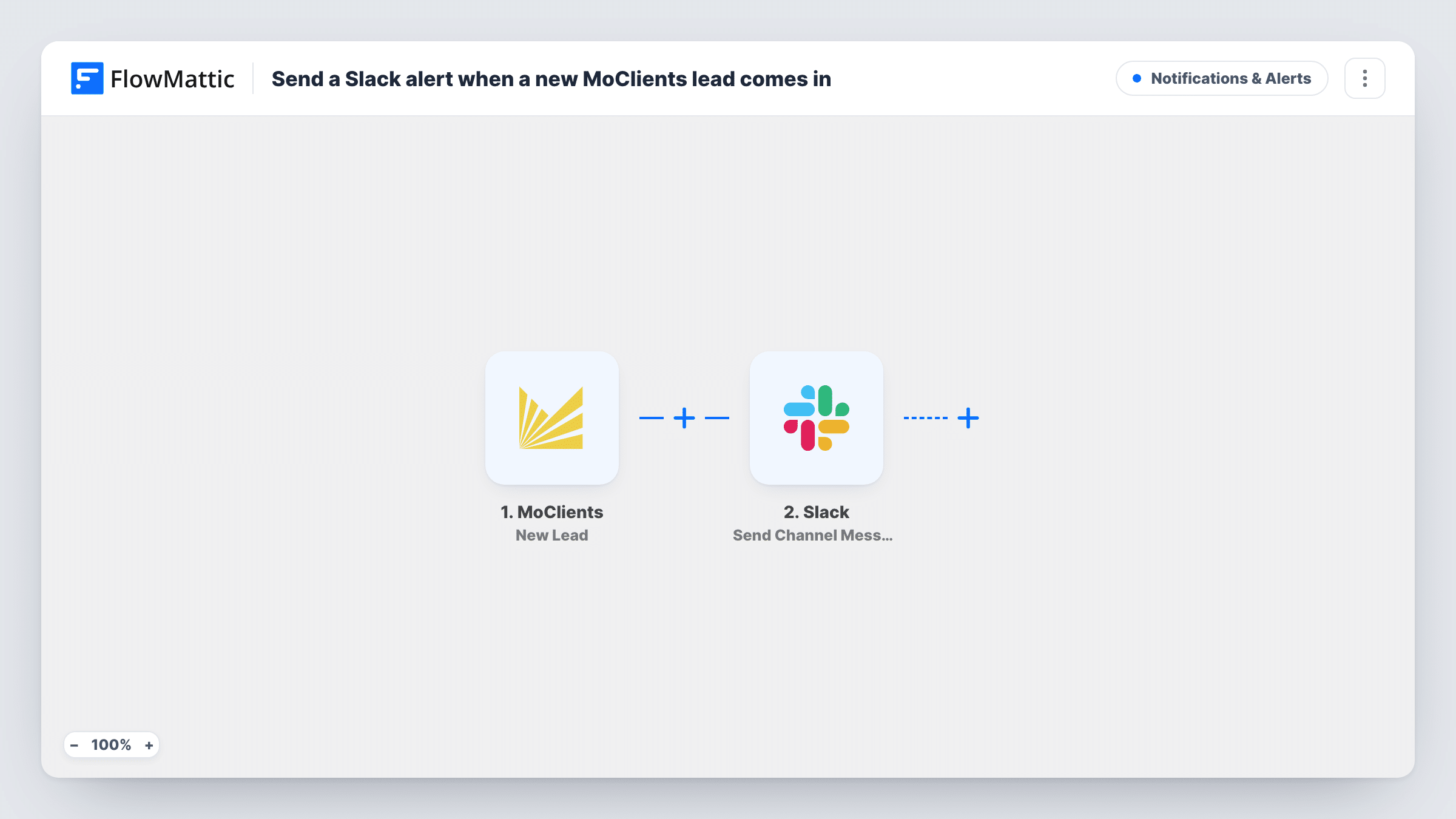
The MoClients trigger is New Lead, which fires when a new lead is created in your account. The lead's details become data you can map. The Slack step then runs Send Channel Message and posts to the channel you pick, using the lead details you put into the message text.
There is no Filter in the template, so every new lead produces one Slack message. The lead stays in MoClients as before; the workflow only reads it and posts a copy of the details you choose. Task History shows each run, including the data MoClients sent and the response from Slack.
Shared #new-leads channel
Every MoClients lead appears in one channel, and whoever is free replies in the thread to claim it before calling.
Owner keeps an eye on enquiries
A business owner who rarely opens MoClients still sees each new lead in Slack on their phone and can check that someone follows up.
Agency handling client leads
An agency running lead capture for a client posts each MoClients lead to the client's project channel, so the account team sees volume as it arrives.
How this workflow runs
What happens at each step once the workflow is on, and what you need before you import it.
 MoClients New Lead
Fires when a new lead is created in MoClients. Connect your MoClients account; the lead's details are then available for the Slack message.
- Slack Send Channel Message
Posts the new lead to a Slack #channel for your sales team. Connect Slack, pick the channel and build the text from the MoClients lead details your team needs to see.
What you need
- FlowMatticCore
- MoClients AccountAccount
- Slack AccountAccount
After importing, map your own data. To keep the template universal, not every step is pre-filled. Open each step in the builder and connect your accounts and fields (channels, lists, sheets, recipients) before you switch the workflow on.
Make it yours
Changes worth making after you import it.
- To post only certain leads, add a Filter after the trigger. For example, continue only when a lead source or campaign field matches the value you see in a test run.
- For a private sales channel, change the action to Slack's Send Private Channel Message, since Send Channel Message is meant for regular channels.
- Want a record too? Add a Google Sheets Add New Row step after Slack so every MoClients lead is also logged in a spreadsheet.
Questions about this workflow
Does every MoClients lead post to Slack?
Yes. As imported, each new lead MoClients creates starts one run and one Slack message. To alert on just some MoClients leads, place a Filter right after the trigger.
Can I mention a teammate in the MoClients alert?
You write the message text yourself, so you can include a Slack mention for the person or group who handles leads. Test it once to see how it shows in your workspace.
Are leads changed or moved in MoClients?
No. The workflow only reads the new lead and posts its details to Slack. Nothing is written back to MoClients.
More Notifications & Alerts workflows
Other ready-to-import templates from the same category.




Import this workflow into your WordPress site
Download the JSON, import it from the Workflows screen and connect your accounts. Every run stays on your server, with no per-task fees.
30-day money-back guarantee Unlimited workflows and runs Self-hosted