

Send a Gmail notification to the applicant once an IdentityCheck verification decision is made
When IdentityCheck sends the result of a KYC verification, this workflow emails the applicant from your Gmail account with the decision, so they know where they stand without contacting you.
 IdentityCheck
 Gmail
2 steps Setup ~5 min Used on 3.4k sites Free to import
What this workflow does
People waiting on an identity check want to know the outcome, and a silent wait leads to emails asking for news. This workflow sends the applicant a message from your own Gmail account as soon as IdentityCheck reports a decision.
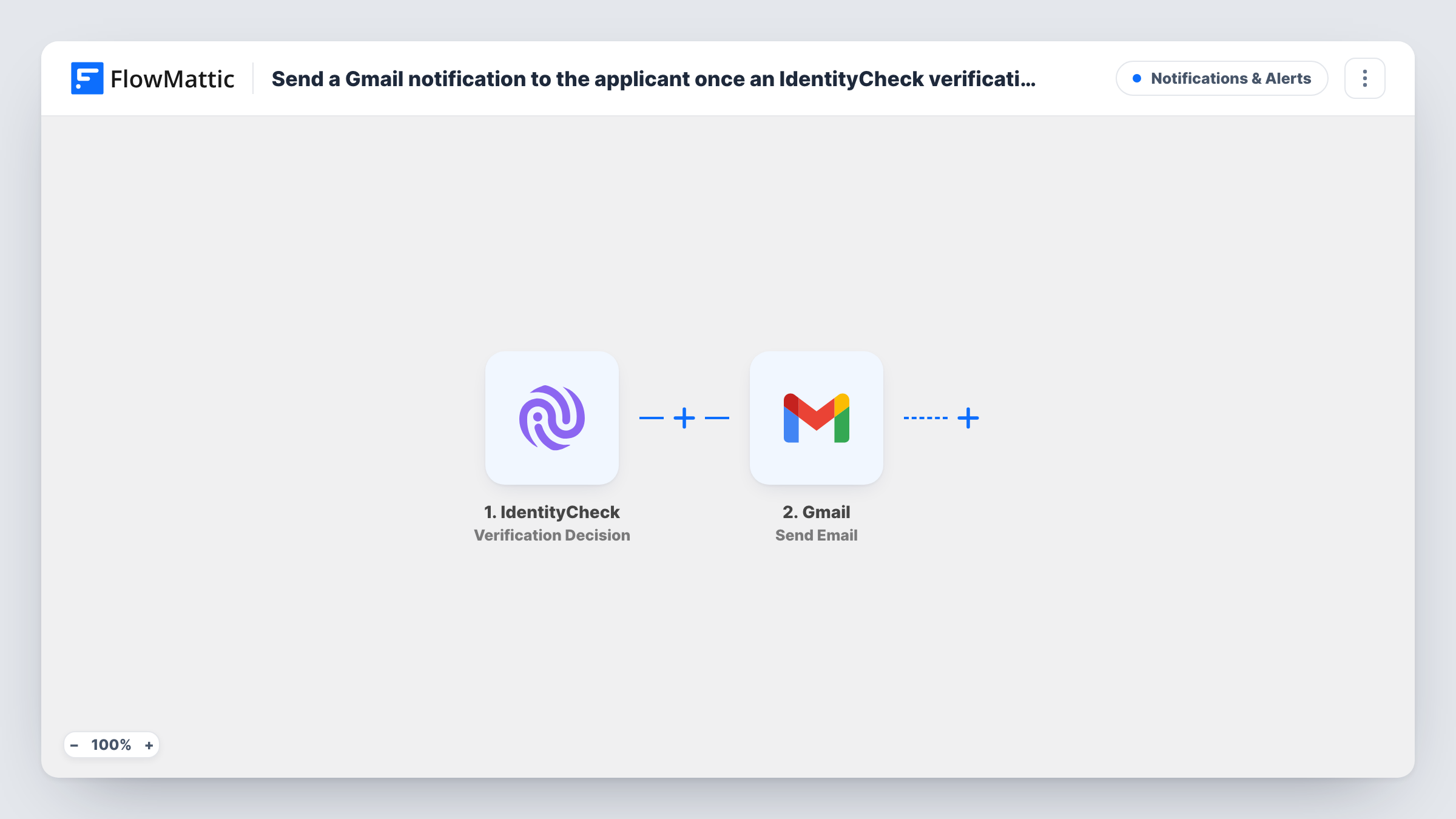
The IdentityCheck trigger, Verification Decision, fires when the KYC process sends its results to FlowMattic. Those results, such as the decision and details of the applicant, become values you can map. Run a test verification to see exactly what IdentityCheck includes.
The Gmail step, Send Email, sends a message to the address you map. You write the subject and body and can place the decision in the text. The template sends the same email for every decision, approved or not, so word it to suit any outcome, or add a Router as described below. If the results carry no applicant email, map the address from somewhere else or the email can't be sent.
Account opening for a fintech app
New users who submit their documents receive an email with the result of their check, written in your brand's voice from your support address.
Tenant or contractor screening
A letting agent tells each applicant by email when their identity verification has a decision, instead of phoning each one.
Marketplace seller onboarding
Sellers learn by email when IdentityCheck has reviewed them, with a line on what to do next.
How this workflow runs
What happens at each step once the workflow is on, and what you need before you import it.
 IdentityCheck Verification Decision
Starts a run once IdentityCheck returns a KYC result for an applicant. Connect IdentityCheck on import and complete a test verification so FlowMattic captures the decision and applicant data.
- Gmail Send Email
Emails the applicant through the Gmail account you connect. Map their address from the IdentityCheck results, then write the subject and message with the decision placed in it.
What you need
- FlowMatticCore
- IdentityCheck AccountAccount
- Gmail AccountAccount
After importing, map your own data. To keep the template universal, not every step is pre-filled. Open each step in the builder and connect your accounts and fields (channels, lists, sheets, recipients) before you switch the workflow on.
Make it yours
Changes worth making after you import it.
- Send a different message per outcome by adding a Router after the trigger, with one route per decision value and its own Gmail step. Distinct decision values mean each result follows one route only.
- Add a second Gmail step addressed to your compliance team on each decision so they see it without logging in to IdentityCheck.
- Don't paste document numbers or other sensitive data from the results into the email. A short status and your next steps are enough.
Questions about this workflow
Does the applicant get an email for every IdentityCheck decision?
Yes. The trigger fires whenever IdentityCheck sends results, and there is no Filter, so each decision gets an email. Add a Filter after the trigger if you only want to email some outcomes.
How does the Gmail step know the applicant's address?
From the data IdentityCheck sends with the decision, if it includes one. Check a test run. If it isn't there, you'll need to get the address from the system where the applicant signed up.
Can the Gmail message tell approved and declined applicants apart?
As imported, it is one message for all. Insert the decision value into the text, or use a Router with a separate Gmail step for each decision value.
Which inbox sends the IdentityCheck email?
Whichever Google account you link to the Gmail step during import. Replies from applicants arrive there too.
More Notifications & Alerts workflows
Other ready-to-import templates from the same category.






Import this workflow into your WordPress site
Download the JSON, import it from the Workflows screen and connect your accounts. Every run stays on your server, with no per-task fees.
30-day money-back guarantee Unlimited workflows and runs Self-hosted