

When a student completes a lesson in PETE, complete the lesson in Tutor LMS
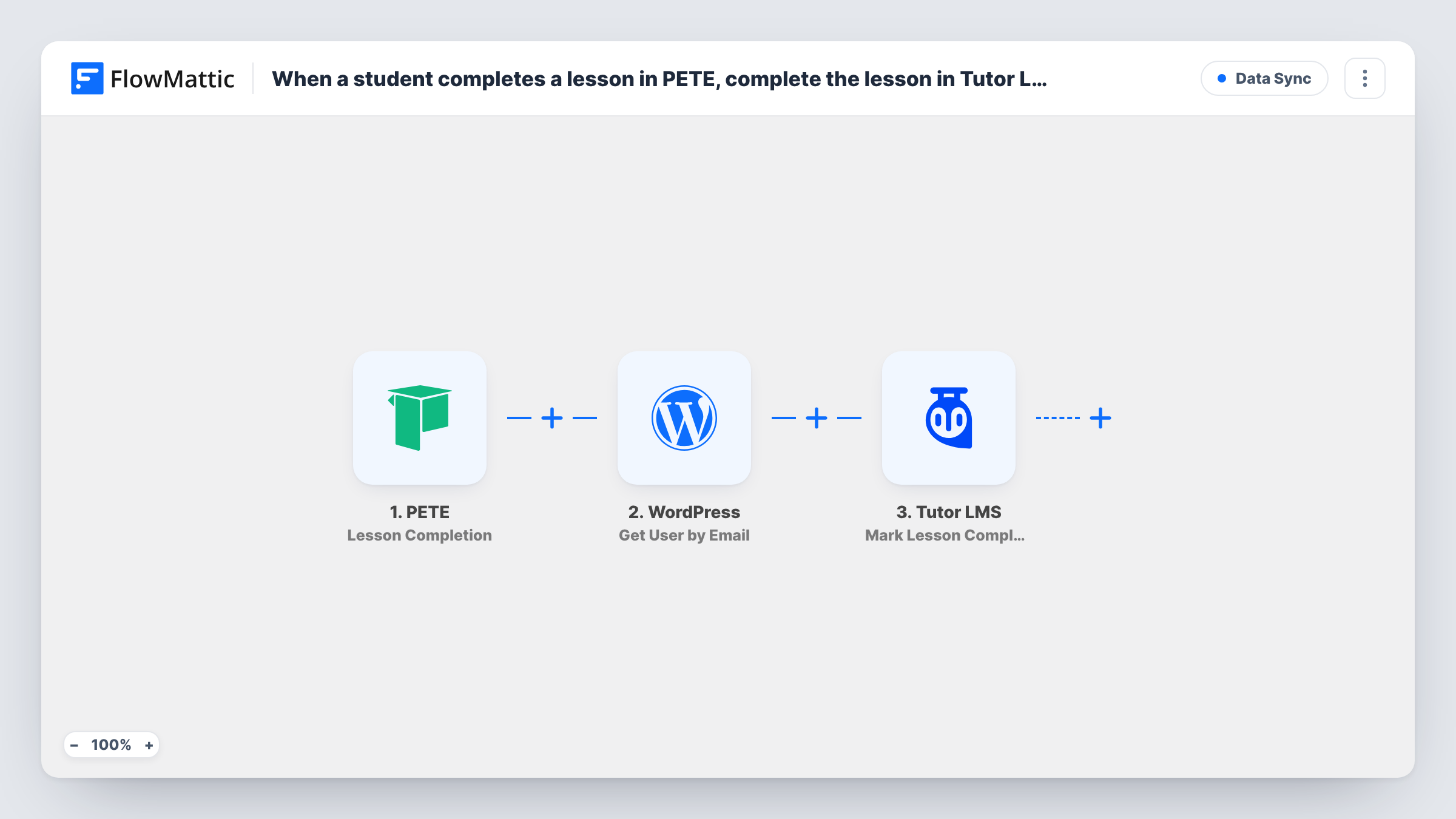
When a student finishes a lesson in PETE, FlowMattic finds their WordPress user by email and marks the lesson complete for them in Tutor LMS, keeping course progress in sync.
 PETE
PETE
 WordPress
 Tutor LMS
3 steps Setup ~5 min Used on 363 sites Free to import
What this workflow does
Running lessons in PETE alongside a Tutor LMS course on your WordPress site means a student's progress can live in two places. When a lesson in one should count in the other, this workflow carries the completion across, so the student doesn't have to mark it twice and your Tutor LMS reports stay accurate.
The PETE Lesson Completion trigger fires when a student completes all the content from a course lesson. The WordPress Get User by Email step then looks up the student's WordPress account; map the student's email from the PETE data into it. Finally, Tutor LMS marks a lesson complete as that user.
None of the action steps are mapped in the template. In the Tutor LMS step, map the user found in step 2 and choose the lesson. As imported, that lesson is fixed, so every PETE lesson completion marks the same Tutor LMS lesson. To mirror several lessons, give each PETE lesson its own route, as the tips explain, or import one copy of the workflow per lesson pair.
The student needs a WordPress account with the same email they use in PETE. Complete a test lesson and check Task History to confirm the user lookup and the Tutor LMS response.
Live coaching counted in an online course
A coach runs the live session lesson in PETE and marks the matching Tutor LMS lesson complete, so students can move on to the next module.
Moving a course between platforms
A school moving from PETE to Tutor LMS keeps students' progress for the lessons they finish in PETE during the switch.
A key lesson that counts twice
An academy mirrors one key PETE lesson into Tutor LMS so it counts towards the Tutor LMS course completion.
How this workflow runs
What happens at each step once the workflow is on, and what you need before you import it.
 PETE Lesson Completion
The workflow starts automatically when a student completes all the content from a course lesson in PETE. FlowMattic captures that data for the steps below.
- WordPress Get User by Email
WordPress — get an user profile by Email. Data is mapped from earlier steps; connect your WordPress account on import.
- Tutor LMS Mark Single Lesson Complete
Tutor LMS — mark a single lesson complete as user. Data is mapped from earlier steps; connect your Tutor LMS account on import.
What you need
- FlowMatticCore
- PETE AccountAccount
- Tutor LMS PluginPlugin
After importing, map your own data. To keep the template universal, not every step is pre-filled. Open each step in the builder and connect your accounts and fields (channels, lists, sheets, recipients) before you switch the workflow on.
Make it yours
Changes worth making after you import it.
- To mirror several lessons, put a Router between the Get User by Email step and the Tutor LMS step, move the Tutor LMS step into one route, give each other route its own copy with a different lesson, and match each route on a PETE lesson name that can't overlap another.
- Put a Filter between the Get User by Email step and the Tutor LMS step that continues only when a user ID came back, so students without a WordPress account stop before Tutor LMS.
- Test with one student who is enrolled in the Tutor LMS course and one who isn't, then compare the Tutor LMS responses in Task History.
Questions about this workflow
Which Tutor LMS lesson is marked complete when a PETE lesson finishes?
The one you pick in the Mark Lesson Complete step. It stays the same for every run unless you add routes per PETE lesson or use a separate copy of the workflow for each lesson.
Does the student need a WordPress account for Tutor LMS?
Yes. Tutor LMS tracks progress for WordPress users, and the workflow finds that user by the email from PETE. If no account uses that email, there is nobody to mark complete.
Does it sync Tutor LMS progress back to PETE?
No. It only goes from PETE to Tutor LMS. FlowMattic's Tutor LMS integration has a User Completes a Lesson trigger, but PETE has no actions in FlowMattic to write progress back.
More Data Sync workflows
Other ready-to-import templates from the same category.








Import this workflow into your WordPress site
Download the JSON, import it from the Workflows screen and connect your accounts. Every run stays on your server, with no per-task fees.
30-day money-back guarantee Unlimited workflows and runs Self-hosted