

Email borrowers a welcome message via Gmail when a LendingWise loan is started
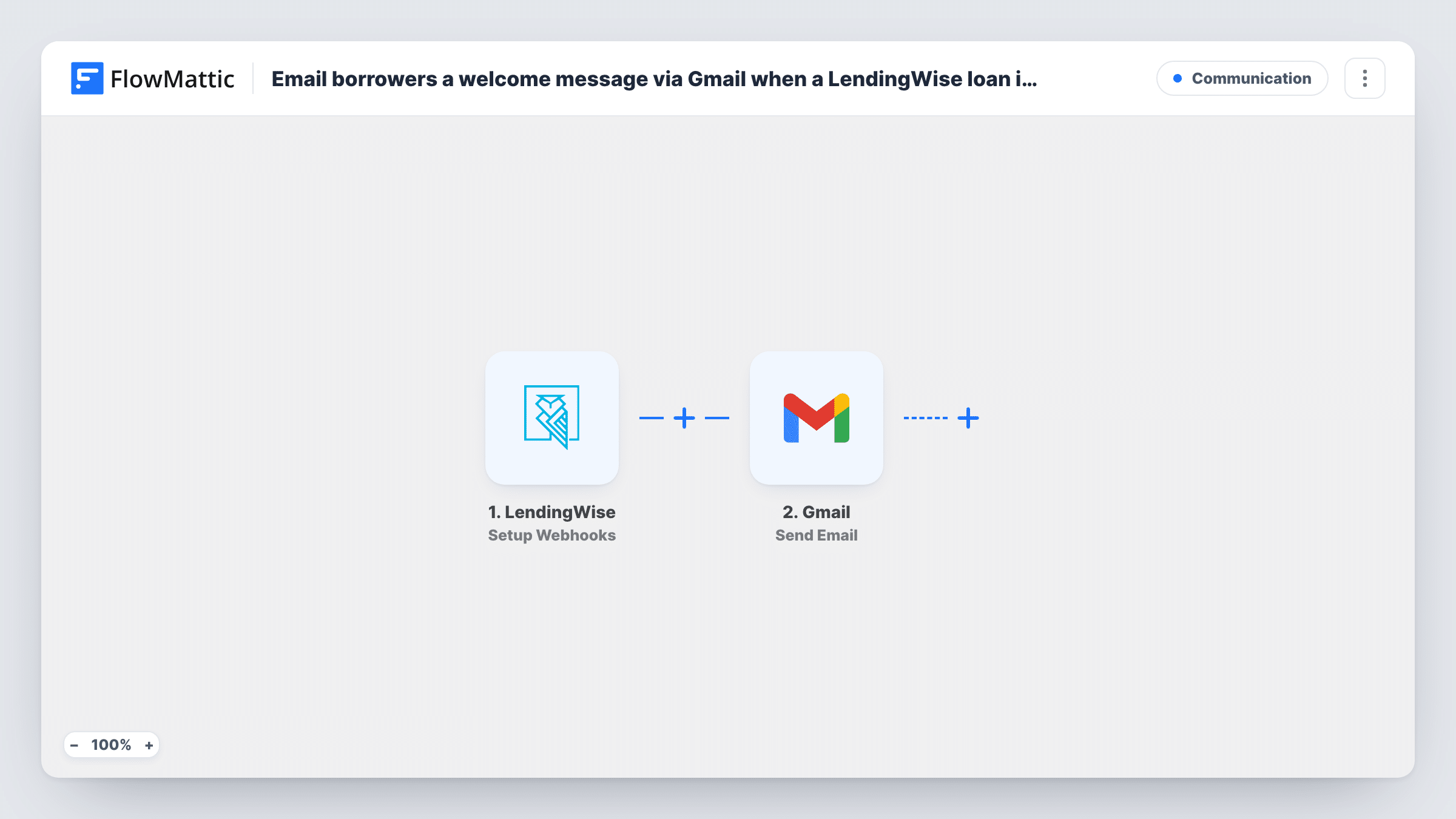
When LendingWise reports that a new loan file has been started, this workflow sends the borrower a welcome email from your Gmail account, so they hear from you right away.
 LendingWise
 Gmail
2 steps Setup ~5 min Used on 891 sites Free to import
What this workflow does
A borrower who has just started a loan wants to know someone has it. Writing the same welcome email for every new file takes time, and it slips on busy days. This workflow sends a welcome message from Gmail as soon as LendingWise tells FlowMattic about the new loan.
The LendingWise trigger, Setup Webhooks, receives the LendingWise events you specify. For this template, specify only the event for a new loan file, so the email goes out once per loan. The event's data, such as the borrower's details, becomes available to map.
The Gmail step uses Send Email to write to the borrower from the Gmail account you connect. You write the subject and body, and you can put values from the loan event into them, like the borrower's first name. If you also send update or status events to this workflow, each one sends another welcome email, so keep the event list to the new-loan event or add a Filter on the event type.
Mortgage broker's first touch
Each new loan file in LendingWise gets a short Gmail welcome that introduces the broker and explains what documents come next.
Private lender with a small team
The loan officer doesn't have to remember to email each new borrower; the welcome goes out from the shared Gmail inbox when the file starts.
Setting expectations on timing
Use the welcome email to tell each borrower what happens in the next few days and which documents you will ask for.
How this workflow runs
What happens at each step once the workflow is on, and what you need before you import it.
 LendingWise Setup Webhooks
Receives the LendingWise events you specify. Send only the event for a new loan file to this workflow, then start a test loan so FlowMattic captures the borrower data.
- Gmail Send Email
Sends an email from your connected Gmail account to the borrower. Map the borrower's email address from the LendingWise event, and write the subject and welcome text.
What you need
- FlowMatticCore
- LendingWise AccountAccount
- Gmail AccountAccount
After importing, map your own data. To keep the template universal, not every step is pre-filled. Open each step in the builder and connect your accounts and fields (channels, lists, sheets, recipients) before you switch the workflow on.
Make it yours
Changes worth making after you import it.
- If you can't limit LendingWise to the new-loan event, add a Filter after the trigger that continues only for that event type, so loan updates don't send more welcome emails.
- Add a Delay of a few minutes before the Gmail step if you want the welcome to arrive after your loan officer has had time to check the file.
- Mention the loan officer's name and direct contact details in the email body, so the borrower knows who to reply to.
Questions about this workflow
Which LendingWise events send the welcome email?
Every event LendingWise sends to this workflow. That's why you should specify only the new-loan event in the webhook setup, or filter on the event type.
What if the LendingWise event has no borrower email?
Gmail can't send without a recipient, so Task History shows an error on that step. Start a test loan first to confirm the email address is in the event data.
Does the welcome email come from my own Gmail address?
Yes. Send Email uses the Gmail account you connect in FlowMattic, so the message shows in that account's Sent folder and replies come back to it.
More Communication workflows
Other ready-to-import templates from the same category.





Import this workflow into your WordPress site
Download the JSON, import it from the Workflows screen and connect your accounts. Every run stays on your server, with no per-task fees.
30-day money-back guarantee Unlimited workflows and runs Self-hosted