

When new submission is received in Happyforms, send template message in WhatsApp using WhatsApp Cloud API
Each new Happyforms submission on your WordPress site sends the person an approved WhatsApp template message through WhatsApp Cloud API, using the phone number they entered in the form.
 Happyforms
 WhatsApp Cloud API
2 steps Setup ~5 min Used on 659 sites Free to import
What this workflow does
People who fill in a contact, booking or quote form on your site usually want to know it arrived. A WhatsApp reply reaches them in an app they already have open on their phone. This workflow sends that reply as soon as Happyforms records the entry.
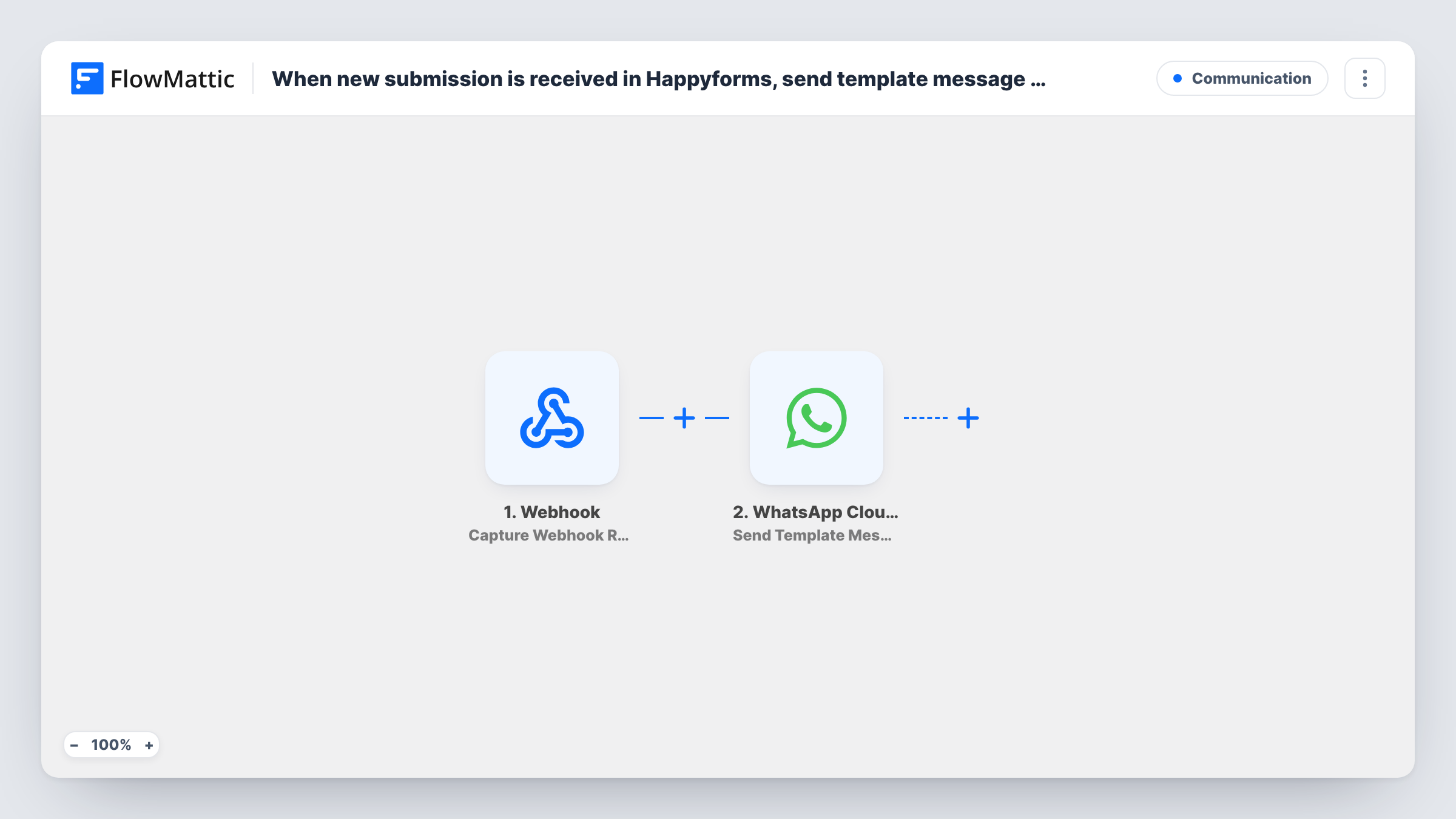
The Happyforms New Forms Submission trigger starts a run for each new form entry. The answers from the form, including a phone field if your form has one, are passed to the WhatsApp step.
The WhatsApp Cloud API step sends a template message. Template messages are the kind WhatsApp lets a business send to someone who hasn't written to it recently, but each template has to be approved for your WhatsApp Business account first. The step ships unmapped: after import you connect your account, choose the template, map the phone number from the form and fill any variables the template uses, such as the person's name.
Every submission sends one message, so a form without a phone field, or an entry with a mistyped number, won't reach anyone. Submit the form yourself with your own number and check Task History to see what WhatsApp returned.
Booking request confirmations
A salon's Happyforms booking form sends each client a WhatsApp template saying the request came in and that the team will confirm the time.
Quote requests for trades
A plumbing business replies on WhatsApp to every quote form entry, so customers have a thread they can reply to with photos of the job.
Event registration receipts
A community group's sign-up form sends registrants a WhatsApp template with the event name filled in from their form answer.
How this workflow runs
What happens at each step once the workflow is on, and what you need before you import it.
 Happyforms New Forms Submission
Starts a run whenever someone submits your Happyforms form. Every answer in the entry, such as name, phone and message, becomes available to map into the WhatsApp step.
- WhatsApp Cloud API Send Template Message
Sends an approved WhatsApp template to the submitter. Nothing is mapped as shipped: connect WhatsApp Cloud API, pick your template, map the phone field from the form and fill the template's variables.
What you need
- FlowMatticCore
- Happyforms PluginPlugin
- WhatsApp Cloud API AccountAccount
After importing, map your own data. To keep the template universal, not every step is pre-filled. Open each step in the builder and connect your accounts and fields (channels, lists, sheets, recipients) before you switch the workflow on.
Make it yours
Changes worth making after you import it.
- Make the phone field required in Happyforms and ask for the country code, because WhatsApp needs the full international number to deliver the template.
- Get your template approved in your WhatsApp Business account before importing, so it's ready to pick when you set up the step.
- If only some submissions should get a message, such as people who tick a consent box, put a Filter between the Happyforms trigger and the WhatsApp step on that field. The field name is yours to choose.
- Map the person's first name into a template variable so the message reads as a reply to them, not a broadcast.
Questions about this workflow
Why does this use a WhatsApp template rather than a plain text message?
Someone who fills in your Happyforms form usually hasn't messaged your business number. WhatsApp only allows free-form text within 24 hours of the person writing to you, so an approved template is the message type that can reach new contacts.
Does my Happyforms form need a phone field?
Yes. The WhatsApp step needs a number to send to, and it comes from the form entry. Without a phone field there is nothing to map, and the message can't be delivered.
Which template is sent as imported?
None is set. The Send Template Message step ships empty, so you choose one of your approved templates after import and map form answers into its variables.
What if a Happyforms visitor types their number without the country code?
WhatsApp may not deliver to a number in local format, and the step can return an error from WhatsApp. You can read what WhatsApp said about that entry in Task History. Asking for the country code in the form label helps avoid it.
More Communication workflows
Other ready-to-import templates from the same category.






Import this workflow into your WordPress site
Download the JSON, import it from the Workflows screen and connect your accounts. Every run stays on your server, with no per-task fees.
30-day money-back guarantee Unlimited workflows and runs Self-hosted