

Send a Slack alert when a Mixmax meeting invitation is confirmed
When a recipient confirms a meeting invitation you sent with Mixmax, this workflow posts a message to a Slack channel, so your team knows the meeting is booked and can get ready for it.
 Mixmax
 Slack
2 steps Setup ~5 min Used on 1.6k sites Free to import
What this workflow does
Mixmax lets you offer meeting times inside an email, and the recipient confirms one with a click. That confirmation lands with the sender, but the colleague who joins the call or prepares the demo may not hear about it until later. This workflow tells a Slack channel each time an invitation is confirmed.
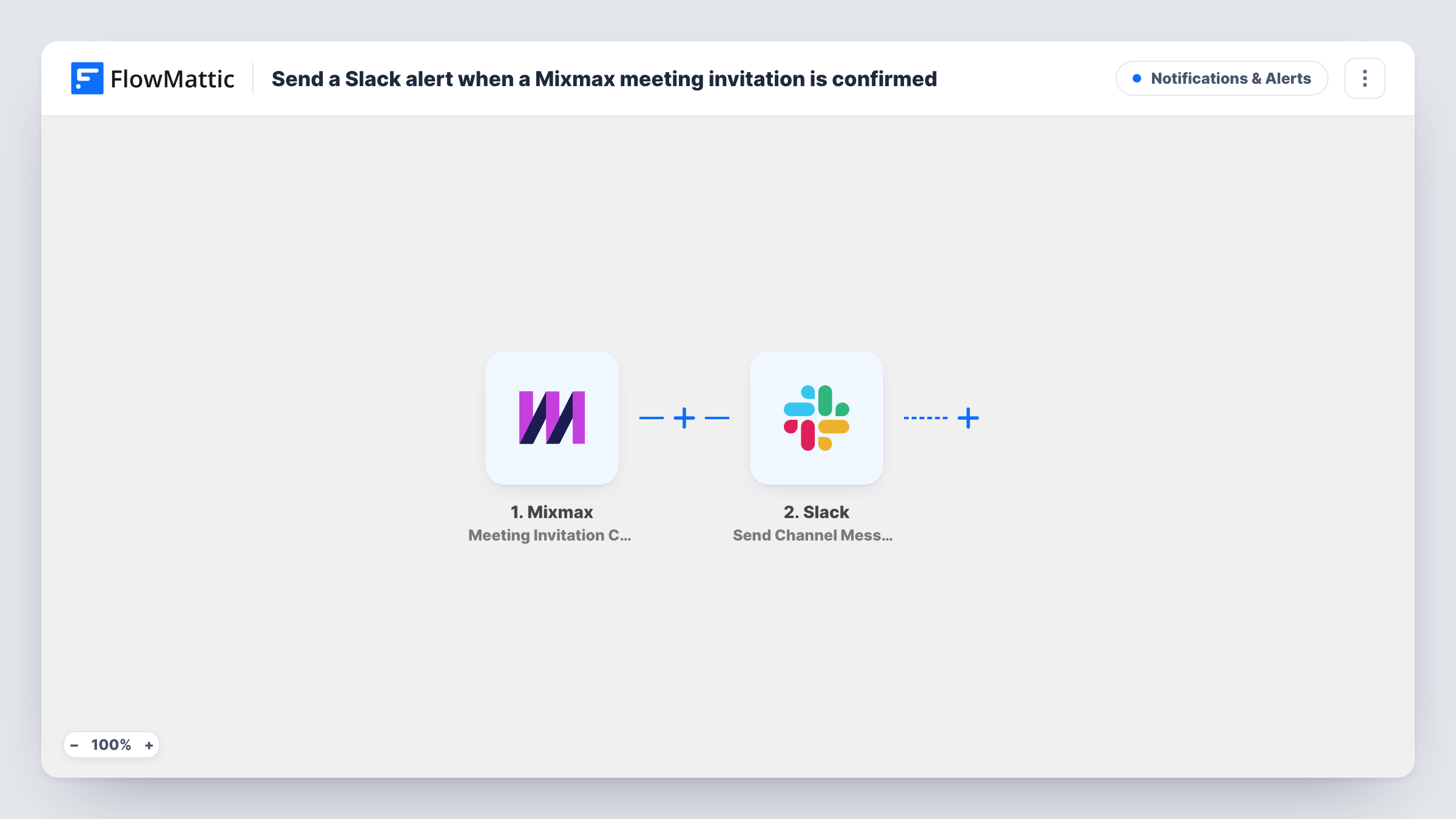
The Mixmax trigger, Meeting Invitation Confirmed, fires when a meeting invitation is confirmed. The details Mixmax sends with the event are available to map. The Slack step then uses Send Channel Message to post in the channel you choose, with a message you write around those details, for example who confirmed and the time they picked if a test run shows them.
Each confirmation produces one Slack post. Opens, replies, poll votes and unsubscribe clicks are separate Mixmax triggers, so they don't post here. Task History lists the runs and Slack's reply to each.
Sales development reps handing off demos
When a prospect confirms a demo slot from an SDR's email, the account executives' channel gets the details and someone claims the call.
Recruiters scheduling interviews
Candidates confirm an interview time from a Mixmax email, and the hiring panel's Slack channel shows each confirmed interview.
Customer success check-ins
Confirmed renewal or onboarding calls are posted for the success team, so the right person reviews the account before the meeting.
How this workflow runs
What happens at each step once the workflow is on, and what you need before you import it.
 Mixmax Meeting Invitation Confirmed
Fires when a meeting invitation sent through Mixmax is confirmed. The event details are passed on for use in the Slack message.
- Slack Send Channel Message
Posts the confirmation into the Slack channel you pick. Write the message, map in the Mixmax details, and connect your Slack workspace after import.
What you need
- FlowMatticCore
- Mixmax AccountAccount
- Slack AccountAccount
After importing, map your own data. To keep the template universal, not every step is pre-filled. Open each step in the builder and connect your accounts and fields (channels, lists, sheets, recipients) before you switch the workflow on.
Make it yours
Changes worth making after you import it.
- Confirm one of your own Mixmax invitations after import so FlowMattic captures the event fields before you write the Slack message.
- To notify only the person running the meeting, swap Send Channel Message for Slack's Send Direct Message action.
- If your team's channel is private, Slack's Send Private Channel Message action posts there instead of the Send Channel Message step in the template.
Questions about this workflow
Does a Mixmax email open or reply post to Slack too?
No. This workflow uses only the Meeting Invitation Confirmed trigger. Mixmax email activity, poll votes and unsubscribe clicks are separate triggers in FlowMattic.
Which meeting details can appear in the Slack post?
Whatever Mixmax includes with the confirmation event. A test confirmation shows the available fields, and you map the ones you want into the message.
Will rescheduled Mixmax meetings post again?
The trigger fires on confirmation. If a rescheduled meeting is confirmed again in Mixmax, check a test run to see whether a new event arrives before relying on it.
More Notifications & Alerts workflows
Other ready-to-import templates from the same category.




Import this workflow into your WordPress site
Download the JSON, import it from the Workflows screen and connect your accounts. Every run stays on your server, with no per-task fees.
30-day money-back guarantee Unlimited workflows and runs Self-hosted