

Send a Slack alert when a Descript video is rendered
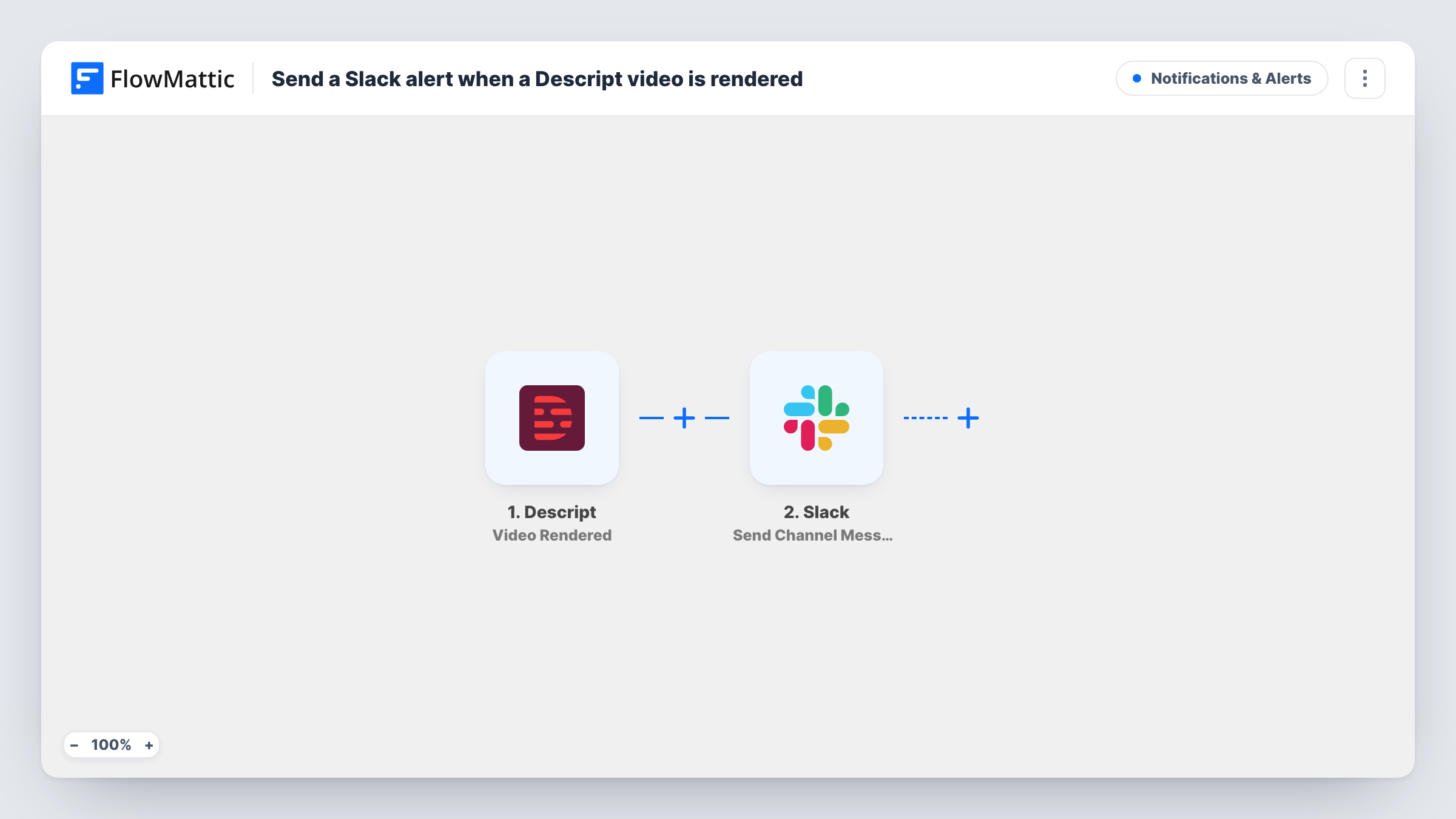
As soon as Descript finishes rendering a video recording, FlowMattic posts a message to the Slack channel you pick, so editors and reviewers know the file is ready without checking Descript.
 Descript
 Slack
2 steps Setup ~5 min Used on 1.9k sites Free to import
What this workflow does
Rendering a long edit in Descript takes a while, and people waiting on it either keep refreshing or forget to look. This workflow ends the waiting by telling a Slack channel the moment the render is done.
The Descript trigger, Video Rendered, fires when a video recording has been rendered. FlowMattic takes the details Descript sends about that render and hands them to Slack. The Send Channel Message step posts to the channel you choose, with a message you write and fill with values from the render event, such as the project or file name.
Each render produces one message. If you render the same project again after more edits, you get another post. There is no Filter in the template, so every rendered video in the connected Descript account sends a message.
Podcast video episodes ready for upload
The producer renders the episode in Descript, and the publishing channel in Slack gets a post saying it's ready, so whoever uploads to YouTube can start.
Client review rounds
An agency editor renders a revised cut, and the account manager sees the Slack message and sends the new version to the client.
Course lesson production
Each lesson rendered in Descript triggers a note in the course team's channel, so the person building the course knows which lesson to add next.
How this workflow runs
What happens at each step once the workflow is on, and what you need before you import it.
 Descript Video Rendered
Fires when Descript finishes rendering a video recording. The data Descript sends about the render is passed on so you can use it in the Slack message.
- Slack Send Channel Message
Sends a render notice into whichever Slack channel your video team watches. Write the text and insert values from the Descript render, then connect your Slack workspace on import.
What you need
- FlowMatticCore
- Descript AccountAccount
- Slack AccountAccount
After importing, map your own data. To keep the template universal, not every step is pre-filled. Open each step in the builder and connect your accounts and fields (channels, lists, sheets, recipients) before you switch the workflow on.
Make it yours
Changes worth making after you import it.
- Is the video team's channel private? Replace this step with Slack's Send Private Channel Message action, or use Send Direct Message when only one editor needs the render notice.
- Render a short test video after import so FlowMattic captures what Descript sends, then pick the values to show in the Slack message.
- Add a Filter after the trigger if only some renders matter, for example renders whose project name contains a client's name, once you've confirmed that value appears in a test run.
Questions about this workflow
Does every Descript render post to Slack?
Yes, as imported. Each Video Rendered event from your connected Descript account runs the workflow, including re-renders of the same project.
Can the Slack message include a link to the rendered video?
Only if Descript includes one in the render event. Check a test run to see which values arrive, and insert the link into the message if it's there.
Which Slack channels can this step post to?
Send Channel Message posts to a channel you choose in your workspace. Private channels need Slack's separate Send Private Channel Message action, which you can swap in for the render notice.
More Notifications & Alerts workflows
Other ready-to-import templates from the same category.





Import this workflow into your WordPress site
Download the JSON, import it from the Workflows screen and connect your accounts. Every run stays on your server, with no per-task fees.
30-day money-back guarantee Unlimited workflows and runs Self-hosted